¶ Operational Guide
Connecting the OneLaser Hydra to LightBurn via Wi-Fi allows stable, cable-free operation. By correctly setting the module mode, IP address, and LightBurn device configuration, users can ensure reliable communication and smoother workflow without USB limitations.
¶ Checking the Module Status
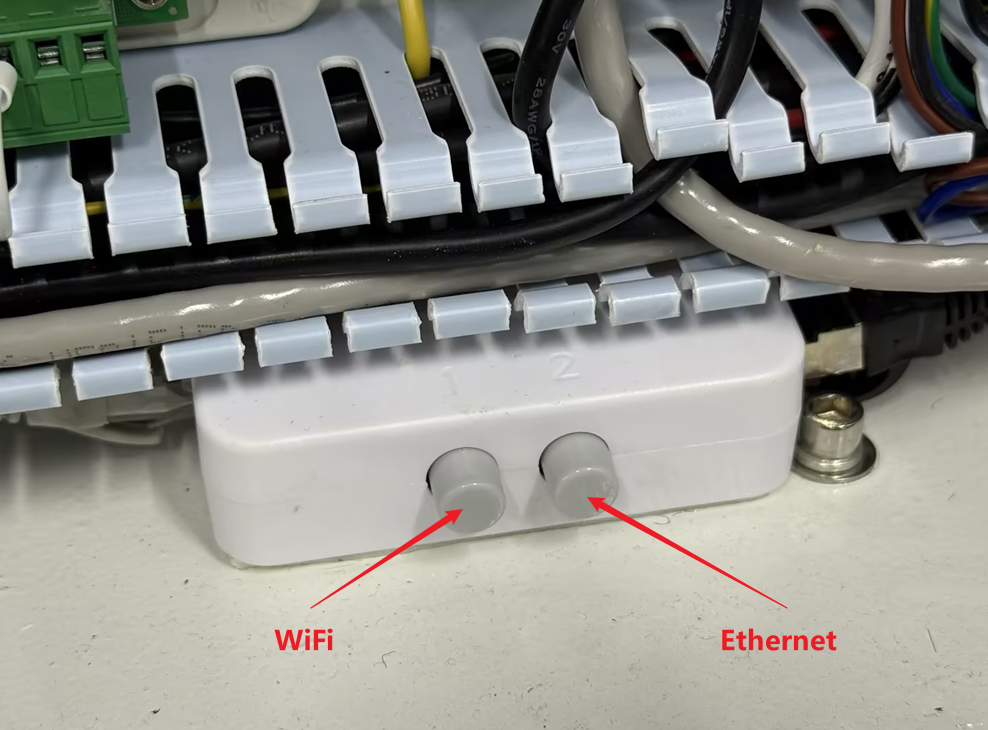
Step 1. Open the bottom right door panel of the Hydra machine to locate the switch module shown in the illustration.
Step 2. Confirm if the button 1 is currently pressed on the switch:
- When Button 1 is pressed, the Wi-Fi Module is engaged, allowing for Wi-Fi connectivity.
- When Button 2 is pressed, the LAN Port Mode is engaged, allowing for external Ethernet connectivity.
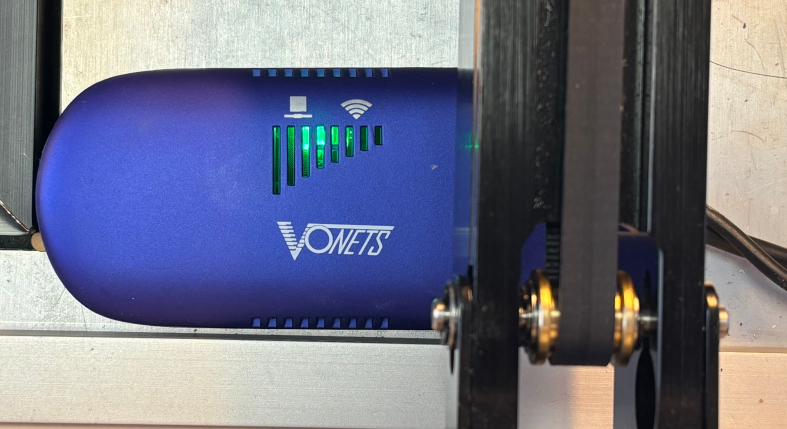
Step 3. Start the machine and confirm that the VONETS module is powered on.
¶ Connecting to the Machine's Hotspot
Step 1. Locate the Hydra's hotspot module in your computer's Wi-Fi connection list.
- Name: Hydra + Hotspot + the last five digits of the serial number (e.g. Hydra Hotspot 8A2B4)
- Default Password: 12345678
Step 2. Based on the hotspot's default IP address, you must change the controller board's IP address accordingly.
- The hotspot's default IP subnet is 192.168.254.xxx. Set Hydra's IP address within 192.168.254.xxx.
Important: When entering the IP address on the Hydra control panel, the xxx part of 192.168.254.xxx must not duplicate the IP address of the hotspot or any other machine on the network.
|
Mac:Open WiFi settings, view network details and locate IP address. 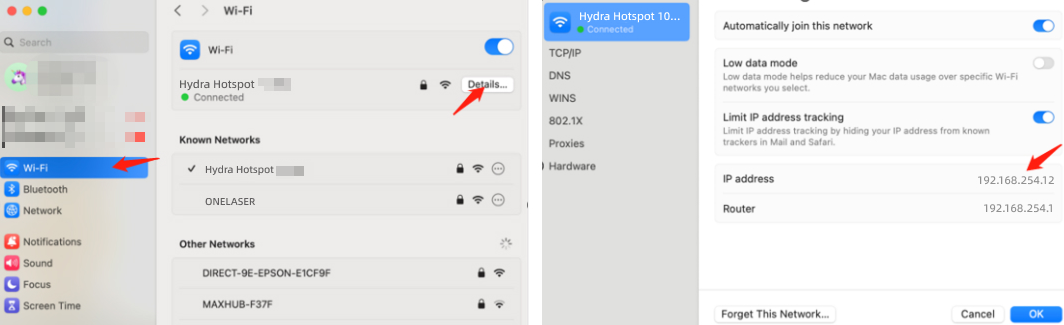 |
|
Win:Open Command Prompt, type ipconfig and check the IPv4 address. 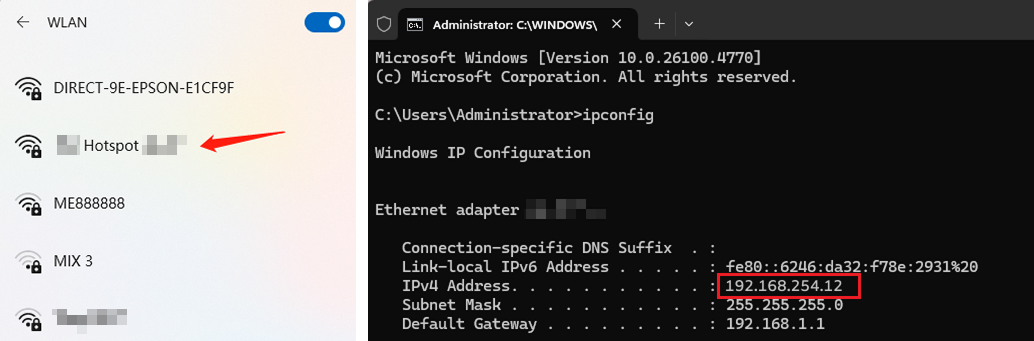 |
|
How to modifying Hydra IP address? 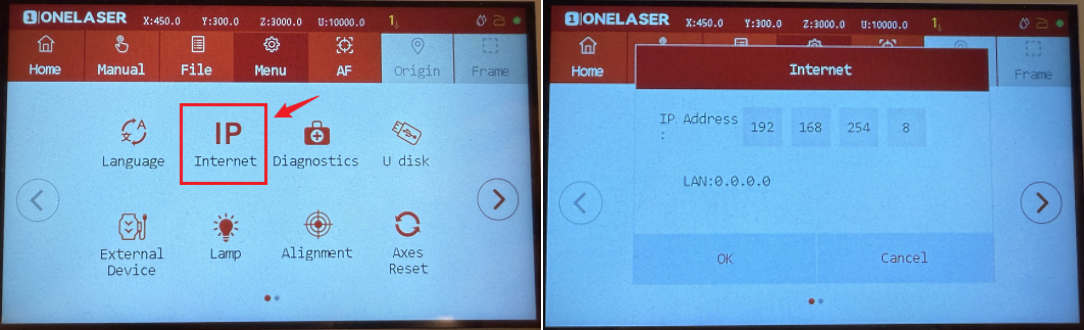 |
The Hydra hotspot does not support internet access. After connecting, your computer will be unable to access the internet. To enable basic internet functionality while connected, we will provide instructions on how to bridge the connection to an upstream router (the user's normal internet-enabled Wi-Fi). Once the initial configuration is complete, the computer can subsequently connect to the Hydra directly through the user's usual Wi-Fi network.
¶ Bridging to an Upstream Router
Step 1. Connect your computer normally to the Hydra's hotspot module.
- Name: Hydra + Hotspot + the last five digits of the serial number (e.g. Hydra Hotspot 8A2B4)
- Default Password: 12345678
Important: During the bridging process, you must only be connected to the Hydra's hotspot module. Do not connect to any other Wi-Fi or network.
Step 2. Open your browser and enter 192.168.254.254 (or http://vonets.cfg).

Step 3. Enter the username and password, then click Wizard.
- Username: admin
- Password: admin
Step 4. Click Scan Hotspots and select your upstream Wi-Fi.
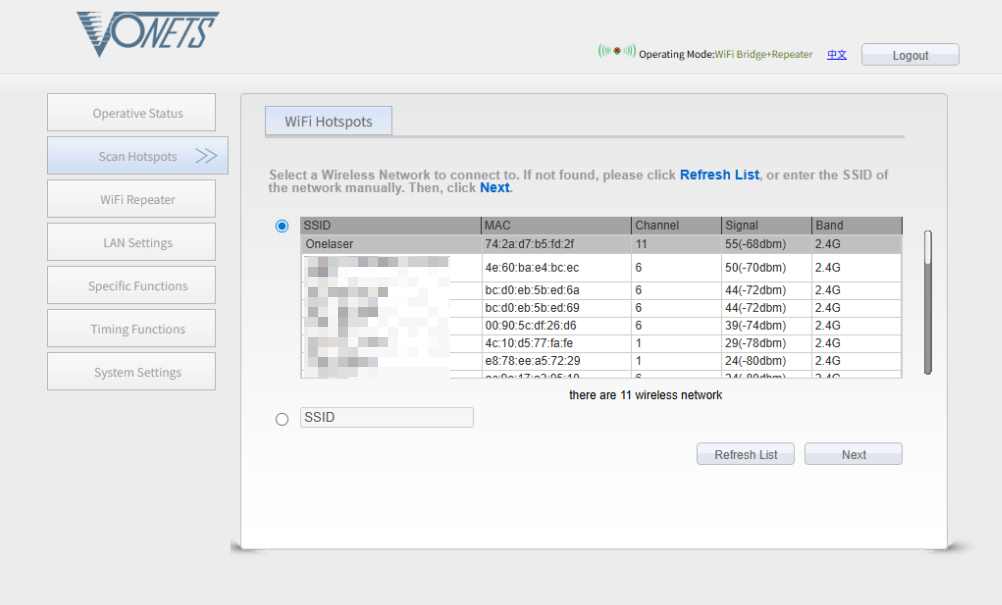
Step 5. Enter the Wi-Fi password, check Disable Hotspot, and click Apply.
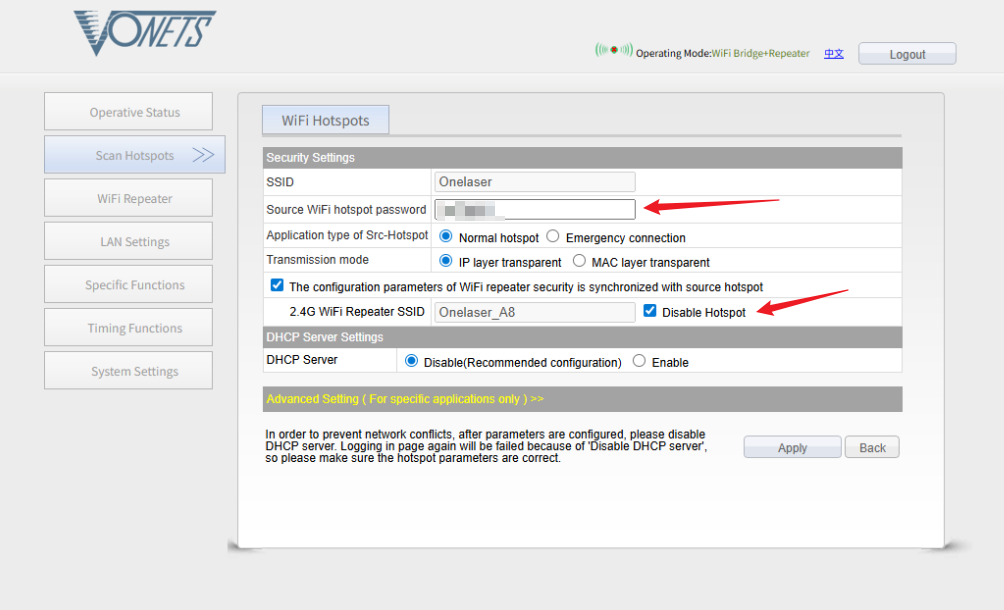
Step 6. Click Reboot to apply the settings.
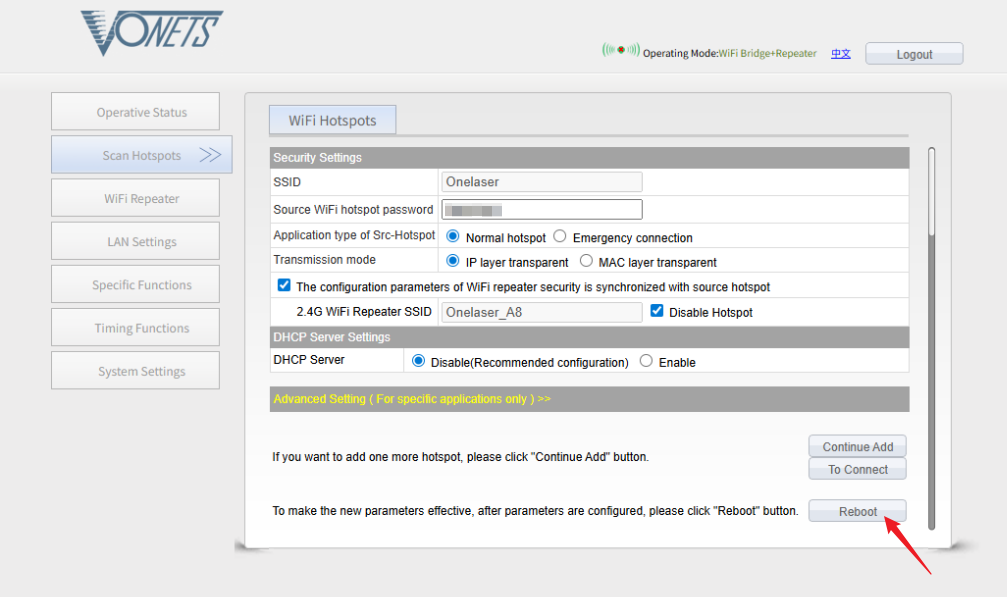
Step 7. Connect to Hydra through the upstream Wi-Fi and verify the new IP address.
¶ Connecting the Machine in Lightburn
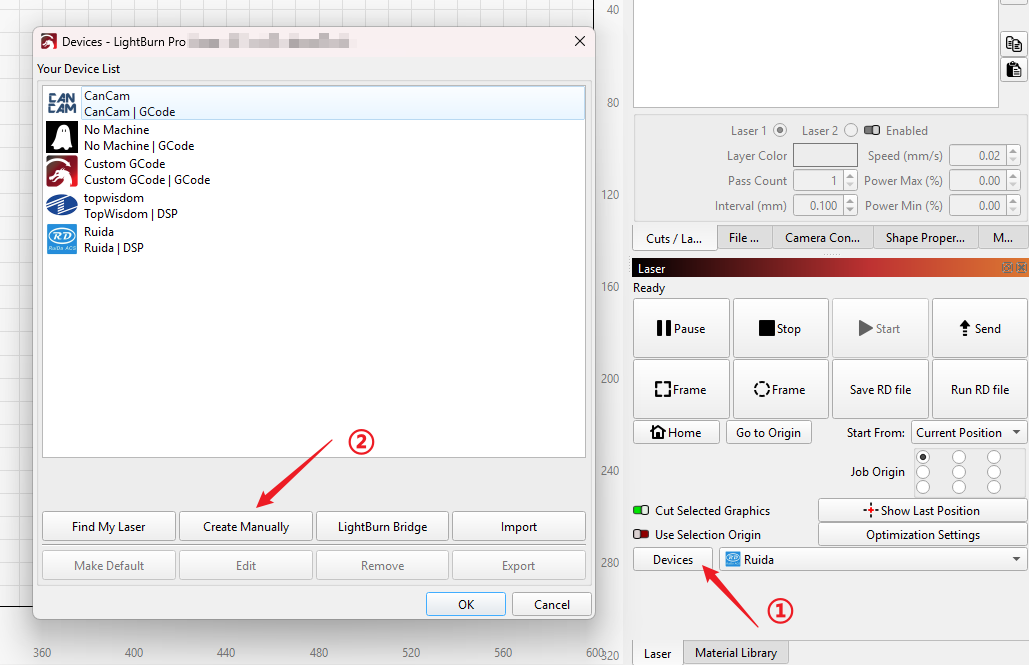
Step 1. Open LightBurn and click Devices → Create Manually.
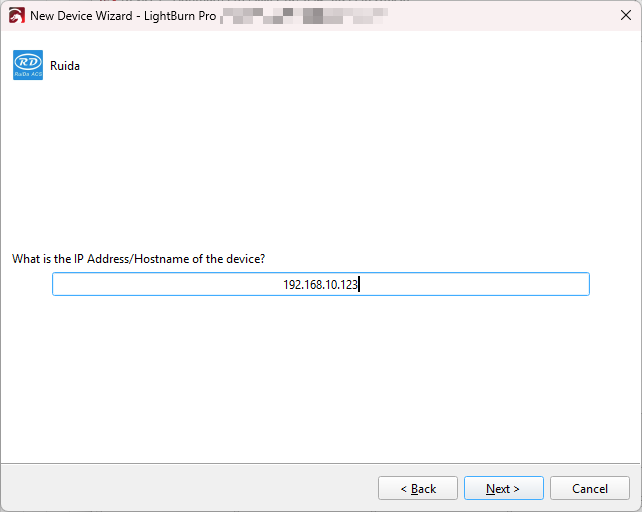
Step 2. Enter the correct IP address during setup.
Step 3. The setup and connection are now complete.
¶ Troubleshooting
1. Cannot Connect to Hydra While on Bridged Wi-Fi?
Enable Wi-Fi 4/5 compatibility if using a Wi-Fi 6 router.
2. Computer Cannot Access the Internet?
Reduce distance between the computer and the upstream router.
3. Restore VONETS Module to Factory Settings
Hold the reset button for 5 seconds after power-on.
Important Reminder:
If the issue persists, please submit a support ticket for further assistance.