¶ First Mirror Mount Fails to Elevate After Rotary Usage - Hydra Series
On dual-source Hydra Series machines, switching between rotary attachment usage and standard RF tube processing relies on an automated motorized mirror elevation mechanism. If the First Mirror (M1) mount remains stuck in the lowered position after disconnecting your rotary, the RF laser beam will be blocked from entering the optical path. This guide provides step-by-step instructions to restore proper mirror elevation through correct software sequencing, hardware checks, and driver verification.
¶ Problem Description
After using the rotary and processing with the RF tube again, no laser exits the laser head nozzle. Upon inspecting the first mirror assembly, the mirror mount is found stuck in the lowered position, causing the RF laser to hit and reflect directly off the machine's metal backplate.
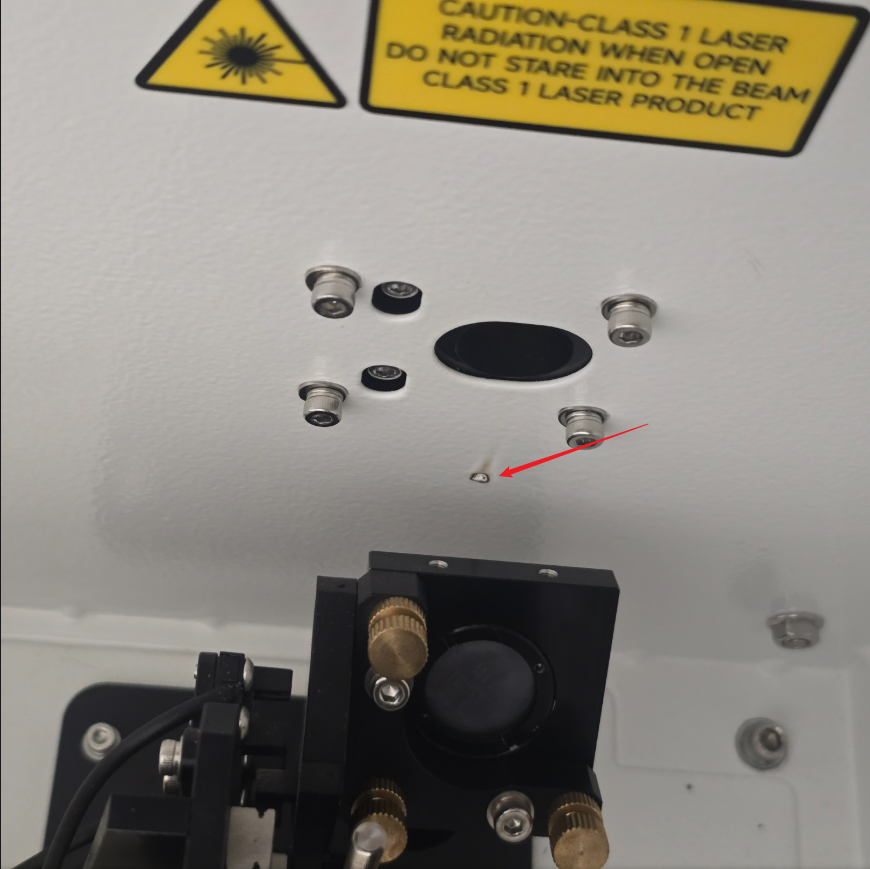
¶ Cause
- The rotary mode switch was not toggled off in the required procedural sequence after rotary operation.
- Loose wiring connections or unseated plugs between the mount elevation motor, motor driver, and autofocus board.
- Incorrect DIP switch settings on the motor driver.
- The mirror elevation motor is damaged, or its lead screw is bent.
¶ Solution
¶ Method 1. Verify the Rotary Toggle Sequence
After using the rotary, you must exit rotary mode using the following exact sequence:
Turn the physical rotary toggle switch on the side of the machine back ON.
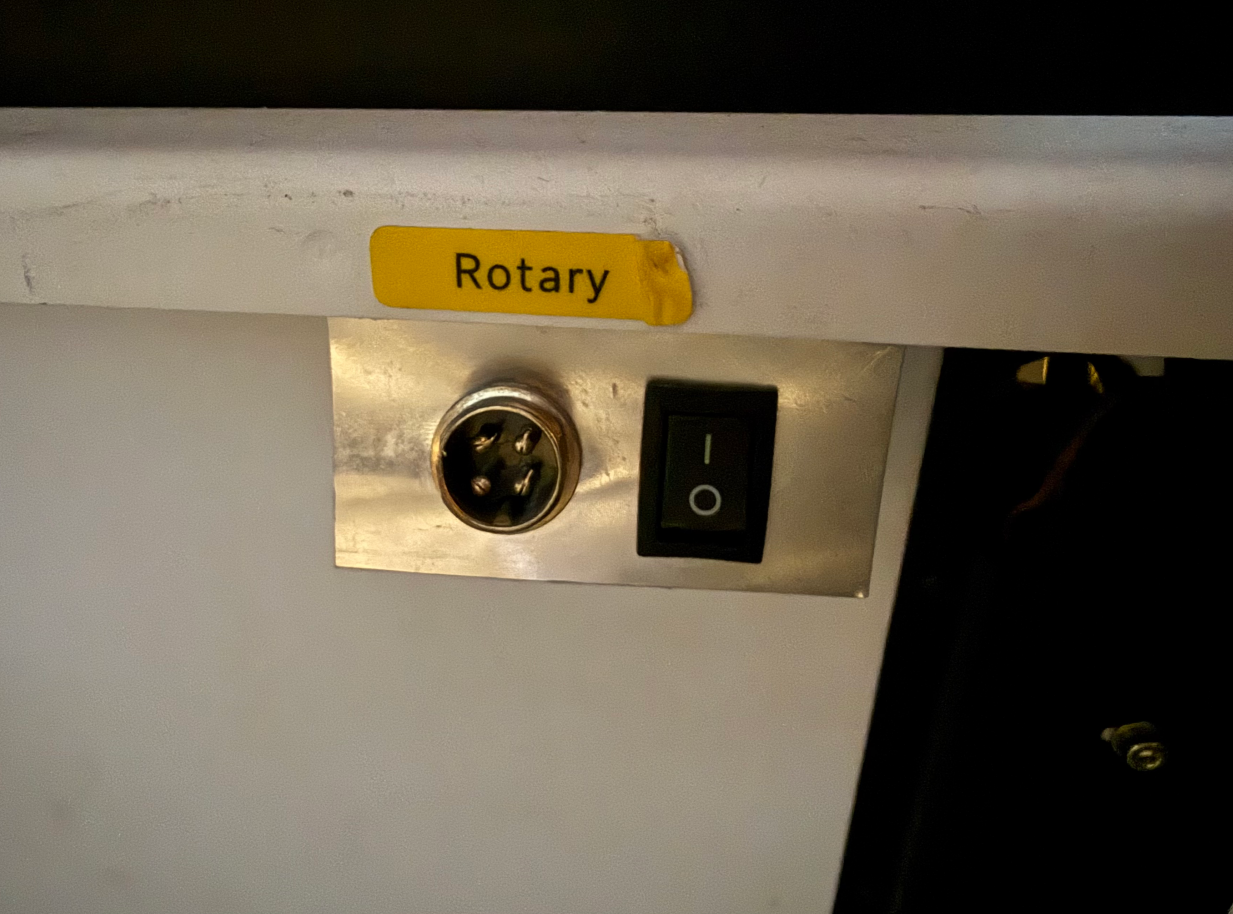
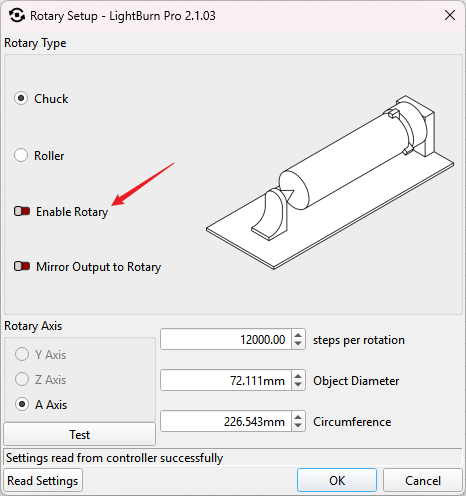
Open Rotary Setup in LightBurn and toggle the Enable Rotary option to OFF.
Turn the physical rotary toggle switch on the side of the machine OFF. Test the machine to see if the M1 mirror mount now elevates and functions properly.
¶ Method 2. Inspect Elevation Assembly Components
¶ Step 1. Inspect the Mirror Elevation Motor and Lead Screw
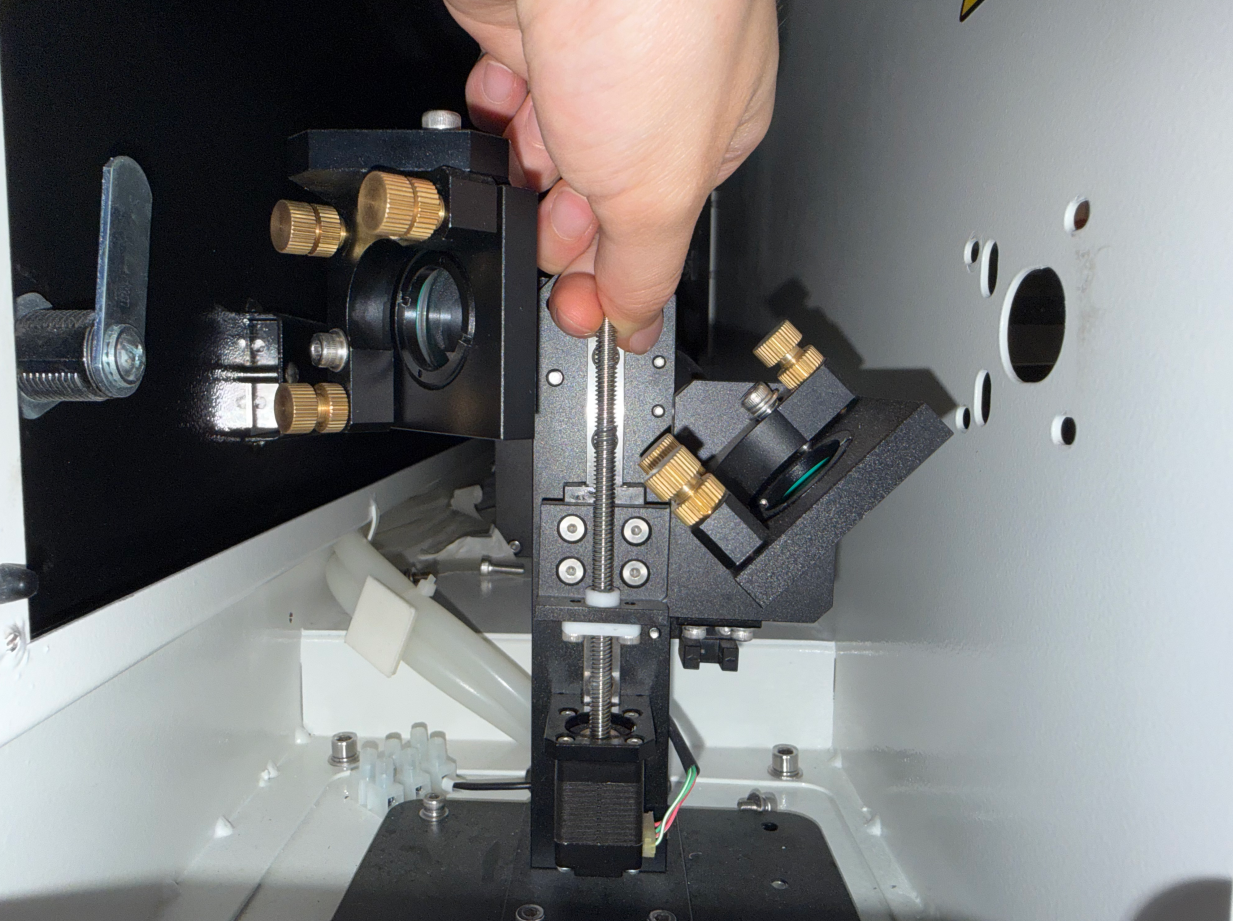
Power OFF the equipment completely. Manually rotate the motor lead screw clockwise and counterclockwise by hand. Check if the mirror mount binds, or stutters at any point along its vertical travel. If binding occurs due to a bent lead screw, the motor assembly must be replaced.
Note: If the driver and wiring pass inspection, a non-responsive mount may also indicate a damaged motor requiring replacement.
¶ Step 2. Inspect the Motor Driver
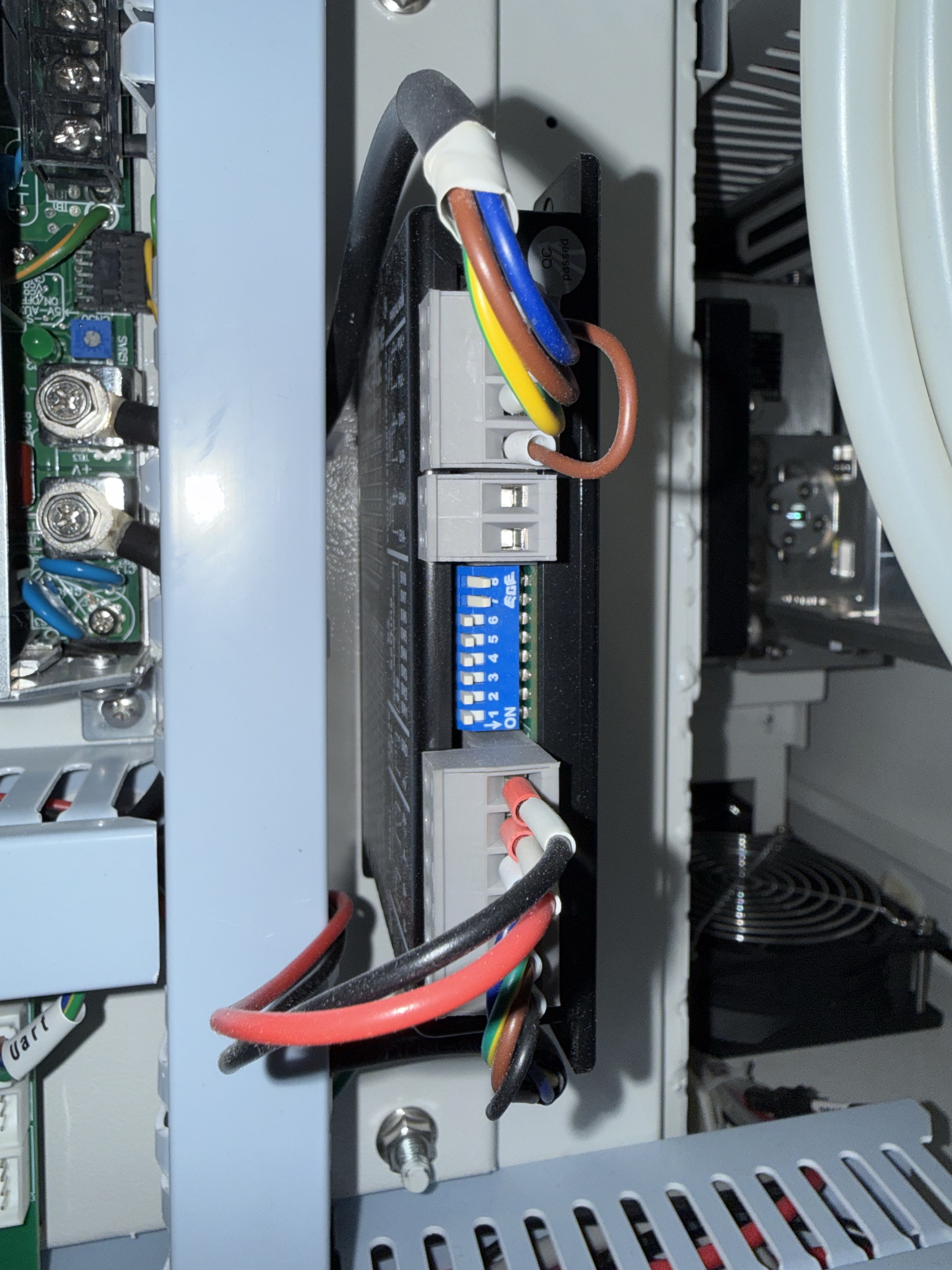
Open the lower-right access door on the back of the machine to locate the motor driver. Check the diagnostic LED indicator on the driver (a green light indicates normal operation) and verify that the DIP switches on the driver are correctly toggled to positions 7 and 8.
¶ Step 3. Check Cable and Terminal Connections
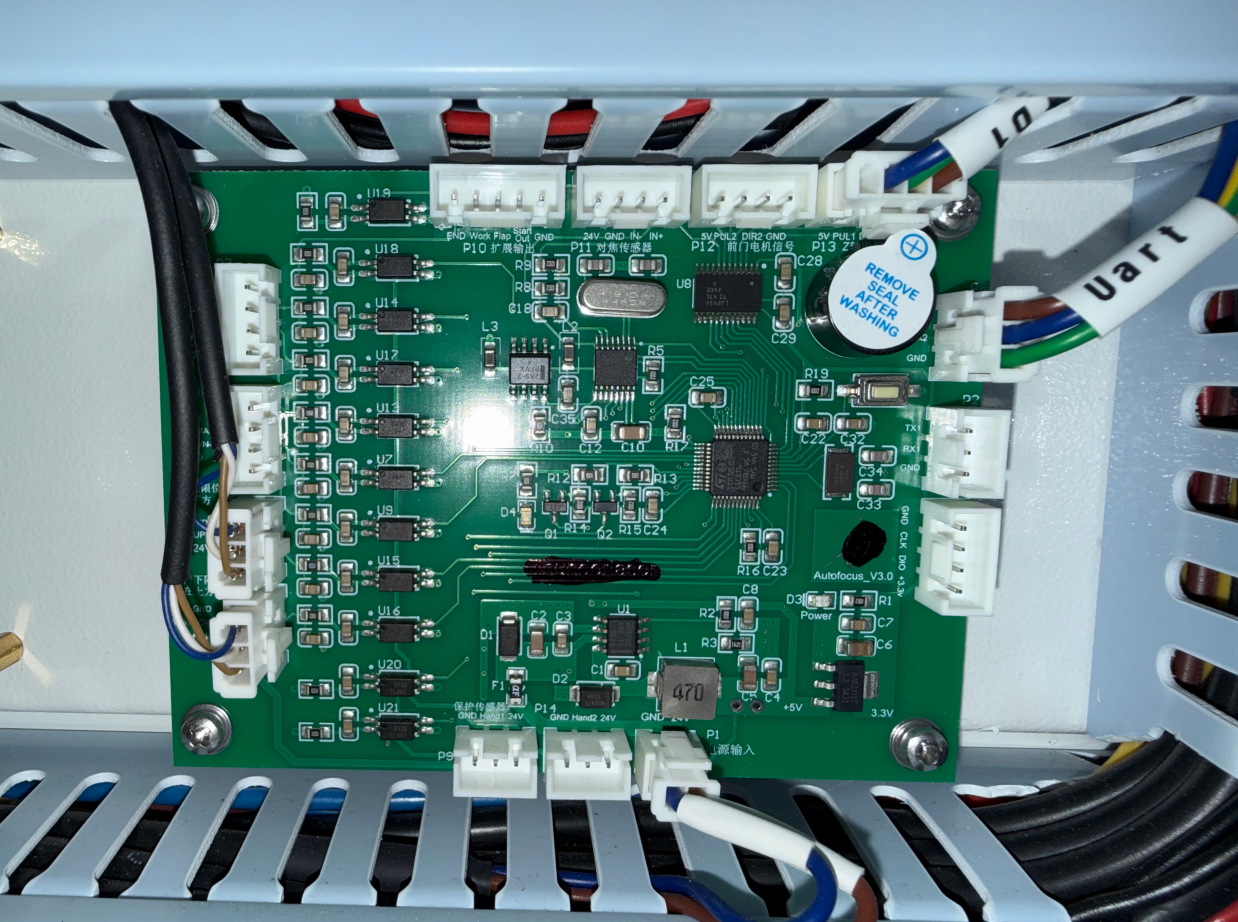
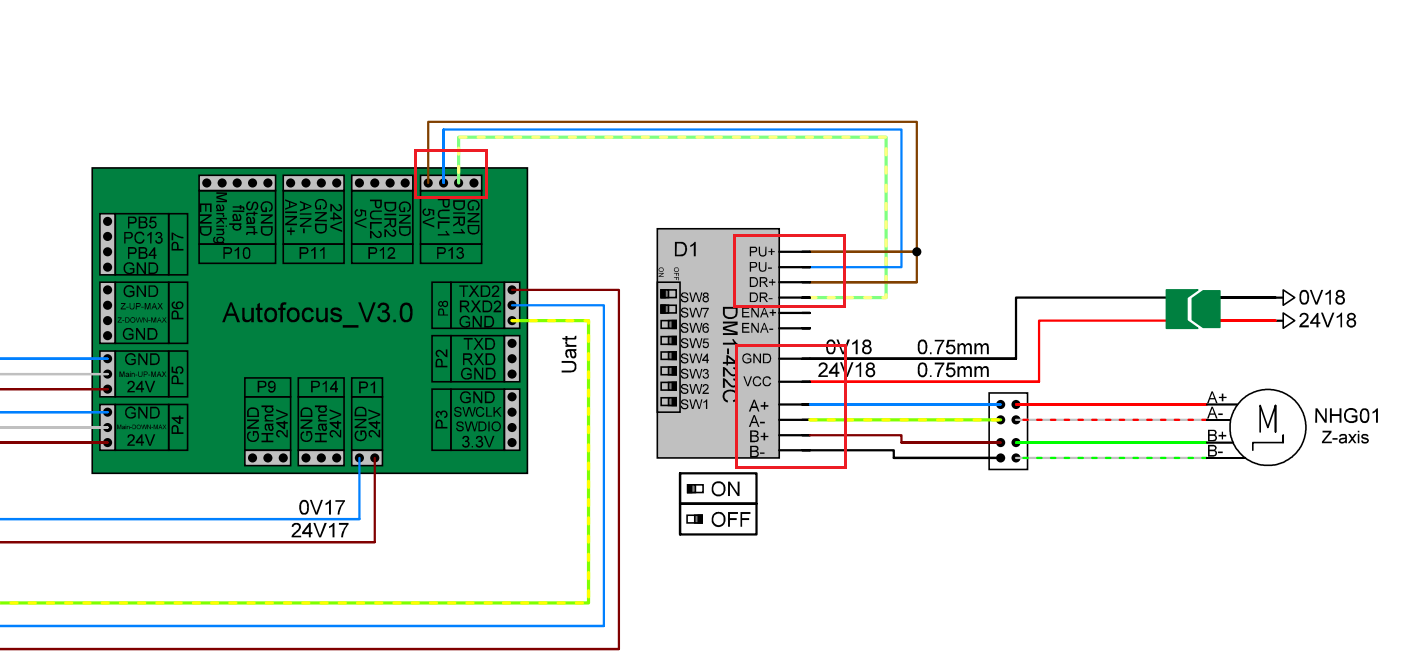
Inspect all wiring harnesses and connectors along the circuit path—from the autofocus board, motor driver to the M1 mount motor—to ensure no plugs have vibrated loose.
|
 |
Important Reminder:
If these steps do not resolve the issue, please submit a support ticket on ZOHO: https://zohodesk.1laser.com/portal/en/newticket. A technician will then be able to conduct a more in-depth diagnosis and resolve your problem.