¶ Laser Head Stops Suddenly with Servo Driver Error Er190 - Hydra GEN2 Series
This guide explains how to diagnose and fix the Servo Driver Er190 error on ONELASER machines. If the laser head suddenly stops during processing and the servo driver displays the Er190 alarm, this article will help you identify whether the issue is caused by mechanical vibration, belt tension, loose structural components, or incorrect servo driver parameters.
¶ Problem Description
- During processing, the laser head suddenly stops moving while running at low speeds. Upon inspecting the servo motor drivers inside the bottom-right door panel of the machine, the driver screen displays the error code Er190. Rebooting the equipment clears the error, but running the machine causes the driver to trigger the same error.
- When the laser head moves along the X-axis and passes through a specific point, the belt vibrates violently at a very high frequency. Once the laser head moves past that specific point, the vibration stops immediately.
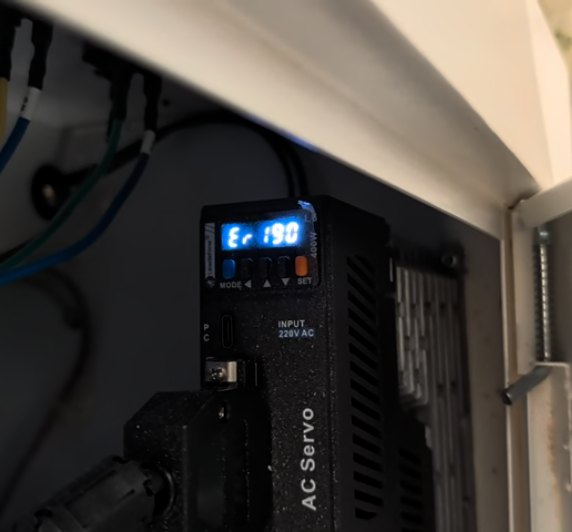
¶ Cause
According to the servo system manual, the Er190 error typically caused by:
- Mechanical resonance.
- Excessive current loop gain.
- The current vibration threshold being set too low.
In the actual operating environment of this machine, the most probable cause is low-frequency mechanical vibration.
¶ Solution
¶ Method 1. Check the Machine Hardware
¶ Step 1. Loosen the belt and test again
Slightly loosen the tension of the motion belt, then run a normal processing job to let the motor move. If the Er190 error does not reappear, it confirms that the root cause is mechanical tension/vibration rather than a fault inside the servo system itself.
¶ Step 2. Inspect the machine for loose structural parts
Check the entire machine for any loose components (including the machine casing, joints, and internal components). Focus heavily on the motion system—such as the belts, rails, gantry, and couplings—to ensure all components are properly tightened. Afterward, restart the machine and check if the error is resolved.
¶ Method 2. Modify Speed Loop Gain Parameters
Power on the machine and wait until the servo driver screen displays "r 0".
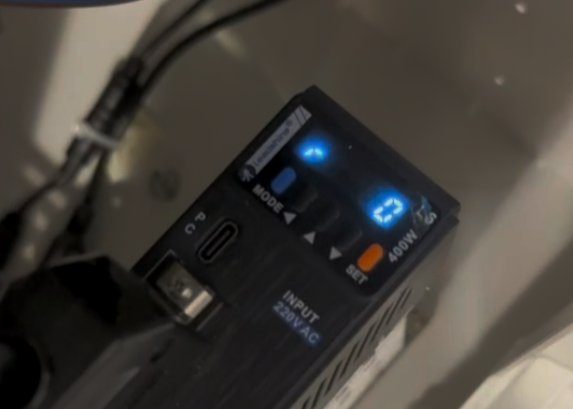
Press the red "SET" button; the screen will display "d01SP".
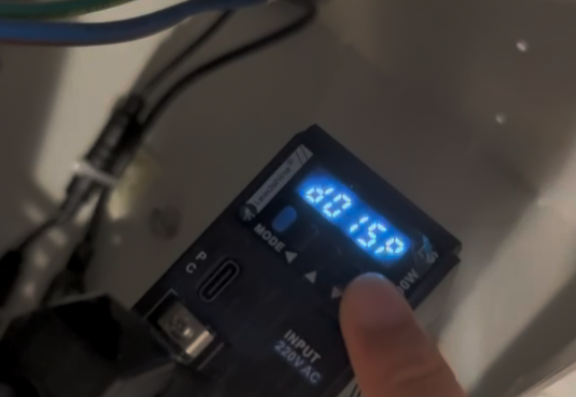
Press the blue "MODE" button; the screen will display "P00.00".
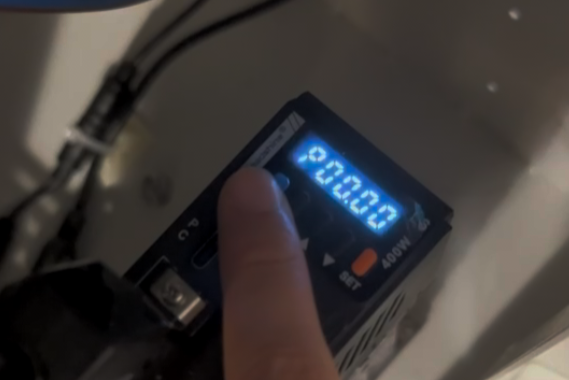
Use the arrow buttons ("◀/▲/▼") to change the parameter code to "P01.01".
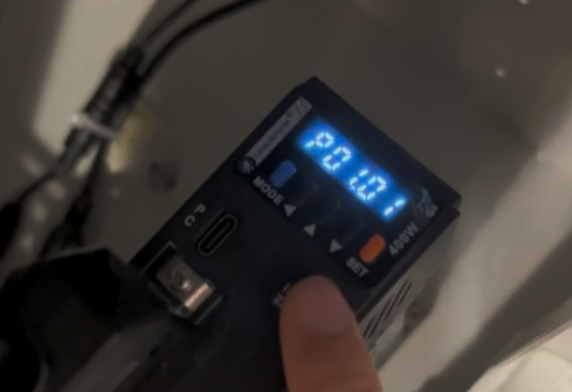
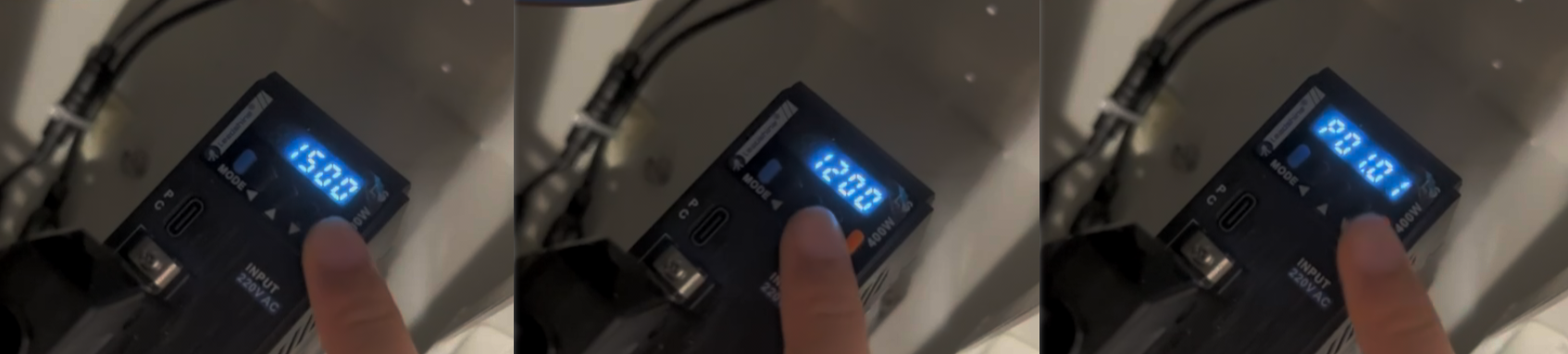
Press the red "SET" button, change the parameter value 1500 to 1200, and then press the "SET" again to return to the parameter code menu. The driver will automatically save the modified parameter.
¶ Method 3. Enable Motor Adaptive Notch Filtering
If the machine exhibits the exact symptoms described above, it indicates that this specific position is a mechanical resonance point. You can automatically suppress this resonance by enabling the servo driver's adaptive notch filter function:
- Check the driver parameter "P02.00" (Adaptive Notch Filter Mode Setting) and set this parameter value to "1" to turn the adaptive mode ON.
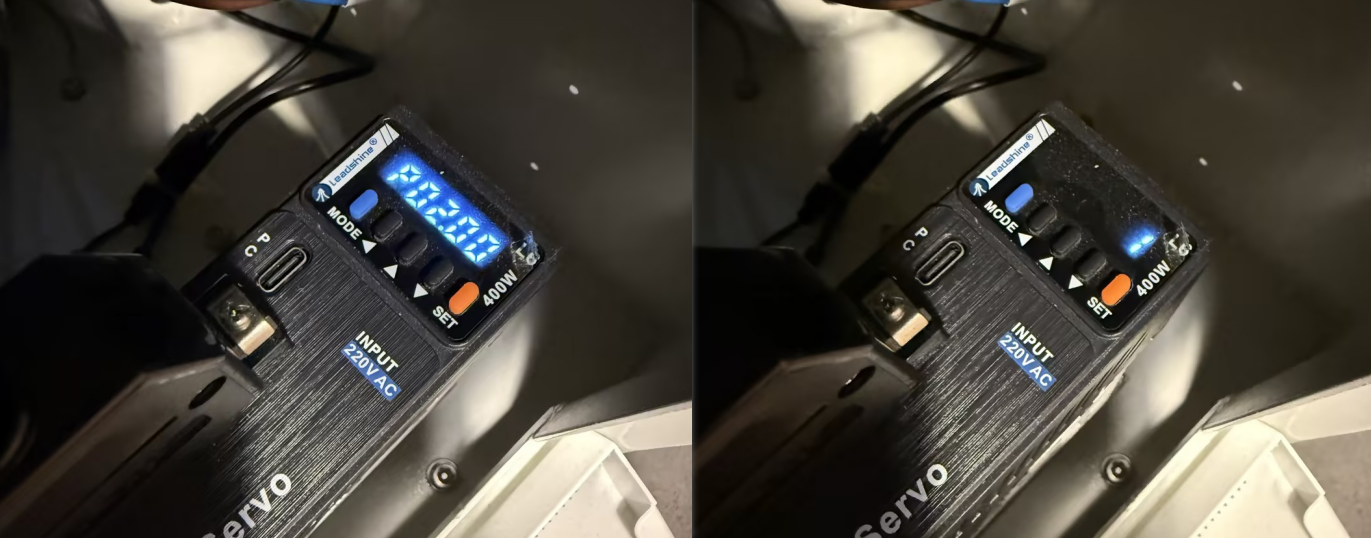
- With this mode enabled, run the laser head back and forth through the resonance point 2 to 3 times. This process allows the servo motor to automatically detect the resonance frequency at that specific location and lower the gain for that frequency band, adapting the notch filter to eliminate the shaking.
Afterward, run a normal test job to see if the high-frequency vibration has disappeared and verify if the Er190 error code is resolved.
Important Reminder:
If these steps do not resolve the issue, please click this link to submit a support ticket: https://zohodesk.1laser.com/portal/en/newticket. A technician will then be able to conduct a more in-depth diagnosis and resolve your problem.