¶ Touchscreen Function Introduction
This guide provides a complete overview of the touchscreen control panel and the function of each button. It helps users understand the interface, navigate different pages, and operate the machine efficiently during setup, manual control, and job processing.
¶ Introduction
This document offers a comprehensive guide to the functions of each button on the control panel, ensuring a thorough understanding of their operations.
¶ How to use the display
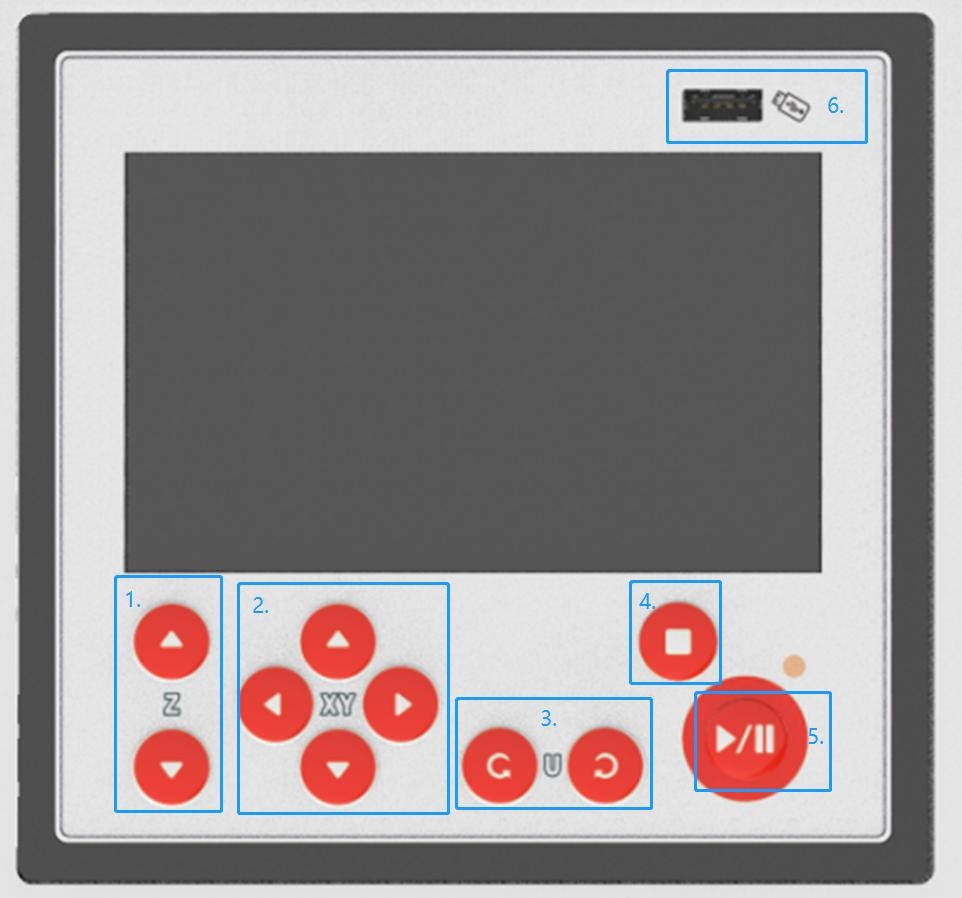
| Z axis button: Control the table to move in Z axis | Direction button: Control the laser head to move in X and Y axis |
| U axis button: Control the rotation of the rotary fixture | Esc button: Exit the current state |
| Pause/Start button: Pause/start the current job |
¶ Home page
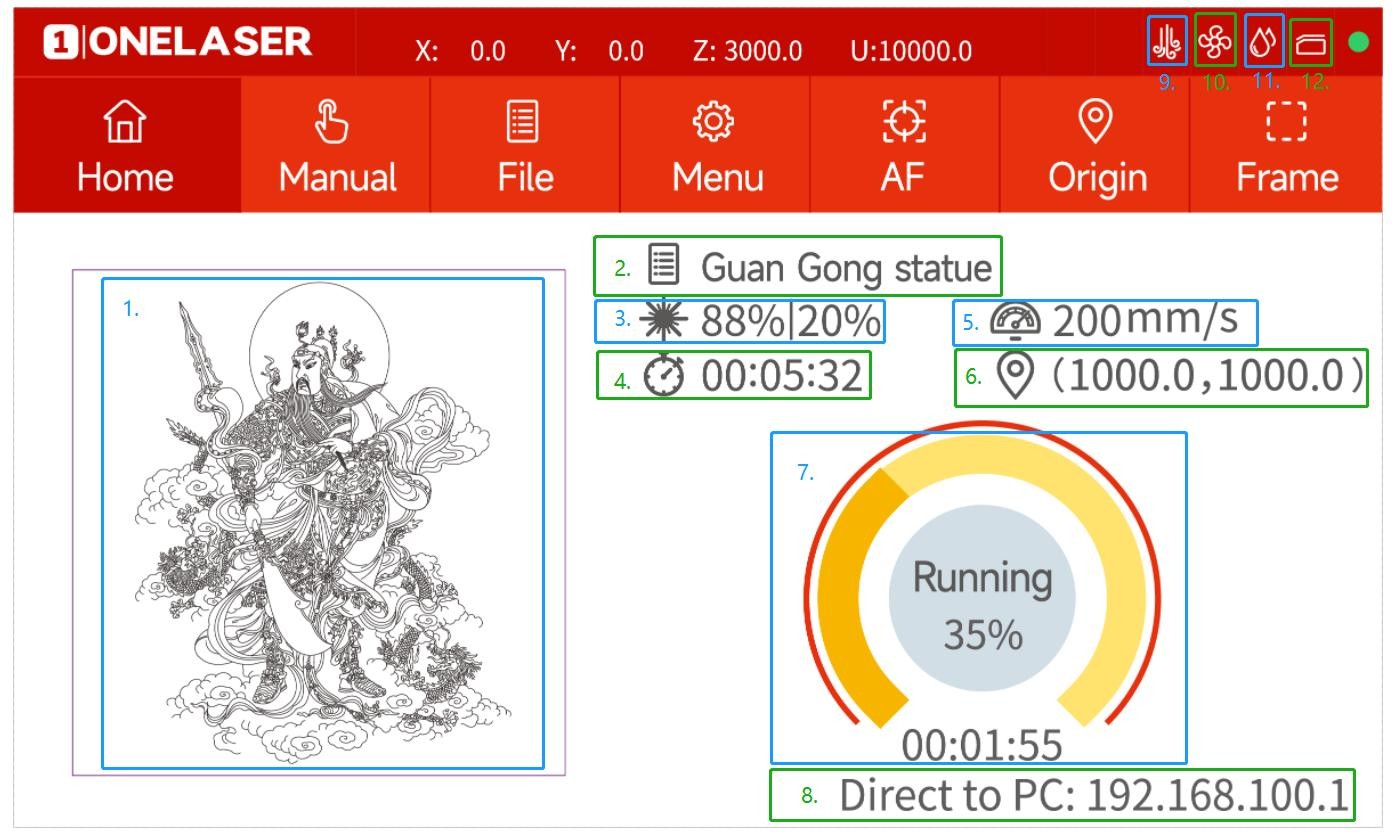
| Preview image: Preview effect of the current file | Name: The name of the file |
| Power setting: Max power and min power | Working time: The running time of this job |
| Speed setting: Running speed of your job | Coordinates: The coordinate of origin you set |
| Processing progress: Check the processing status of the job | IP address: Show the IP address of machine |
| Air assist: It will be displayed when the machine is in standard mode. Intelligent mode as default settings | Exhaust: It will be displayed when the machine is in standard mode |
| Water protection: Only for DC tubes | Door protection status: All doors are closed when it’s gray. It’s red when a door is opened |
¶ Manual page
This screen will show the manual buttons and the functions for adjusting the speed of the axes.
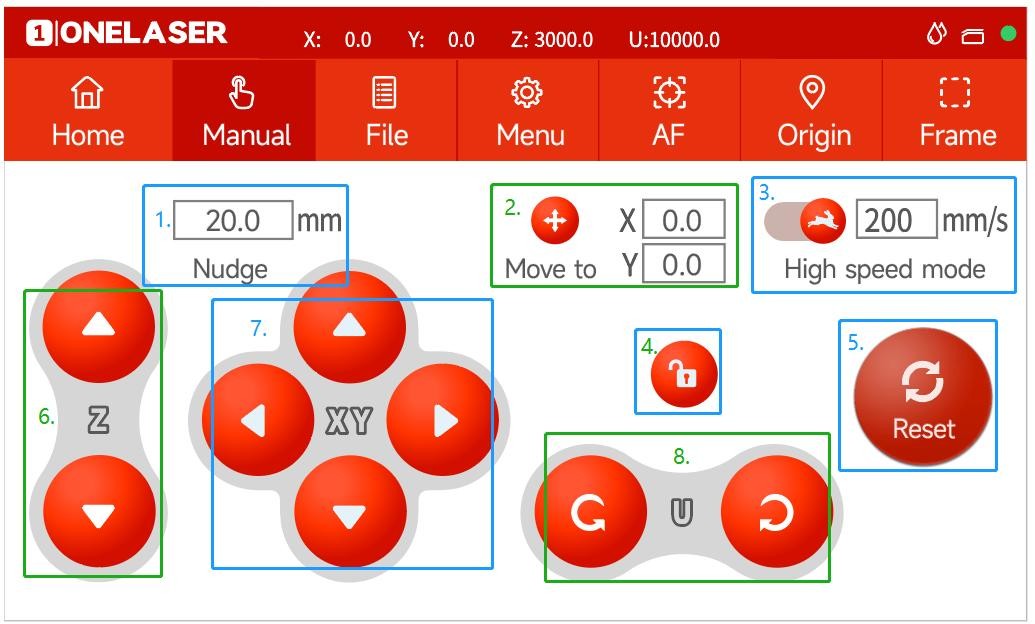
| Nudge: Set the travel distance when moving each axis manually | Target position: Set a coordinate, then the laser head will move to here |
| Mobile mode: Change the mode | Lock button: Lock or unlock the manual buttons |
| Reset button: To reset X/Y axes | Z axis button: Control the table to move in Z-axis |
| Direction button: Control the laser head to move in X and Y axis | Spare button |
¶ File page
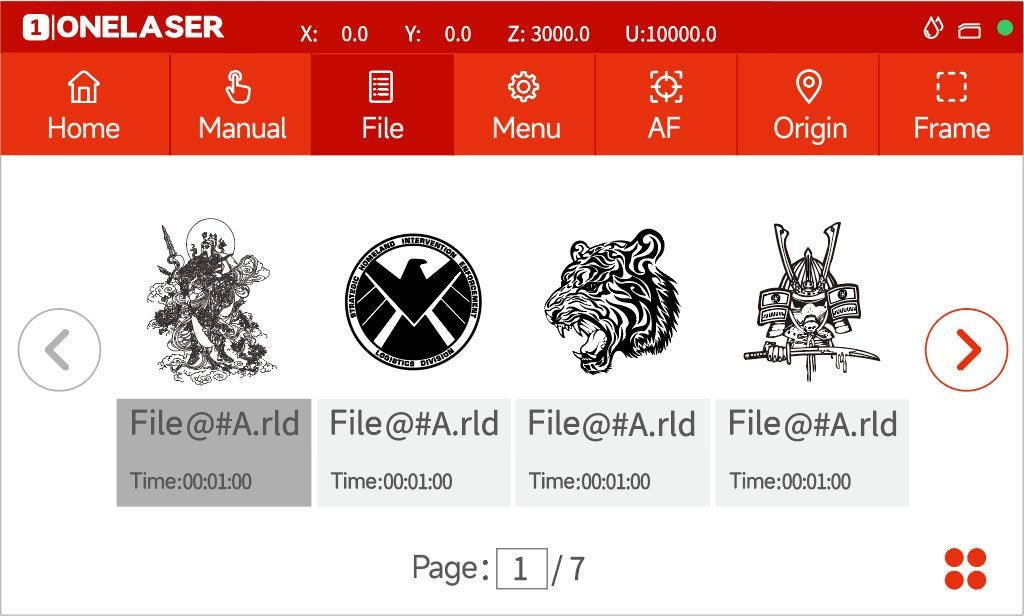
This screen will display the file details, where you can select the corresponding file and modify the speed or power parameters of the file.
 |
Settings: Check more settings of file |
 |
Select and hold a file for 2 seconds to select it to run |
¶ Menu page
This interface will show more features such as language, Internet and so on.
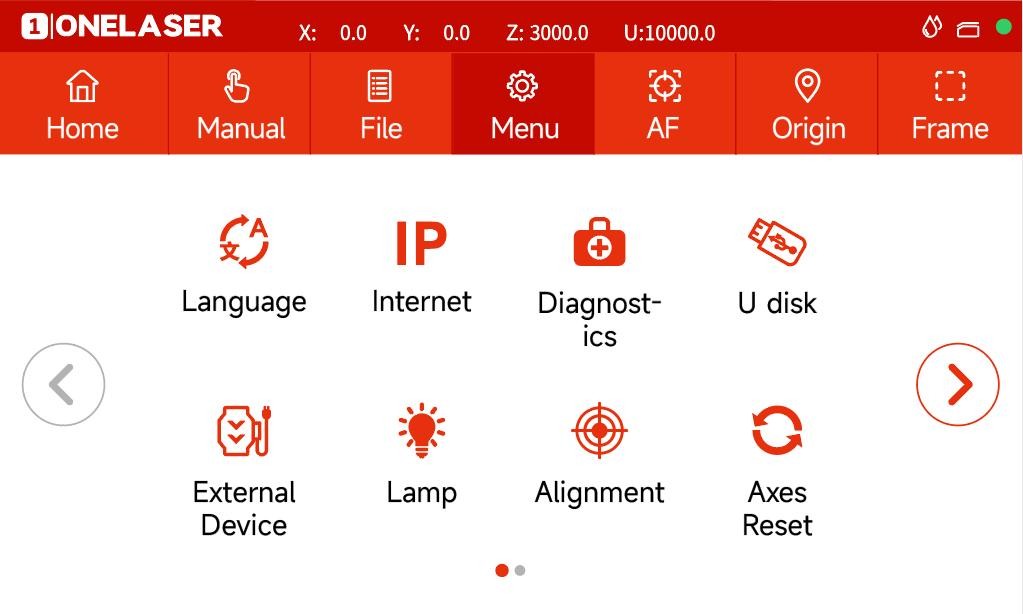
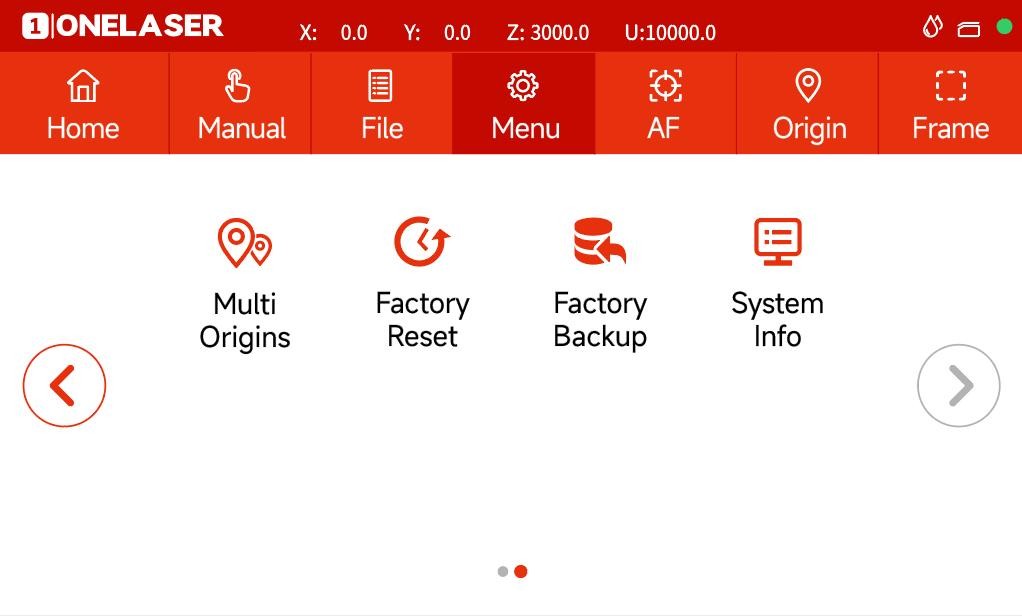
| Language: Change the language of panel | Internet: Set the IP address |
| Diagnostics: the “ Diagnostics ” interface shows some system input information, such as limiter status, and the status of the door protection etc | U disk: Upload files via U-disk |
| External Device: Switch the intelligent and standard mode. And set delay time for exhaust and air assist time | Lamp: Adjust the brightness of led lamp |
| Alignment: Check and adjust the laser beam | Axes Reset: Reset all axes |
| Multi Origins: Set multi origins | Factory Reset: Reset the vendor settings |
| Factory Backup: Set the current setting as vendor settings | System Info: Check all info of your laser |
¶ Others
 |
Auto focus button: Click this button to auto focus after placing the materials on working bed |
 |
Origin button: Click this button after selecting a file |
 |
Frame button: Click it to run a frame of your file after setting an origin |
Important Reminder:
If these steps do not resolve the issue, please submit a support ticket. A technician will then be able to conduct a more in-depth diagnosis.