¶ Air Assist Fails to Turn Off After Job Completion - Cobra Series
Air assist is essential for blowing away soot and suppressing flare-ups during laser processing. However, if your air pump continues to run indefinitely long after your project has finished, it causes unnecessary noise, wear, and power consumption. This guide explains why your air assist pump fails to shut off automatically and provides a quick fix along with a breakdown of your machine's air assist operating logic.
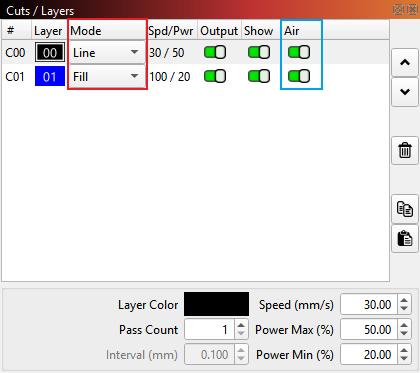
The layer settings are configured to keep air assist ON during cutting layers in Lightburn. The laser turns on air assist correctly when cutting begins. However, after the entire processing job finishes, the air assist remains running continuously and fails to shut off even after 10–15 minutes.
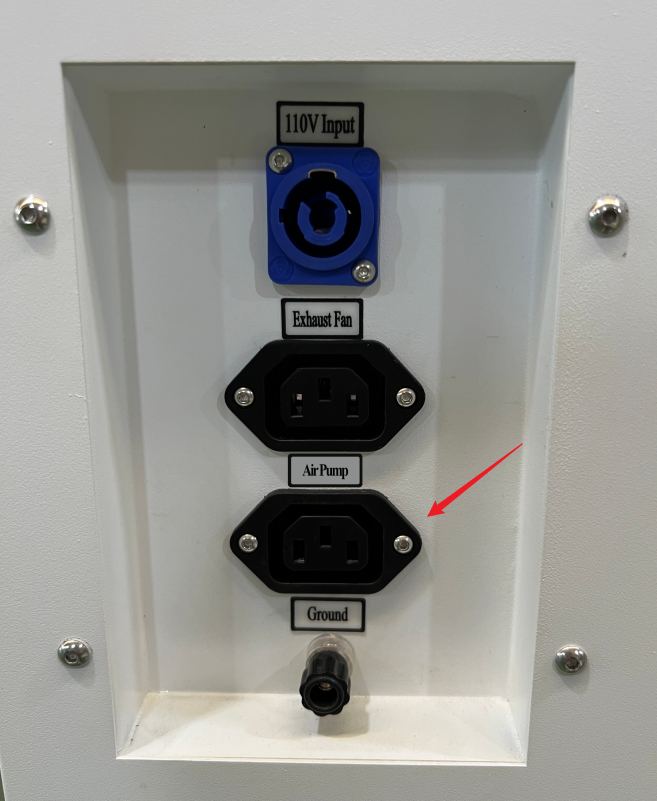
The air pump is currently plugged into an external outlet rather than the machine's dedicated power port. While the machine's internal solenoid valve can toggle airflow routing, it cannot cut power to an independently powered external pump. Consequently, the air pump continues running indefinitely after the job completes.
Plug the air pump's power cable directly into the dedicated air pump power socket located on the rear panel of the machine. This routing allows the mainboard's internal relay to automatically control power state switching alongside job execution. Then run a test job to verify normal shutoff functionality.
Air Assist Operating Logic:
1. Airflow Intensity by Layer Type: Airflow strength is governed automatically by the active layer operation rather than the toggle switch in LightBurn. Engraving layers trigger low airflow, whereas Cutting layers trigger high airflow. Toggling the "Air Assist" switch ON/OFF within LightBurn layer properties will not override this native behavior.
2. Post-Job Smoke Purge Delay: After a job finishes, the equipment is programmed to keep the air pump running for approximately 20 seconds before switching off to purge any residual smoke and fumes from the work area.
Important Reminder:
If these steps do not resolve the issue, please submit a support ticket on ZOHO: https://zohodesk.1laser.com/portal/en/newticket. A technician will then be able to conduct a more in-depth diagnosis and resolve your problem.