¶ The Processing Result and the Camera Overlay are Offset
This guide explains how to troubleshoot and fix issues where the processed result does not align with the camera overlay in your laser software. If your engraving or cutting result shifts from the intended position, this typically indicates configuration, calibration, or mechanical inconsistencies. Follow the steps below to restore precise alignment.
¶ Problem Description
After positioning a graphic in the Overlay view and completing the job, clicking "Update Overlay" again reveals that the actual processed position does not perfectly align with the digital graphic (a mismatch of 1/4" to 1/2").
¶ Cause
- Incorrect "Start From" Mode: The origin mode was changed manually after the overlay was captured.
- Mechanical Instability: ①The camera or lid is not securely mounted. ②The lid was closed at a different angle between the first and second overlay captures.
- Material Thickness Change: Using materials of different heights without recalibrating (especially on X-Series machines without adjustable worktables).
- Calibration Inaccuracy: The initial camera calibration was not precise enough or lighting conditions have changed.
¶ Solution
¶ Method 1. Check the "Start From" Settings
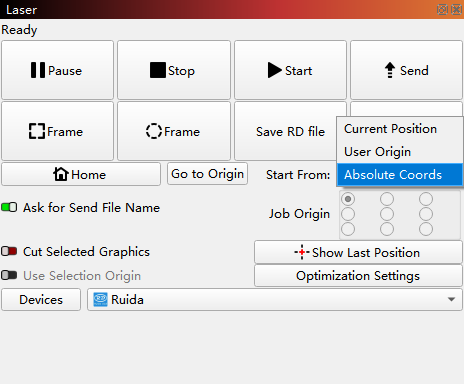
When you press Update Overlay, the Start From mode in the Laser Window is automatically set to Absolute Coords. As long as this mode remains selected, anything you place in the LightBurn grid will be output in the corresponding location in your machine's work area. Position graphics over objects captured in the Overlay to engrave or cut directly on them.
If you switch to an alternative Start From mode, your graphics will no longer be aligned to the objects visible in your Overlay.
¶ Method 2. Inspect the Lid and Camera Mounting
Ensure the lid is closed firmly and consistently for every capture. Even a slight gap in the lid closure can cause a significant offset.
Verify that the lid hinges are tight and the camera module itself is not loose or wobbling within its housing.
¶ Method 3. Maintain Consistent Material Thickness
On the X-Series, the worktable height is fixed. If you switch from a thin material to a thick one, the perspective of the camera changes, leading to an alignment offset.
¶ Method 4. Recalibrate the Camera
¶ Step 1. Fine-tune via the Camera Window
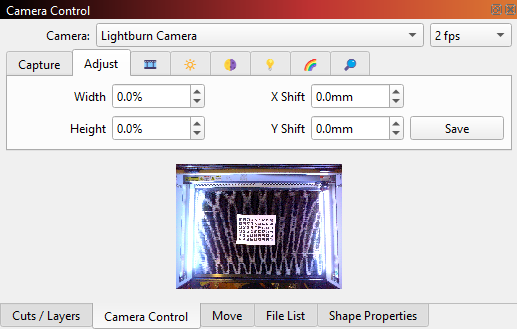
If the alignment is "close but not perfect," you can use the manual adjustment tools in the Camera Control tab:
- Width/Height: Adjust the scale of the captured image.
- X/Y Shift: Manually nudge the overlay left/right or up/down to match the physical burn.
Make small incremental adjustments and perform a test mark to see if the alignment improves. If you cannot achieve alignment this way, proceed to Step 2.
¶ Step 2. Run the Full Camera Alignment Wizard
Re-run the Camera Lens Calibration and Camera Alignment wizards in LightBurn.
Pay close attention to lighting conditions. If the light is too bright or too dim, LightBurn may struggle to accurately identify the calibration patterns, leading to poor precision.
Important Reminder:
If these steps do not resolve the issue, please submit a support ticket on ZOHO: https://zohodesk.1laser.com/portal/en/newticket. A technician will then be able to conduct a more in-depth diagnosis and resolve your problem.