¶ Engraved Text with Hollow Centers or Broken Lines
This page explains why engraved text may appear hollow, incomplete, or disconnected during laser processing. It focuses on common LightBurn text and font vector issues and provides clear, step-by-step solutions to ensure engraved text is solid, continuous, and production-ready.
¶ Problem Description
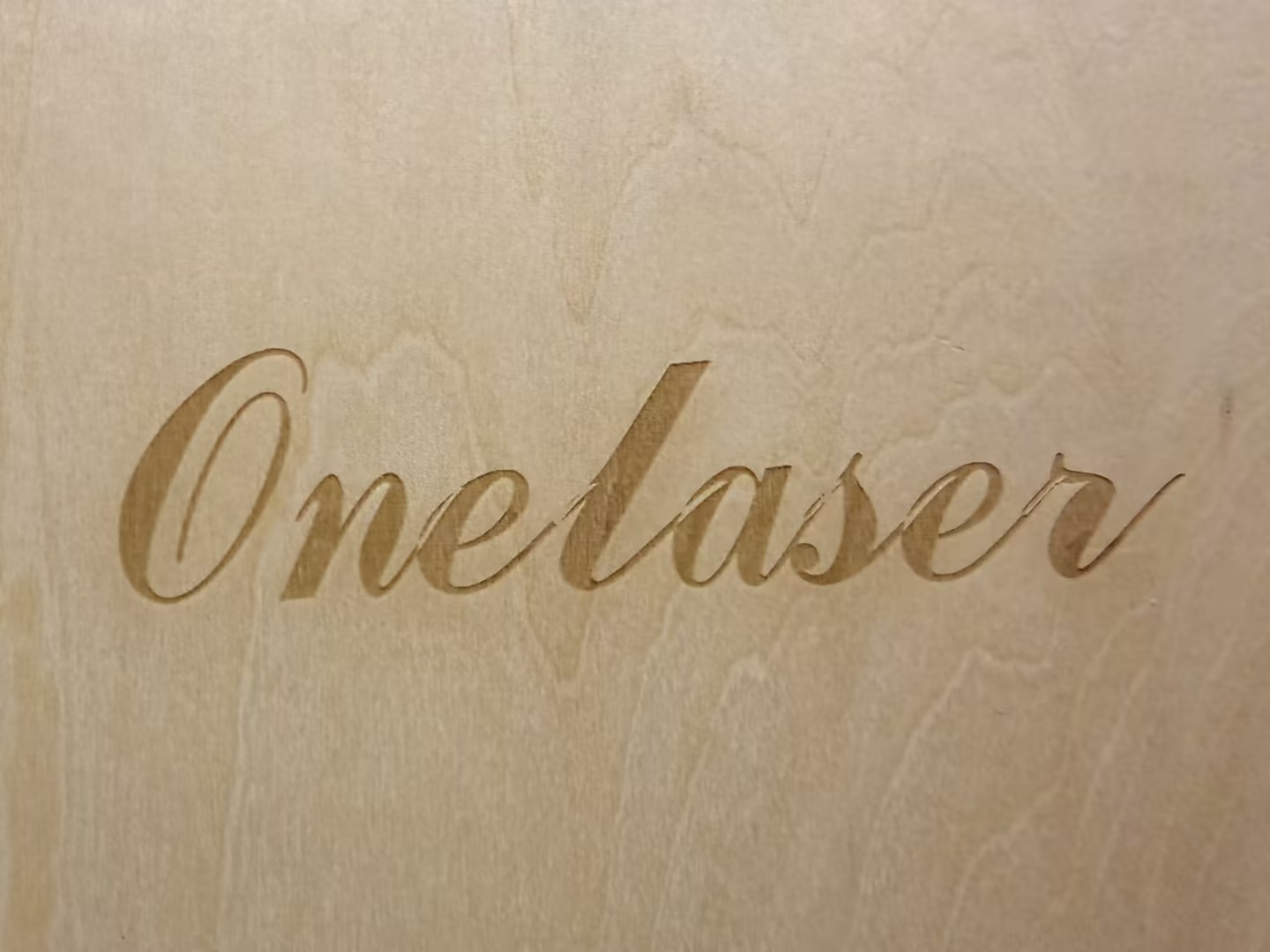
Engraved text samples contain hollow centers (missing fill) or disconnected segments where the lines should be continuous.
¶ Cause
The text pattern settings in LightBurn are incorrectly configured or the font vectors are overlapping.
¶ Solution
¶ Convert Text to Path
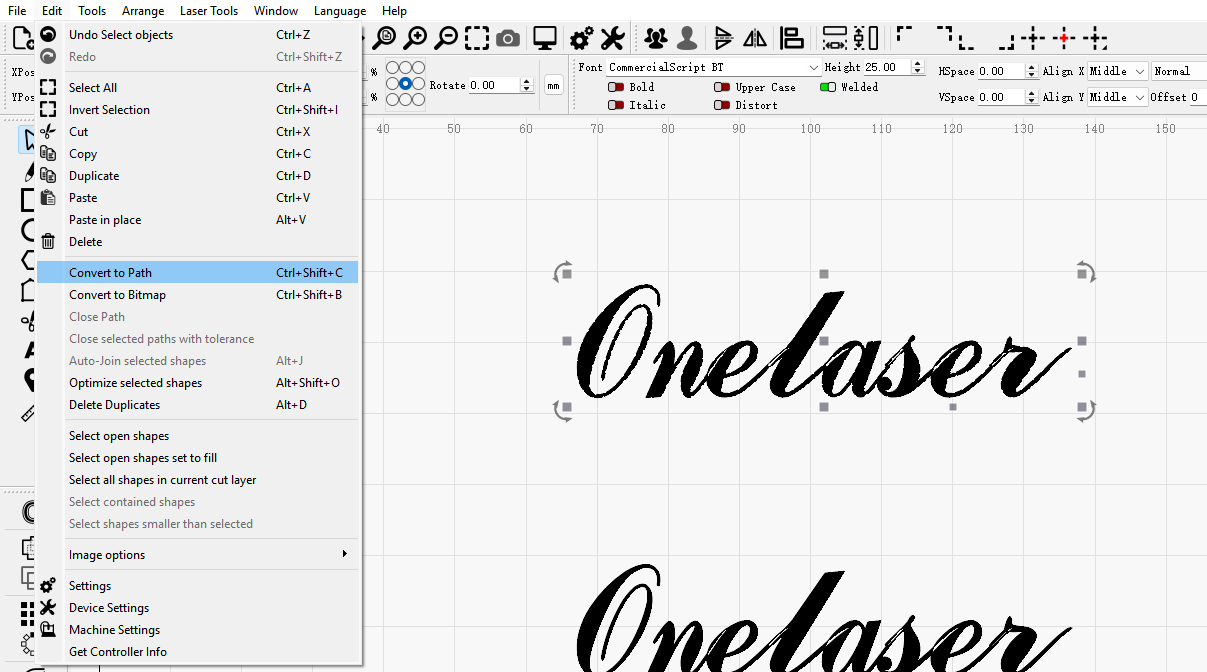
Method 1:Select your text, then go to the top menu and click Edit → Convert to Path.
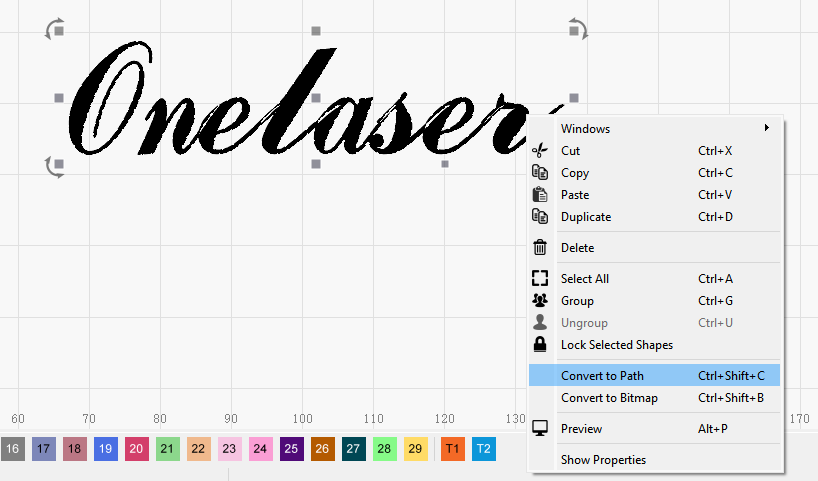
Method 2:Select the text, right-click, and choose Convert to Path from the pop-up menu.
Why should you convert Font to Path?
- If you open the file on a different computer or a different software version that lacks the original font, the system might automatically substitute it, causing deformation or layout errors. Converting to a Path locks the shape permanently.
- A Path represents the actual physical movement trajectory, whereas a Font is a software calculation. Converting to a Path reduces redundant paths and unexpected jumps, which is critical for fine detail.
- For mass production, Path data is more stable and ensures consistent results across multiple jobs.
⚠️Important Note:
Once converted to a Path, the text content can no longer be edited as text (you cannot change the spelling or font). It is highly recommended to keep a Original Text Version backup file before converting.
¶ Weld Shapes
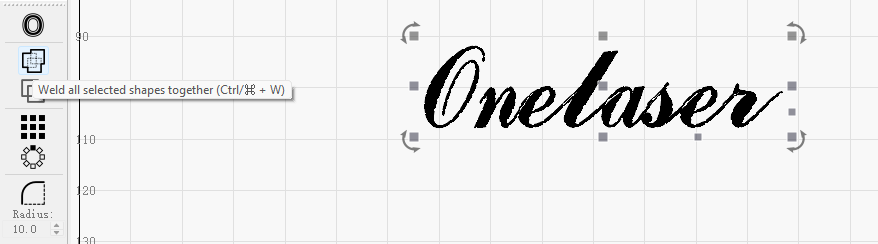
If your text appears hollow because the characters overlap, you need to merge the overlapping vectors.
Method 1:Select the converted path, then go to the top menu and click Tools → Weld Shapes.
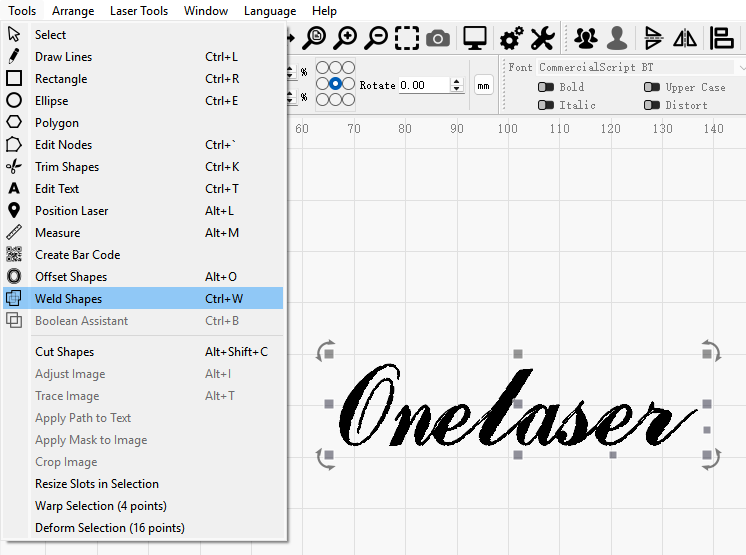
Method 2:Select the path and find the Weld Shapes icon in the left-hand toolbar.
¶ Test Result Comparison
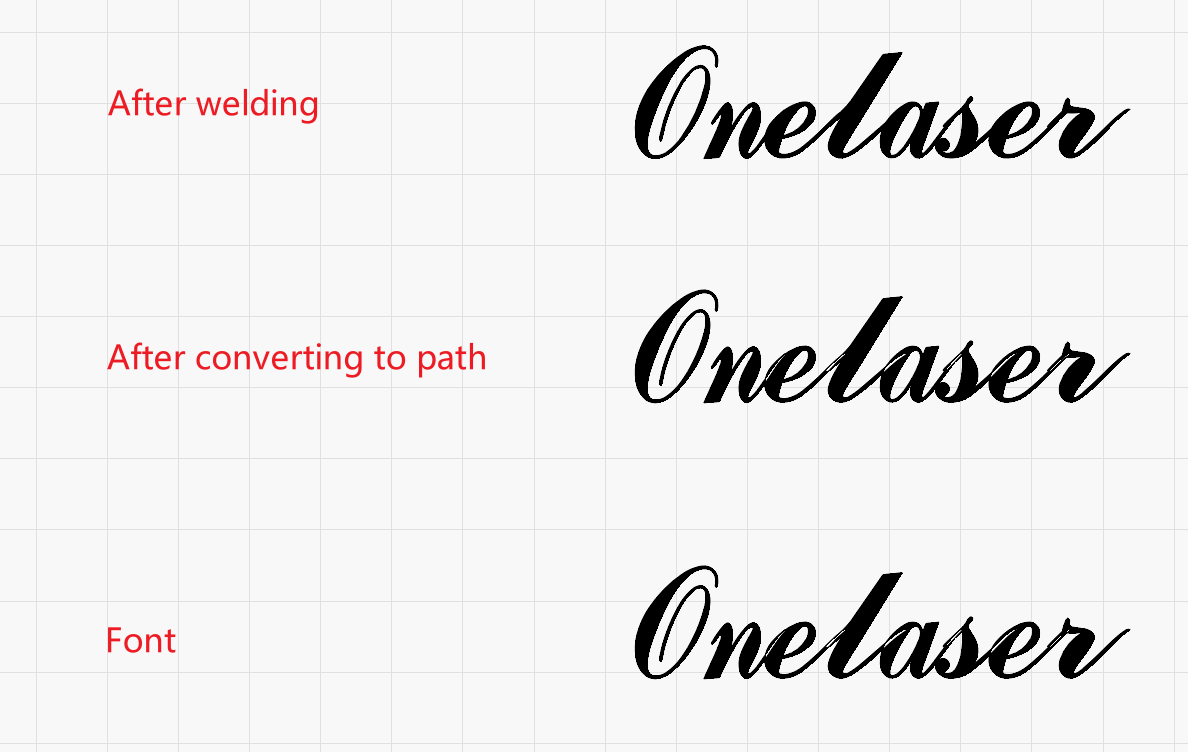
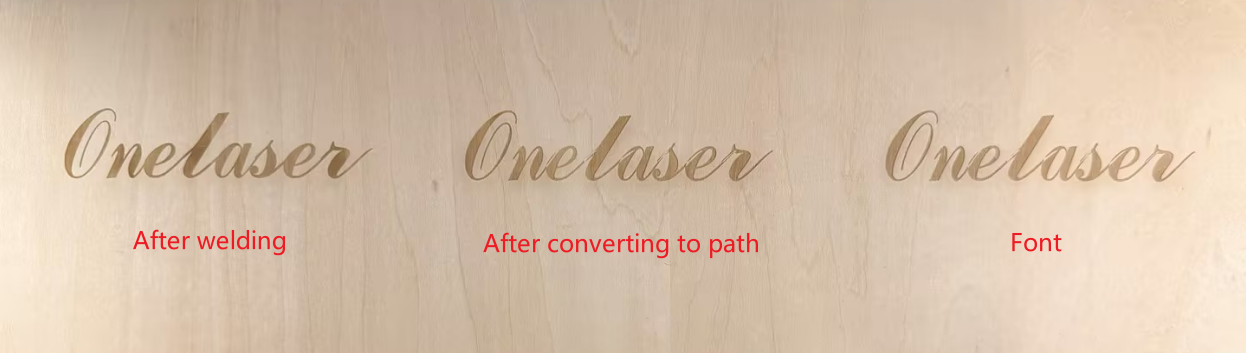
Important Reminder:
If these steps do not resolve the issue, please submit a support ticket. A technician will then be able to conduct a more in-depth diagnosis.