¶ How to Export Files from Machine Memory Back to PC
This guide explains how to export design files stored in a OneLaser machine’s internal memory back to your computer. It covers supported software options, connection methods, file formats, and important limitations to ensure successful file transfer and reuse.
¶ Preparation
- Hardware: Your OneLaser machine and your computer (Windows PC recommended).
- Software: RDWorks, MakerBoost, or LightBurn.
¶ Operation
¶ Connecting the Computer and the Machine
You can connect the machine via USB or Network (Ethernet/Wi-Fi). Once connected, open either RDWorks or MakerBoost on your PC.
Note: LightBurn does not support exporting files stored in the machine’s memory.
- RDWorksV8 Download Link: Click Here
- MakerBoost (Beta) Download Link: Click Here
¶ Exporting or Running Files Using RDWorks
After the software successfully connects to the machine:
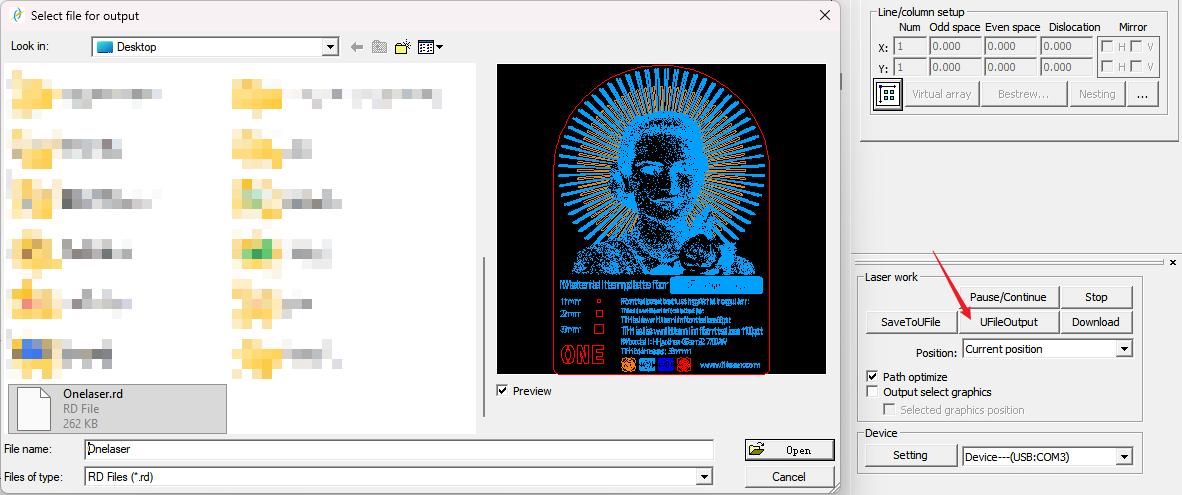
Locate the Doc tab in the property bar on the right side and select the file you wish to export. Click Upload to save the file as an .rd file onto your PC.
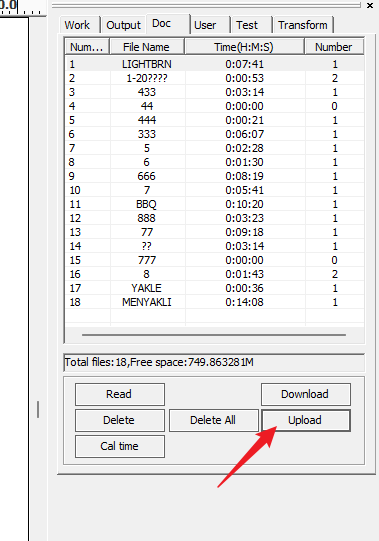
Important: While RDWorks allows you to open .rd files, please note that parsing these files may occasionally result in distorted lines or layout issues. .rd files can be directly run and processed via RDWorks.
¶ Exporting or Running Files Using MakerBoost
After activating the trial and successfully connecting to the machine:
Navigate to File > Device File Management in the top left corner and select the file you wish to export. Click Export to save the file as a .tl file onto your PC.
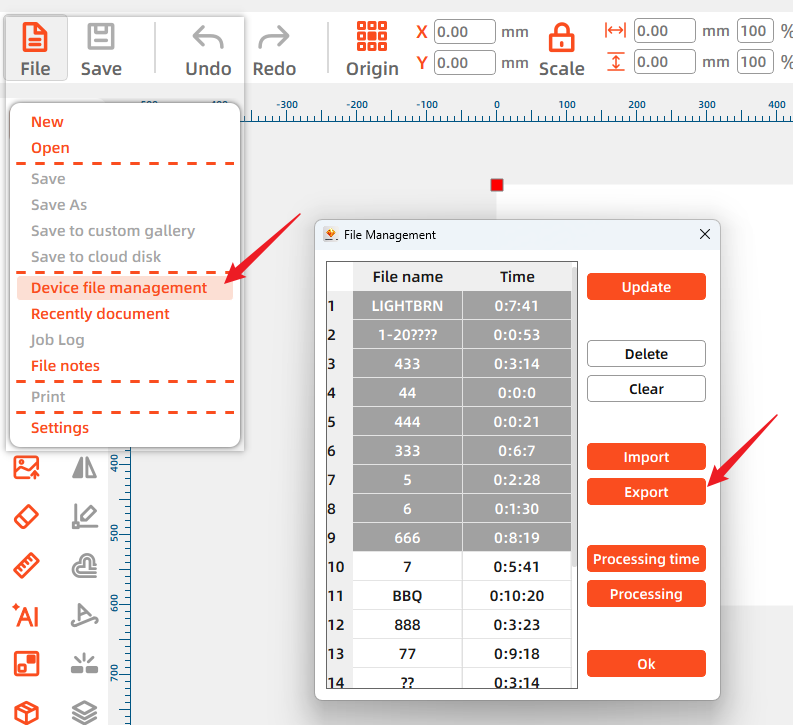
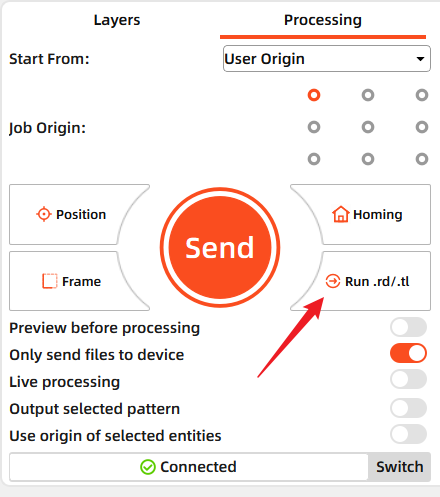
Important: .tl files cannot be opened for viewing within the software, but they can be directly run and processed via MakerBoost.
¶ Opening or Running Files Using LightBurn
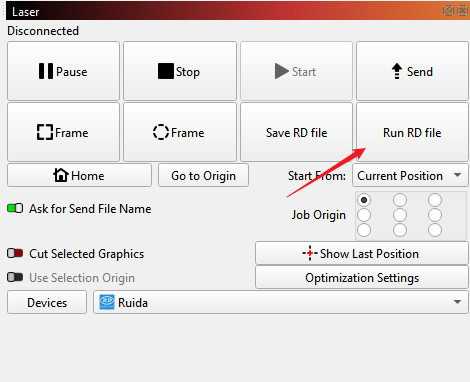
LightBurn cannot export files from the machine's memory. It does allow you to open .rd files.
Important: Please be aware that LightBurn’s parsing of .rd files may result in line distortion or errors. Once opened, .rd files can be directly run and processed through LightBurn.
Important Reminder:
If these steps do not resolve the issue, please submit a support ticket. A technician will then be able to conduct a more in-depth diagnosis.