¶ LightBurn 2.0 Camera Calibration Issues: Black, Blank or Garbled Screen
¶ Problem Description
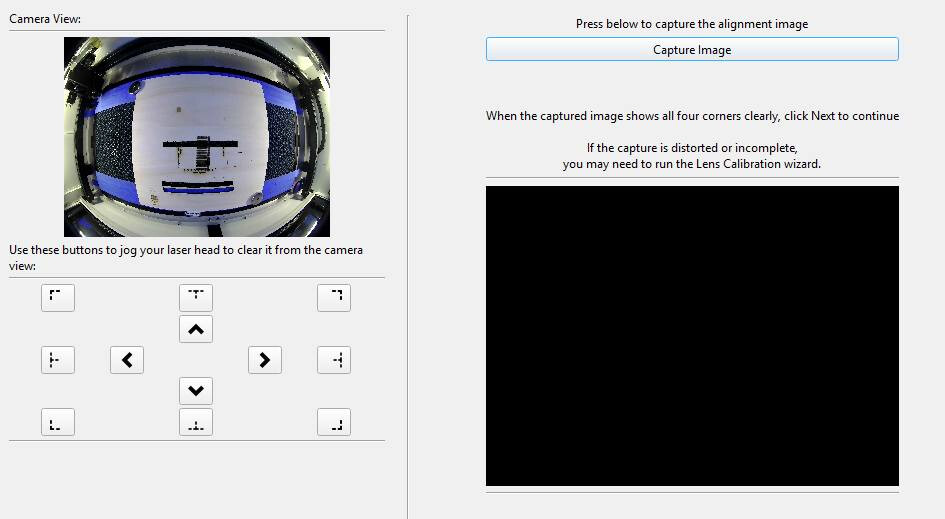
After updating LightBurn to Version 2.0, using the camera function prompts a message requiring a full camera re-calibration via the calibration wizard. This step is mandatory, even if a camera calibration file was previously imported in Version 1.7. However, when following the wizard and attempting to capture images, the display shows a black screen, blank screen, or garbled image.
¶ Cause
LightBurn Version 2.0 updated the camera function and rewrote the driver. The issue may occur because the software is using an old-version camera calibration profile within the new Version 2.0 environment.
¶ Solution
Based on testing, the first time you switch from LightBurn 1.7 to 2.0, you can bypass the calibration wizard by directly importing the correct settings:
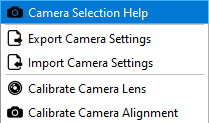
- In the Camera window, right-click and select "Import Camera Settings."
- Import the calibration configuration file found on the USB drive that came with your machine.
By following this method, you can successfully use the camera function in LightBurn 2.0 without having to go through the mandatory calibration wizard that causes the display error.
Important Reminder 1:
Please note that whether you are switching from a new version back to an old version (downgrade) or from an old version to a new version (upgrade), you may encounter the black screen, blank screen, or similar issues during the image capture step.
In this situation, you can simply import the correct calibration configuration file to use the camera function normally, entirely bypassing the need to enter the calibration wizard. Continue using this method until LightBurn officially fixes this bug.
Important Reminder 2:
If these steps do not resolve the issue, please click this link to submit a support ticket: https://zohodesk.1laser.com/portal/en/newticket. A technician will then be able to conduct a more in-depth diagnosis and resolve your problem.