¶ Machine Always Cuts First, Regardless of Layer Order
¶ Problem Description
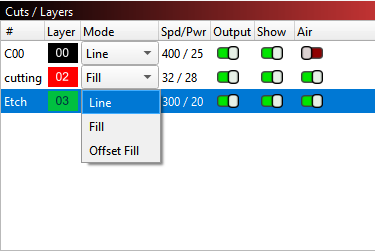
When the machine is connected using LightBurn, the device executes the cutting layer first, regardless of its position in the layer list. This can cause the workpiece to be blown out of place, leading to cutting errors.
¶ Cause
- The optimization setting for job processing order is not enabled.
- Tabs were not added to the profile designated for the cutting process.
¶ Solution
¶ Optimize Job Processing Order
Open the Optimization Settings window in your processing panel. Ensure that the Enable optimization and output re-ordering switch is turned ON. Ensure that Order by layer is prioritized (set at the top of the list).
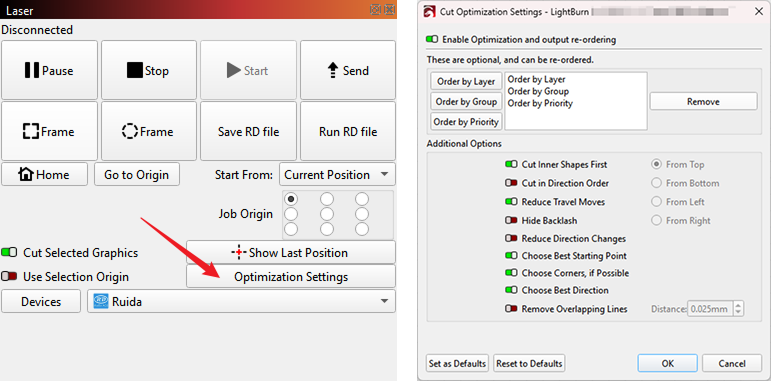
Then, place the cutting layer at the end of the layer sequence in your layers panel. You may refer to the functions in the Additional Options section of the image above for more in-depth processing optimization.
¶ Add Tabs to the Cutting Layer Profiles
Adding tabs prevents the finished piece from falling out and shifting during the job.
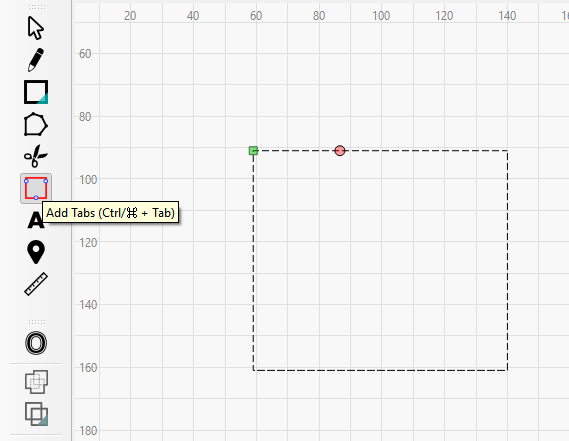
Manually Add Tabs:
Select the Add Tabs tool from the left toolbar. Click on the graphics where you want to add the tabs.
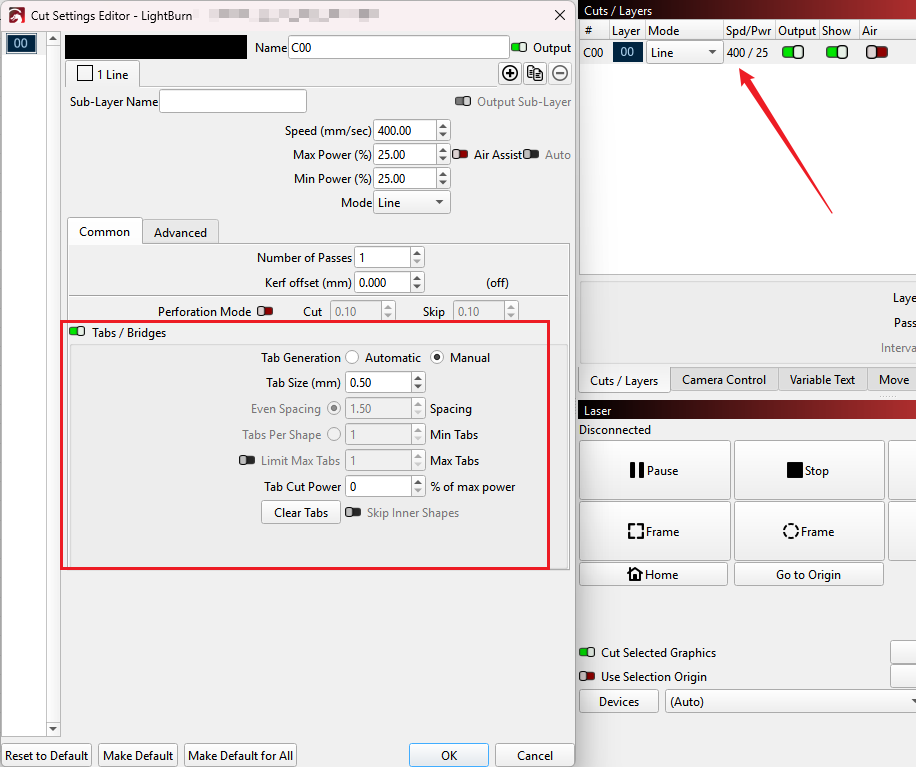
Automatically Add Tabs:
Double-click the layer to open the Cut Settings Editor window. Turn on the Tabs / Bridges switch. This allows you to automatically set tabs on the graphics.
Important Reminder:
If these steps do not resolve the issue, please click this link to submit a support ticket: https://zohodesk.1laser.com/portal/en/newticket. A technician will then be able to conduct a more in-depth diagnosis and resolve your problem.