¶ Squares Drawn on Canvas Are Processed as Rectangles
¶ Problem Description
When a square is drawn on the workspace canvas, the actual processed graphic has a deviation in its width and height dimensions (e.g., a square becomes a rectangle).
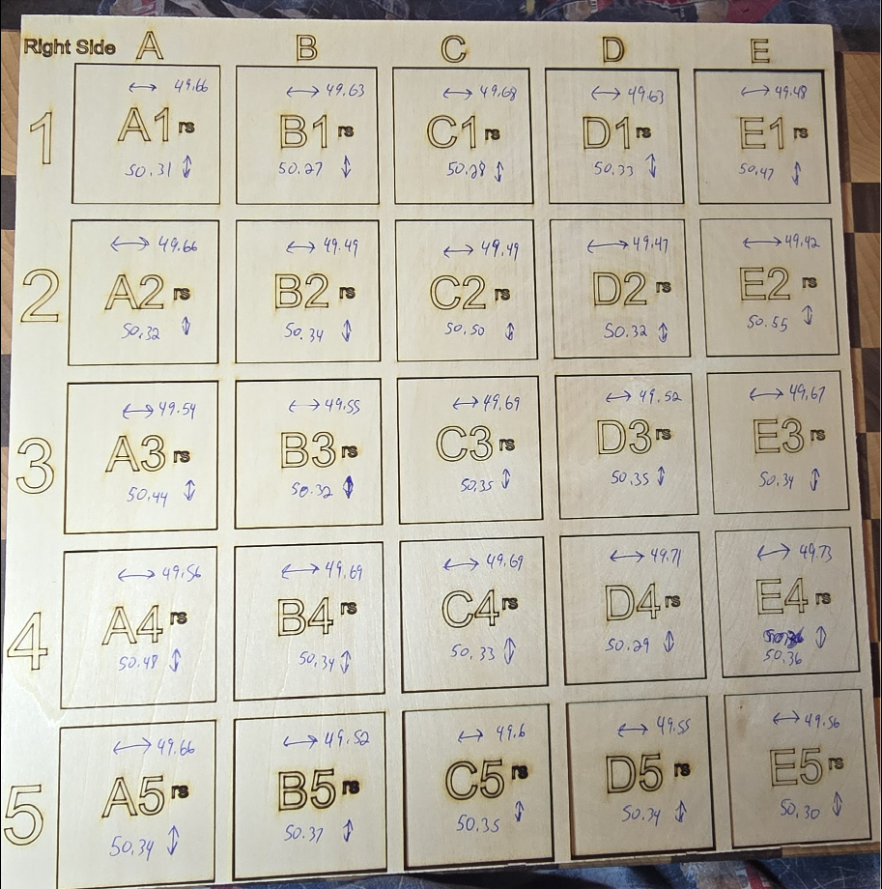
¶ Cause
The step distance coefficient of the stepper motors is inaccurate.
¶ Solution
¶ Calibrating via LightBurn Machine Settings
Connect to the device.
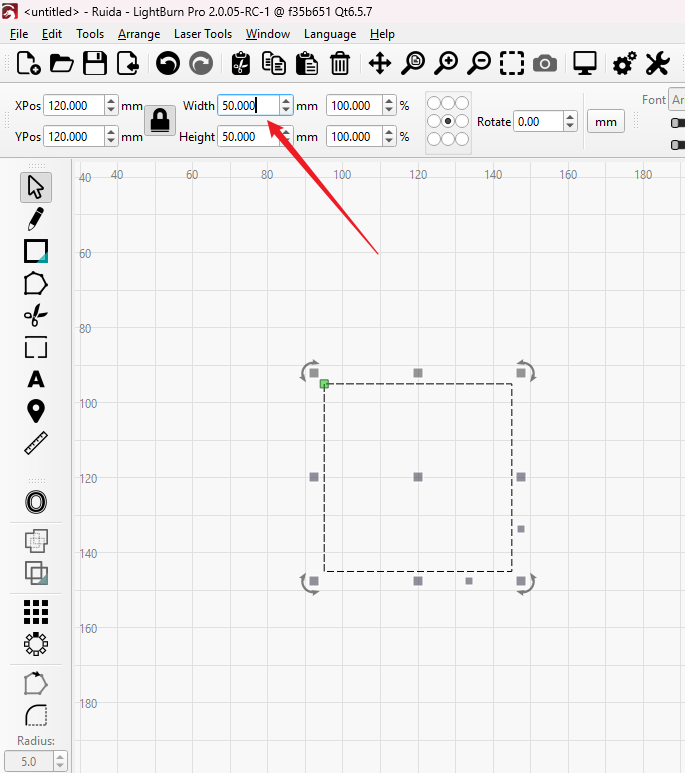
Draw a square on the canvas, such as a 50×50mm square (or equivalent size in inches). Start the job and then measure the actual width and height of the processed graphic.
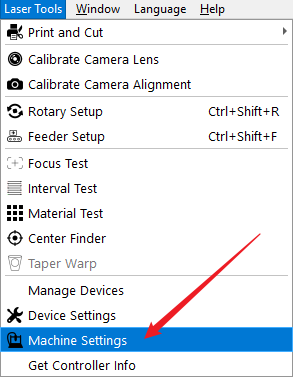
Click Machine Settings in LightBurn. Navigate to Calibration Axis.
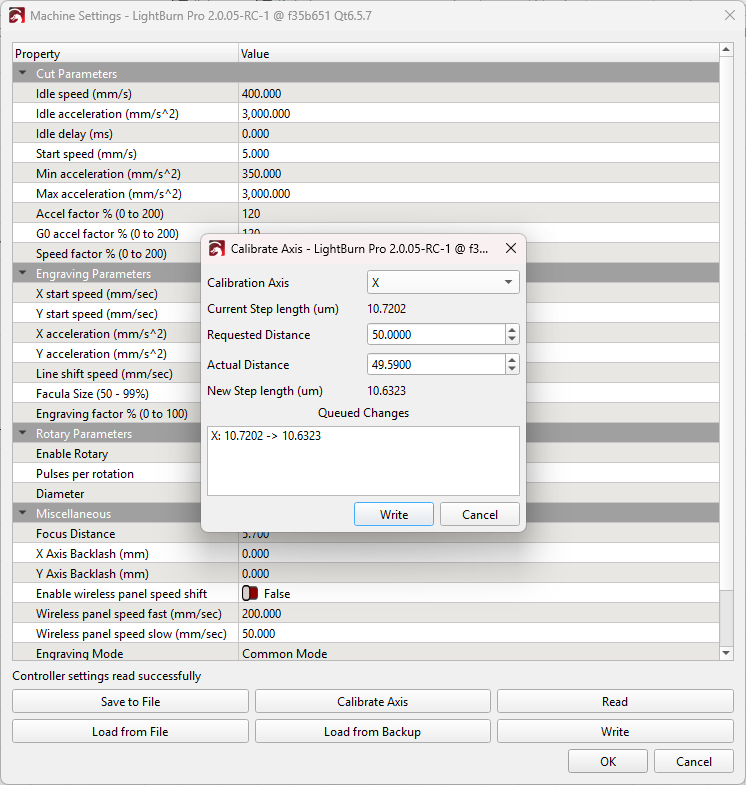
Select the X axis, and input the measured values into the corresponding fields for Requested Distance (e.g. 50mm) and Actual Distance (the measured value). The software will automatically calculate the new step distance coefficient. Click Write to save the new setting to the machine. Repeat the same steps for the Y axis.
You may need to perform this calibration one or more times to obtain the most accurate parameters.
¶ Calibrating via MakerBoost Vendor Settings
Connect to the device. Click Settings → Vendor Setting and enter the password: TL9501.
Click Calibrate XY step in the bottom-right corner of the window. In the new window, input the cutting power and click the Cutting button. The device will automatically cut a square.
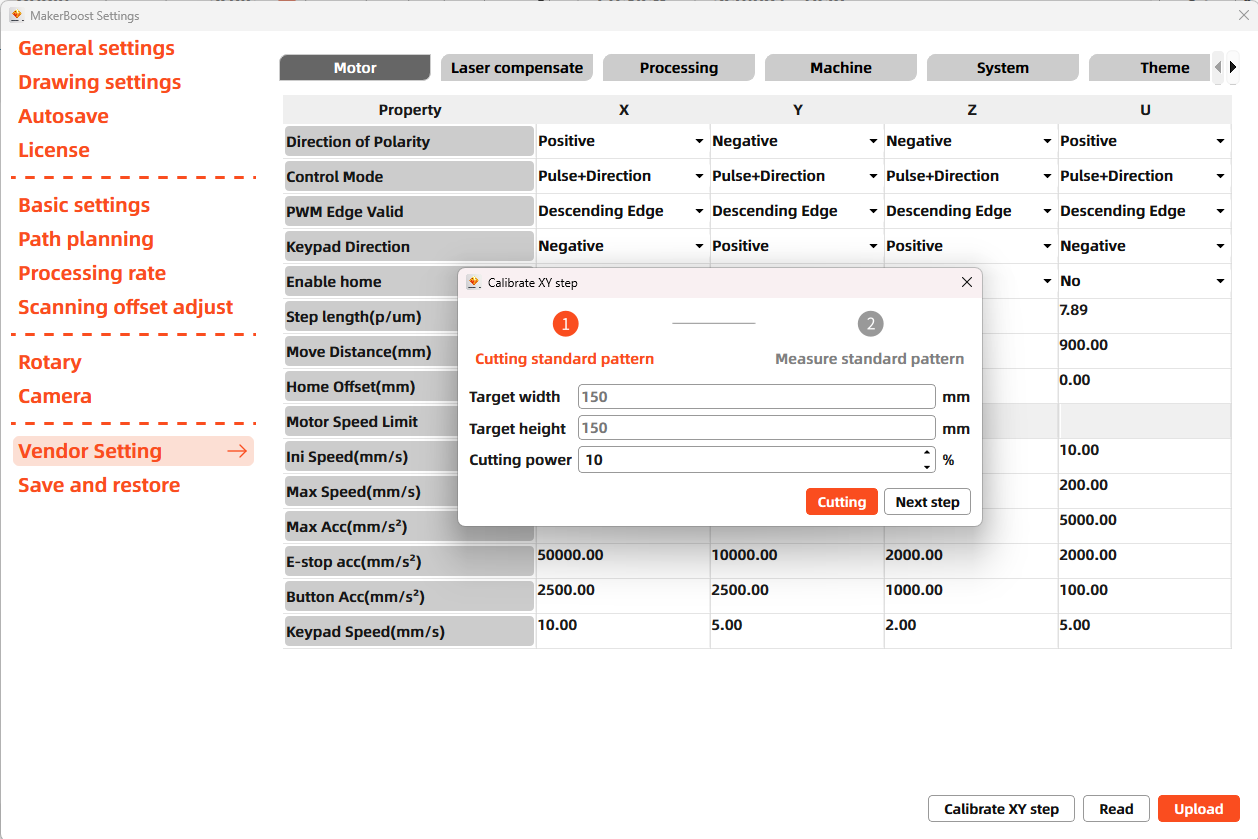
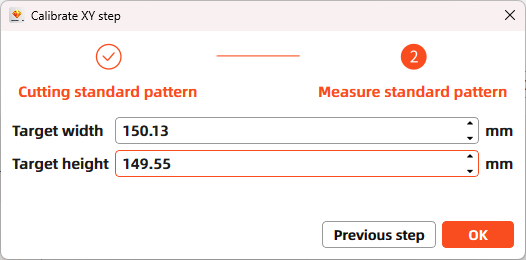
Measure the actual width and height of the processed square. Input these values into the corresponding fields. The software will automatically calculate the new step distance coefficient.
You may need to perform this calibration one or more times to obtain more accurate parameters.
Important Reminder:
If these steps do not resolve the issue, please click this link to submit a support ticket: https://zohodesk.1laser.com/portal/en/newticket. A technician will then be able to conduct a more in-depth diagnosis and resolve your problem.