¶ Camera Not Available in LightBurn - X Series
This guide explains how to troubleshoot situations where the XRF camera does not appear or cannot be used inside LightBurn. Camera detection issues are commonly caused by USB connection problems, unstable hardware connections, software recognition failures, or camera module defects. Follow the steps below to identify and resolve the issue.
¶ Problem Description
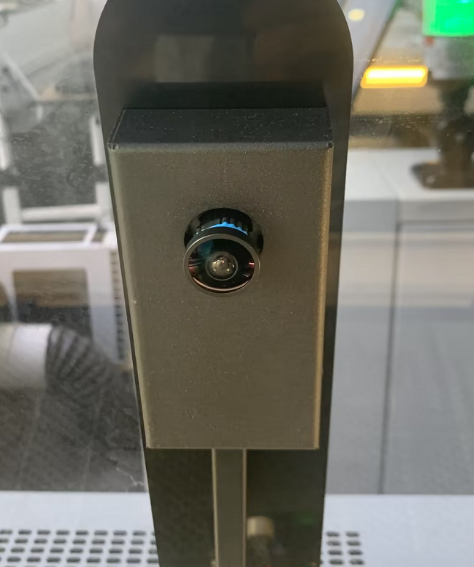
The XRF camera cannot be used, and the camera device does not appear inside LightBurn.
¶ Cause
- Damaged USB connection cable
- Faulty USB hub or docking station (If you use it)
- Loose camera-side cable connection
- Insufficient solder on the camera board solder joints
- The computer cannot properly recognize the camera device
- Using the macOS version of LightBurn, where camera connections may occasionally be unstable
¶ Solution
¶ Method 1. Hardware Inspection
¶ Step 1. Replace the Original USB Cable
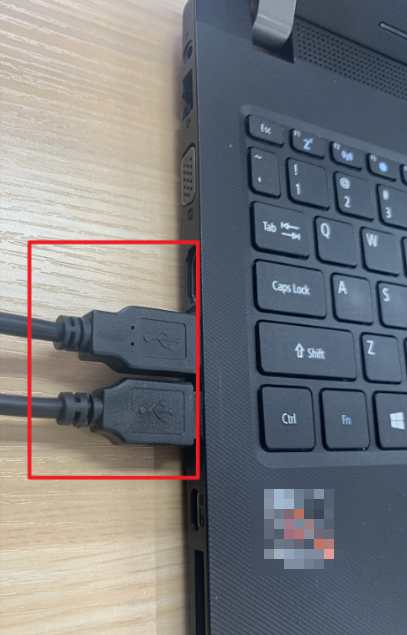
Try replacing the current USB cable with another known-good USB data cable. If the camera appears after replacing the cable, the original cable may be damaged internally.
¶ Step 2. Test the Original Cable with Another Device
Use the original USB cable with another USB device. If the second device also cannot be recognized, the USB cable is likely defective.
¶ Step 3. Change the Computer USB Port
If you are using a USB hub or a docking station, connect the XRF camera directly to the computer instead. Some USB hubs or docking stations may provide unstable power or insufficient data bandwidth for the camera.
You can slso try different USB ports on the computer, or USB 2.0 and USB 3.0 ports separately.
¶ Method 2. Camera Module Inspection
¶ Step 1. Check the Camera Connector and Wiring
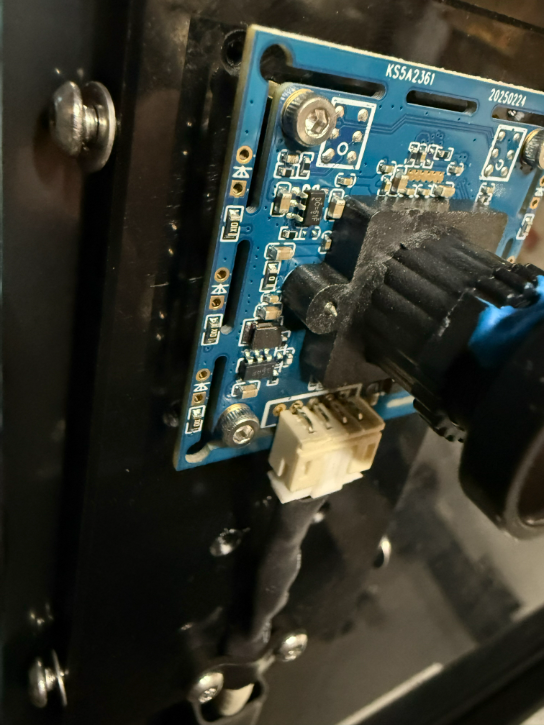
Inspect the camera-side connector carefully. Please check for: Loose connectors, partially inserted cables and damaged wires. Then reconnect the cable firmly and test again.
¶ Step 2. Check the Solder Joints on the Camera Board
Inspect the solder joints on the camera PCB. If abnormal solder joints are found, the camera module may need repair or replacement.
¶ Method 3. Software Inspection
¶ Step 1. Check Device Manager
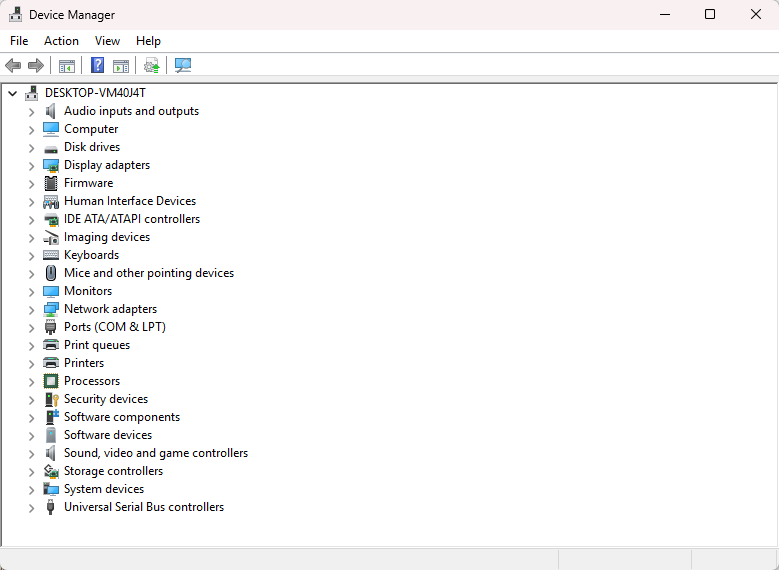
Please open Device Manager and check whether the XRF camera appears in the list.
| Status | Meaning |
| Camera appears normally | Hardware is likely functioning |
| Unknown USB Device | Driver or hardware communication issue |
| Device repeatedly reconnects | Unstable cable or insufficient power |
| No device detected | Hardware connection issue |
¶ Step 2. Check the Built-in Camera Software
Open the Windows Camera software and see whether the XRF camera can display video.
| Status | Meaning |
| Camera works in Camera software | LightBurn configuration issue |
| Camera does not work anywhere | Hardware or USB communication issue |
Important Reminder:
If these steps do not resolve the issue, please submit a support ticket on ZOHO: https://zohodesk.1laser.com/portal/en/newticket. A technician will then be able to conduct a more in-depth diagnosis and resolve your problem.