¶ Connect XT&XRF Model To LightBurn Via USB Cable
Learn how to connect your OneLaser XT or XRF to LightBurn via USB. Follow this simple setup guide to install LightBurn, configure Ruida, set origin, and start engraving.
¶ Operational Guide
1. Install the LightBurn software, please see the link below to install:
Install the LightBurn software
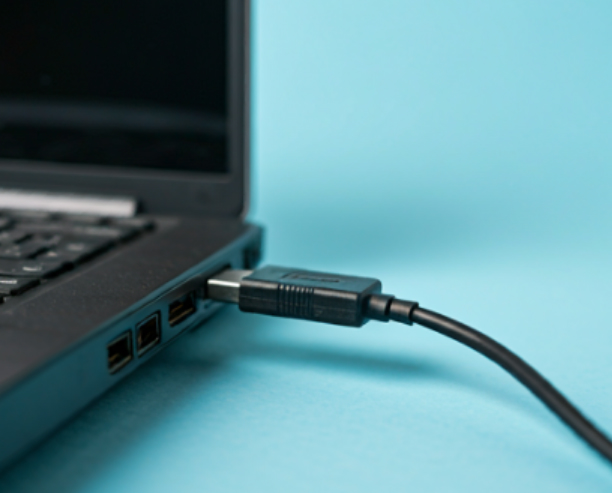
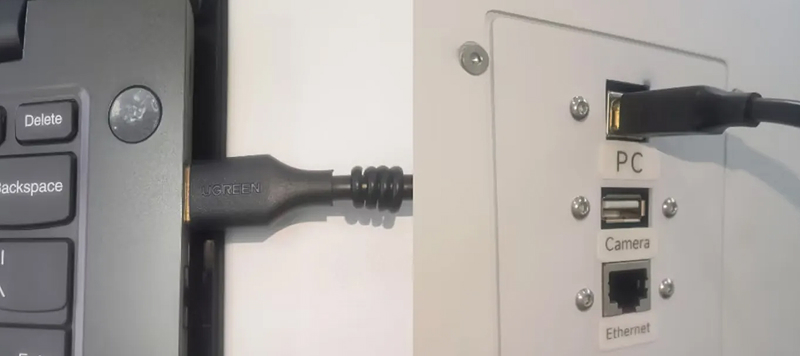
2. Connect your computer and laser machine with a USB cable.
3. Open LightBurn and set a connection.
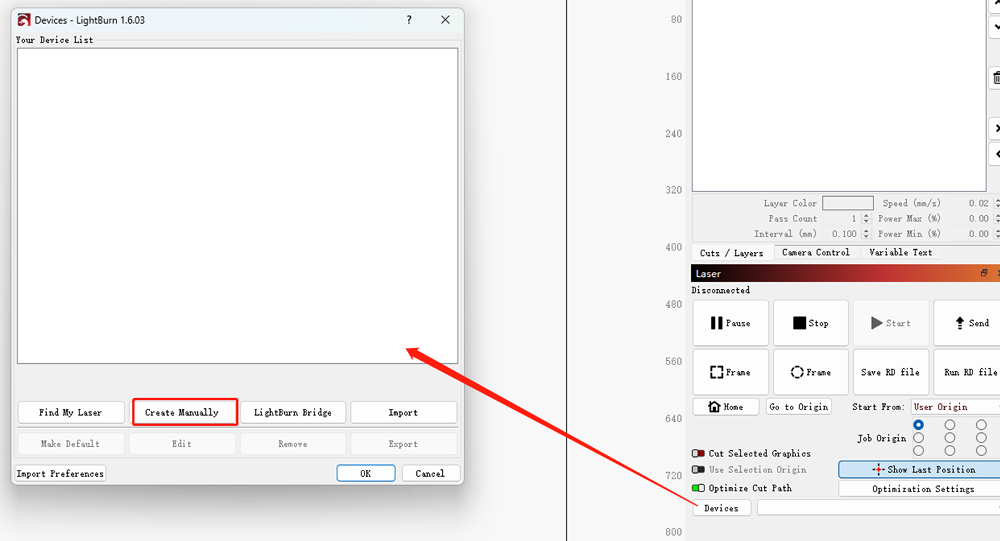
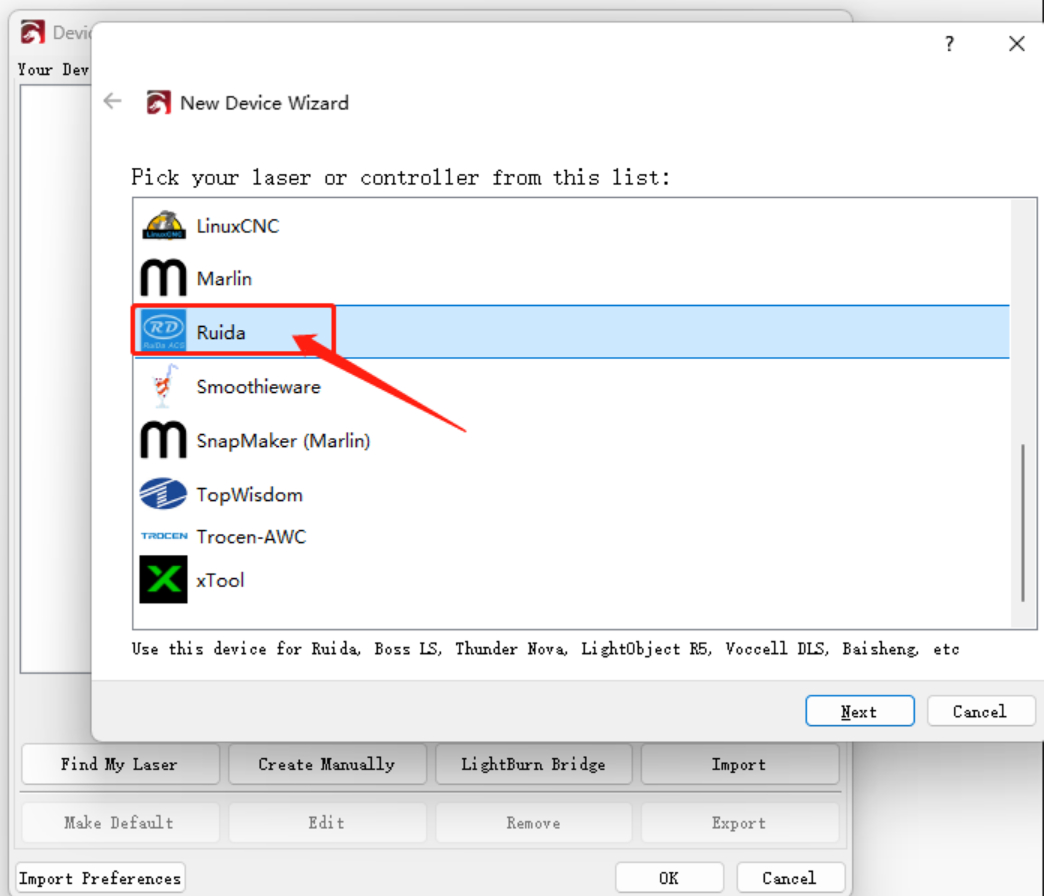
4. Select Ruida.
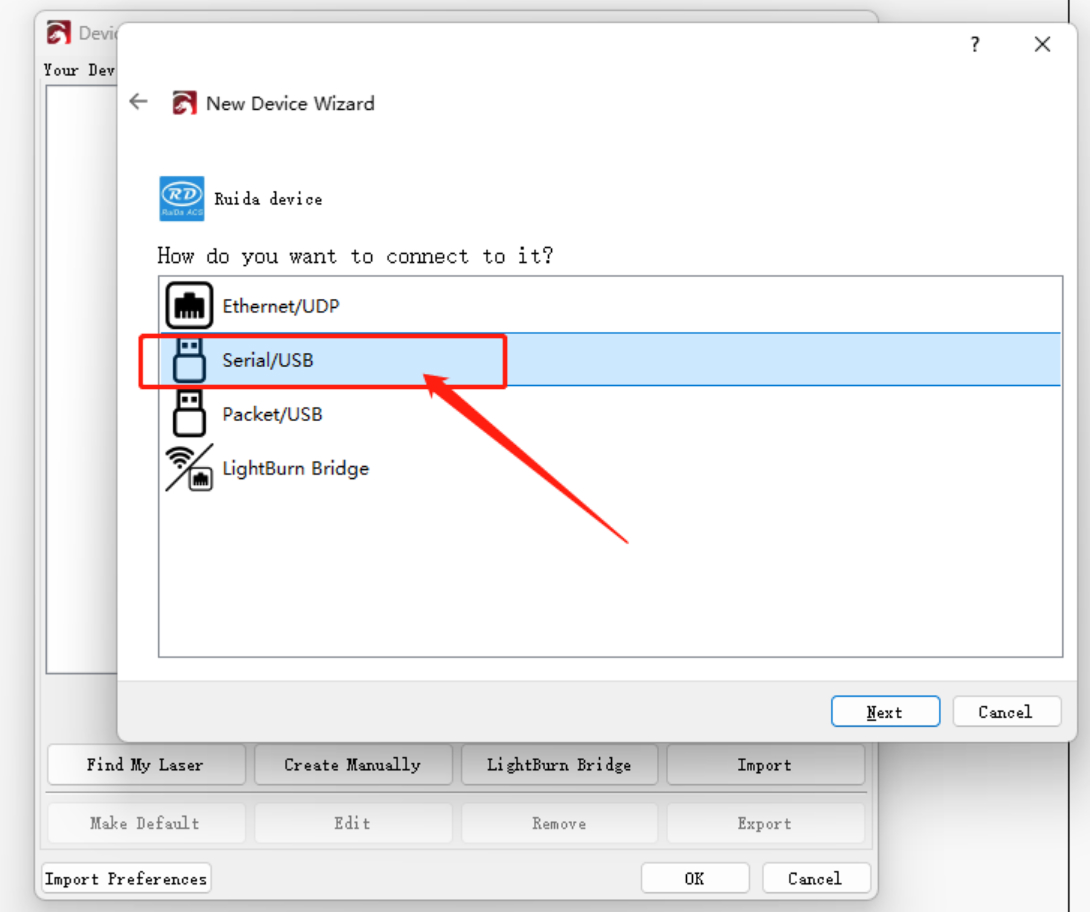
5. Select Serial/USB.
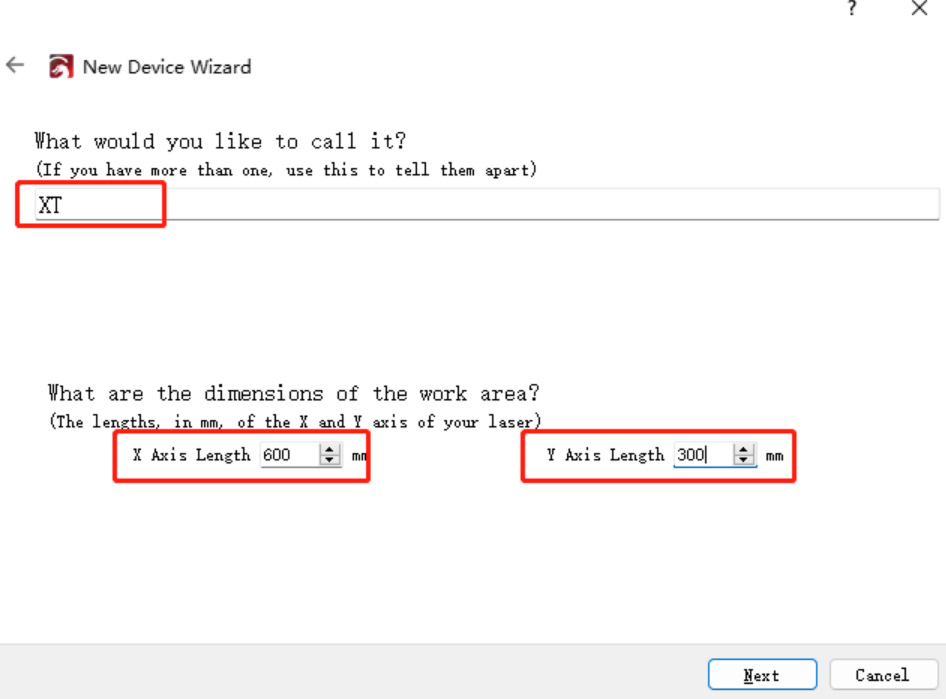
6. Name your laser and enter the work area — for X Series, the area is 600 × 300 mm.
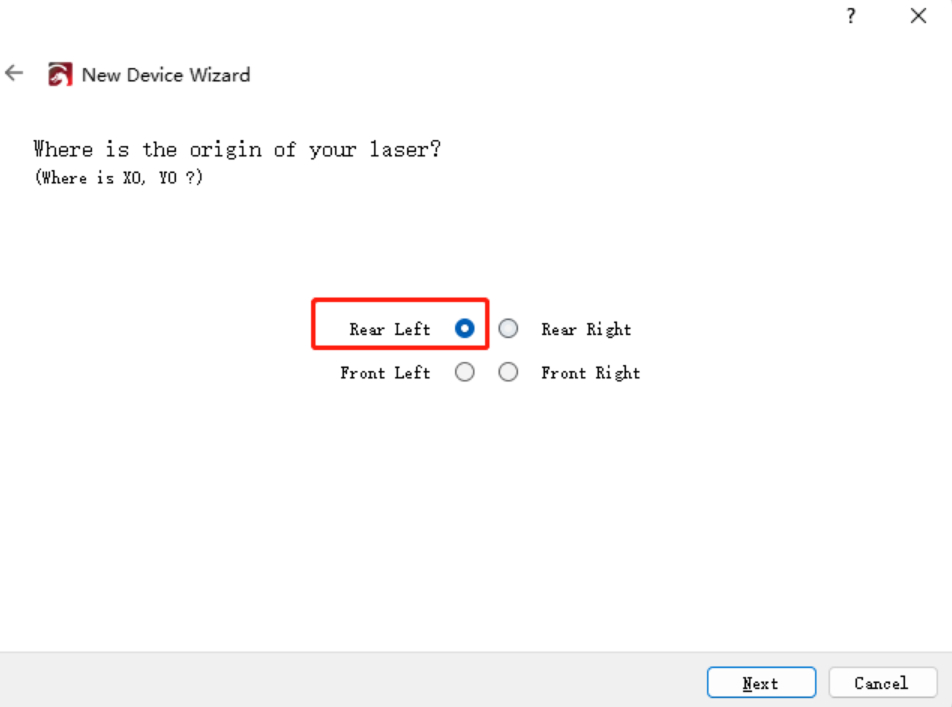
7. Set the Rear Left as Origin.
8. Then it's finish.
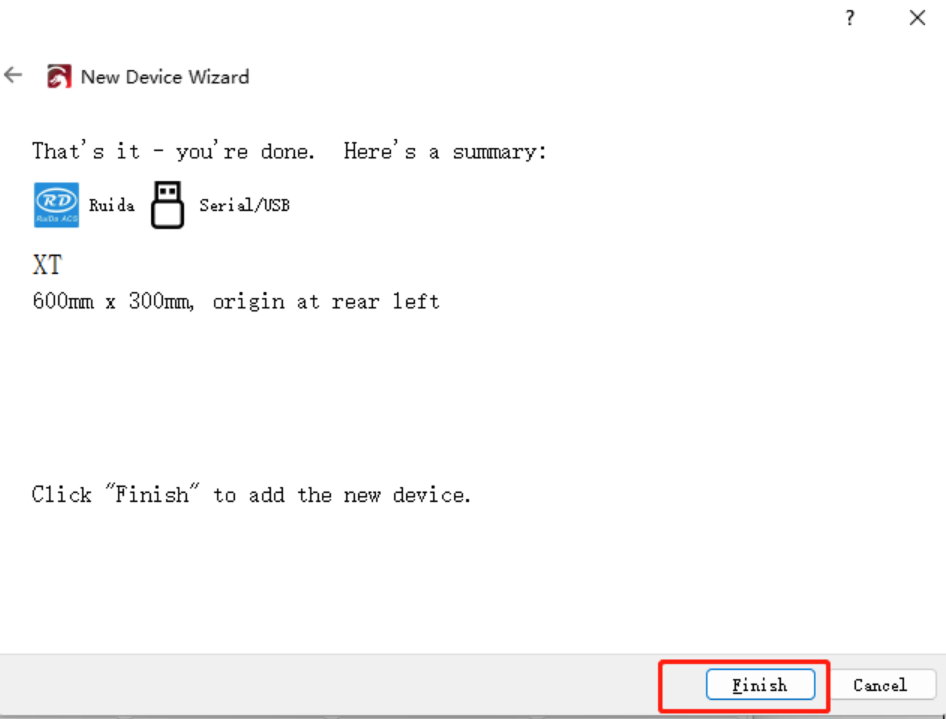
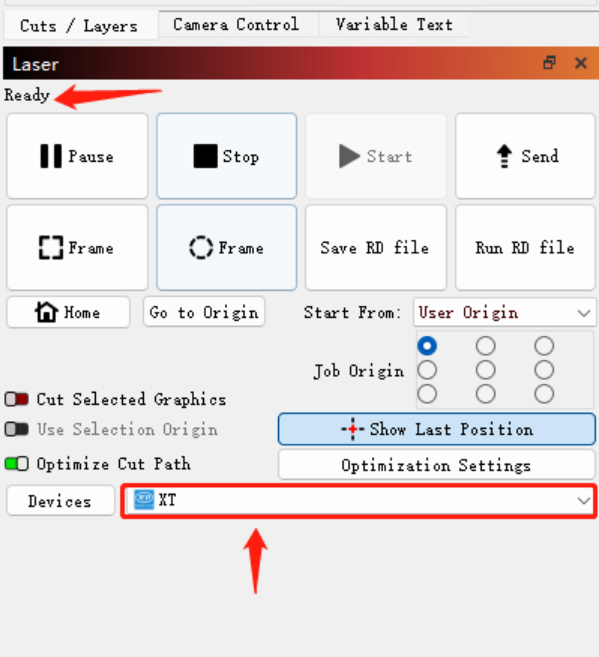
9. Back to the home page and select XT. If it shows “Ready,” it means the software is connected.