¶ Connect XT&XRF Model To LightBurn Via WiFi
Connect your OneLaser machine via WiFi with this step-by-step guide. Learn how to configure VONETS WiFi, set up LightBurn, and ensure a stable connection.
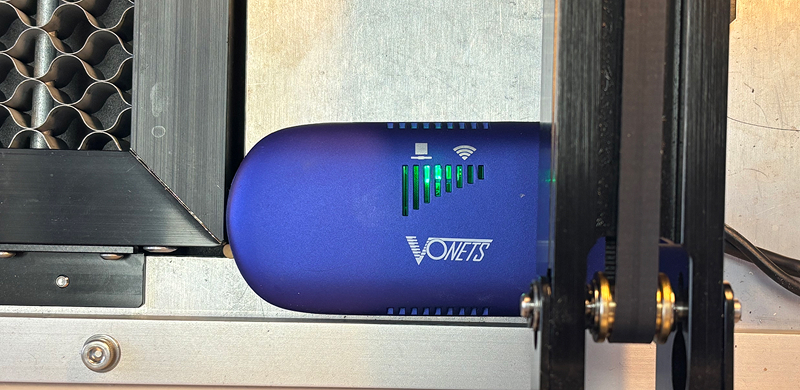
¶ Important info
- WIFI Connection only can communicate with controller, cannot connect the camera.
- WiFi connection is not the most stable method. Please choose according to the actual situation.
¶ Operational Guide
Connect the WiFi
- Turn on the machine.
- Find the WIFI "VONETS_****", the default password is 12345678.
¶ Configure the WIFI
1. Log in to http://vonets.cfg or 192.168.254.254 to configure parameters.
Account and password: admin
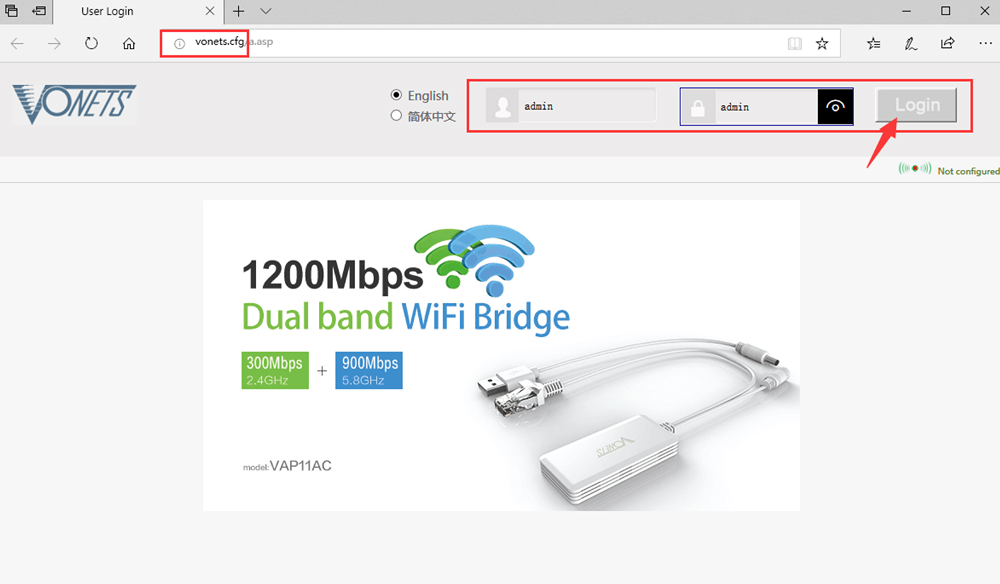
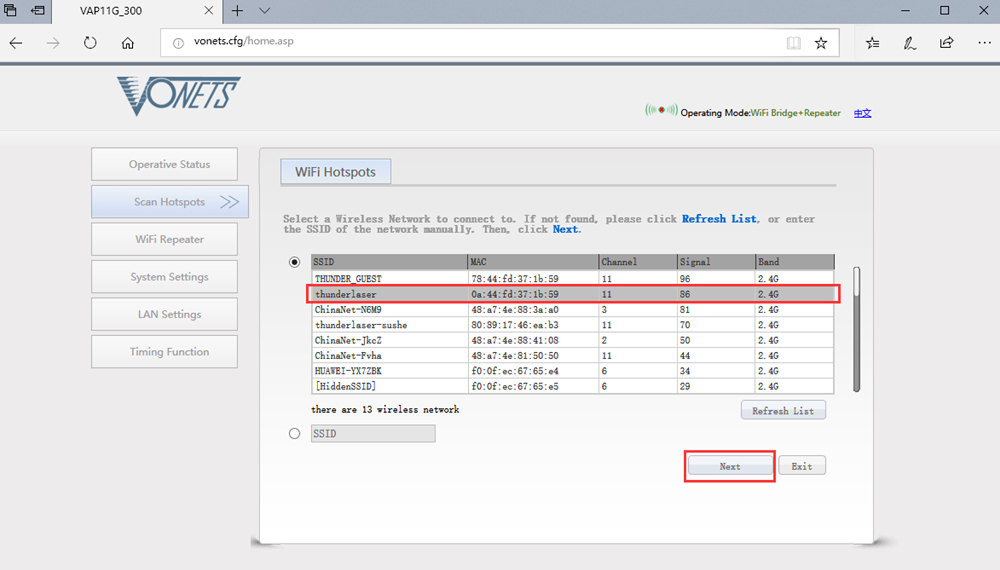
2. Select the WIFI that matches your computer network and click 'Next'.
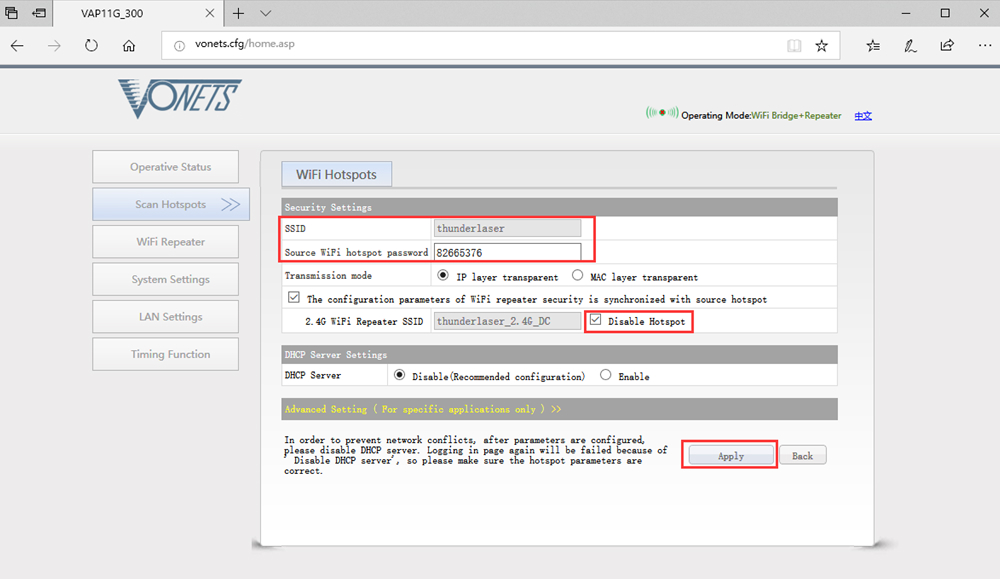
3. Enter the WIFI password, check 'Disable Hotspot,' and click 'Apply'.
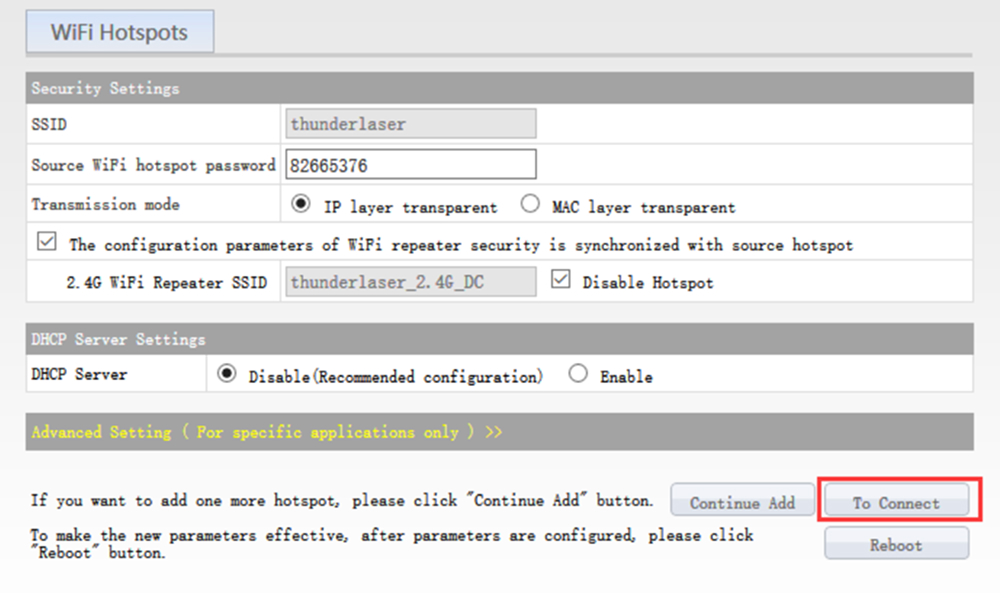
4. Click 'To connect'.
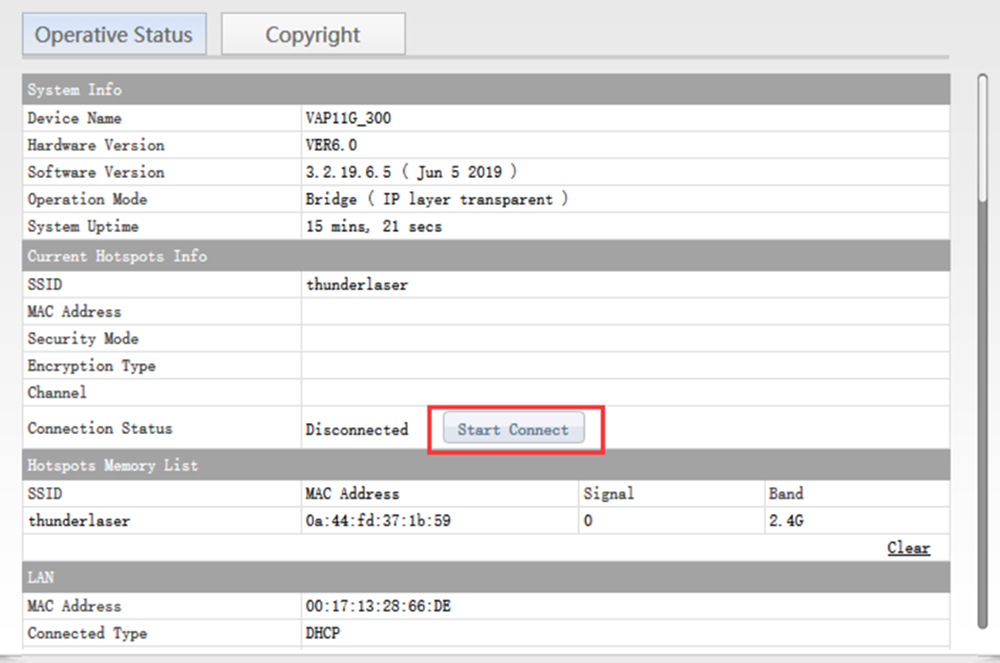
5. Click Start connecting.
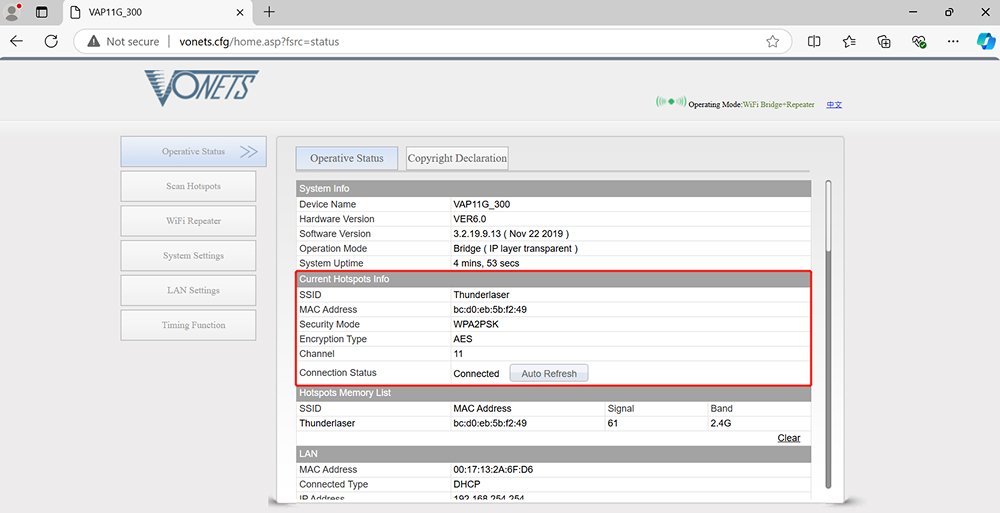
6. Then it's connected.
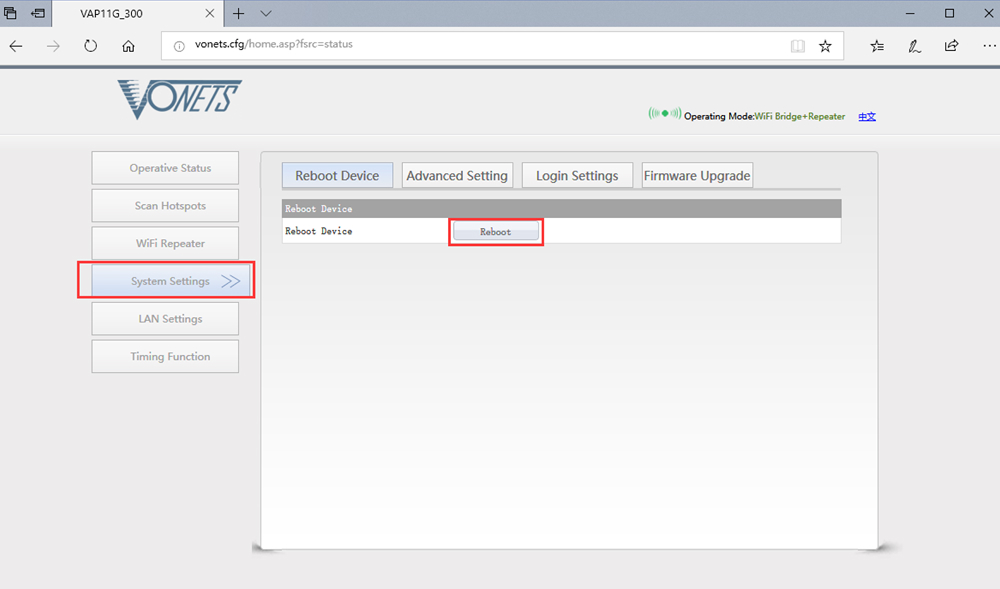
7. Click the 'Reboot'.
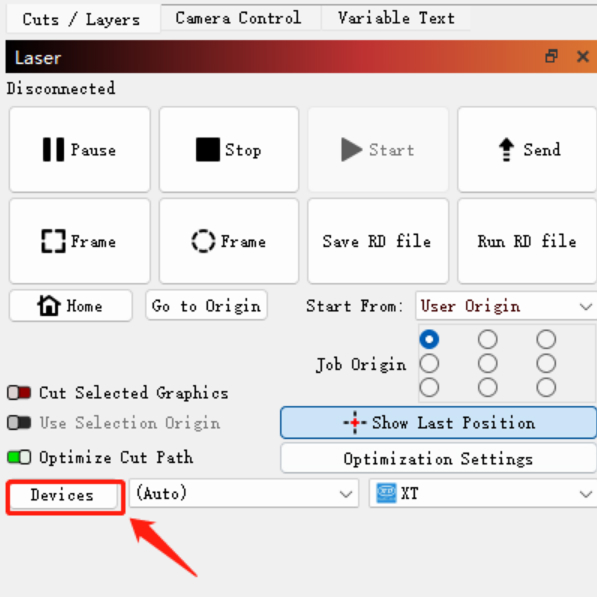
8. Open LightBurn, click Device.
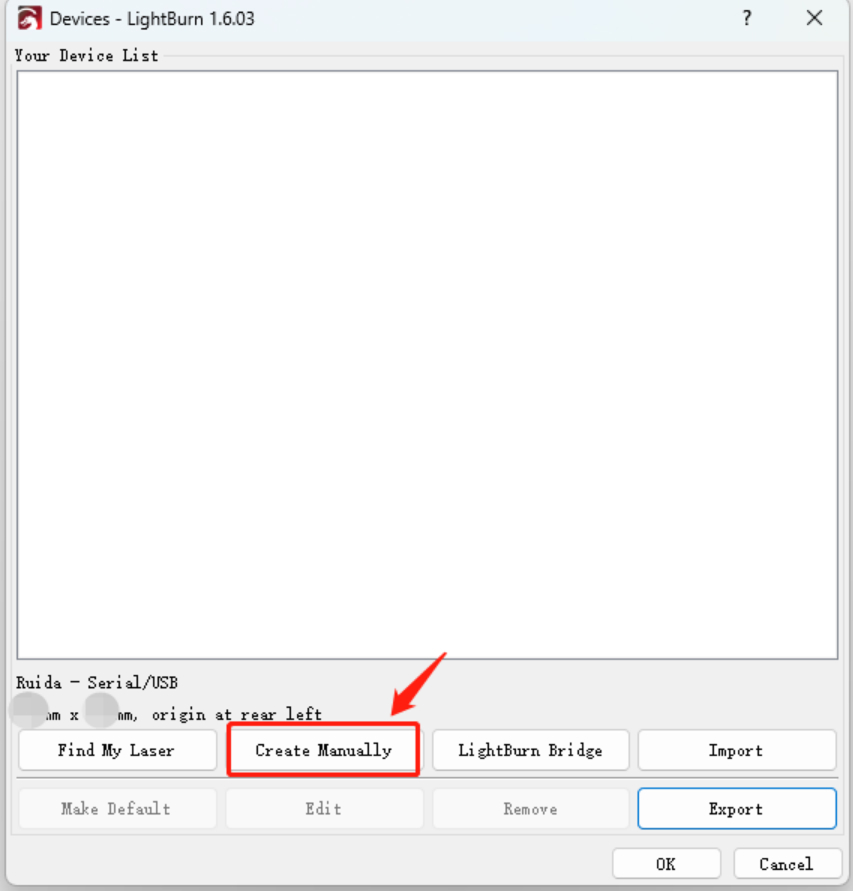
9. Create Manually.
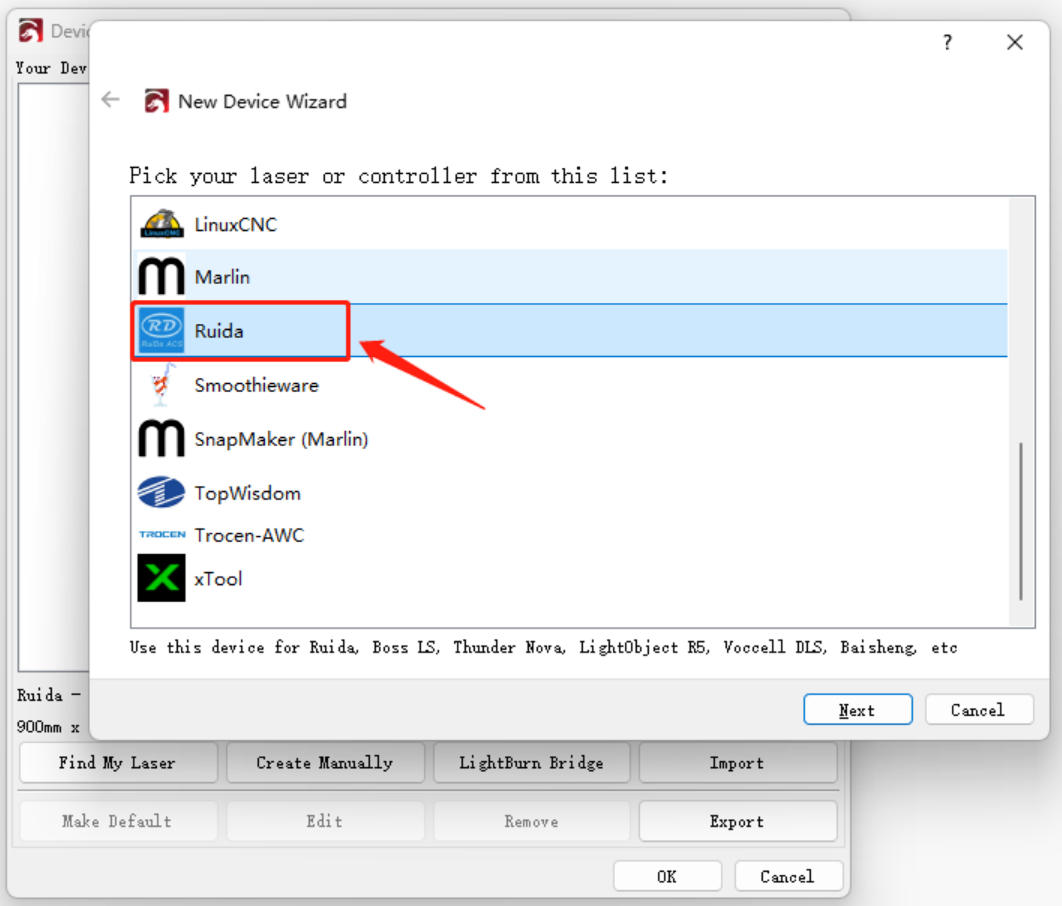
10. Select Ruida
11. Select Ethernet/UDP
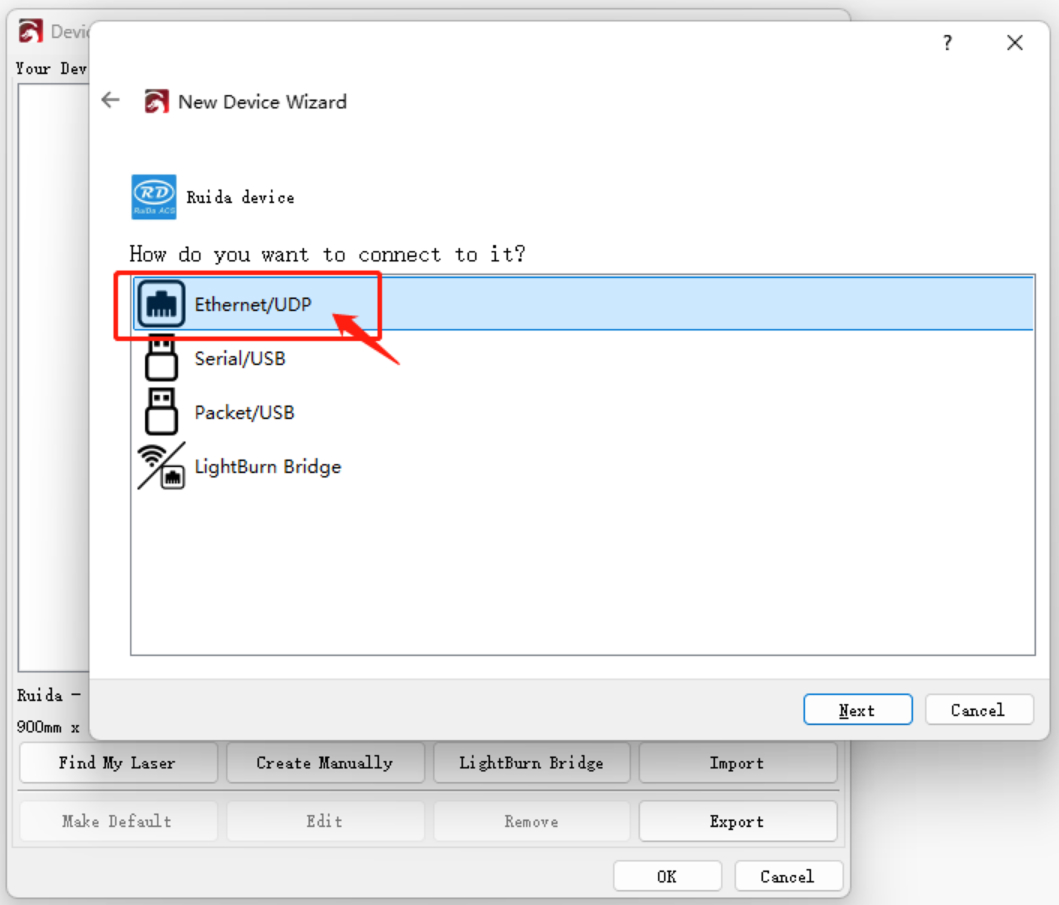
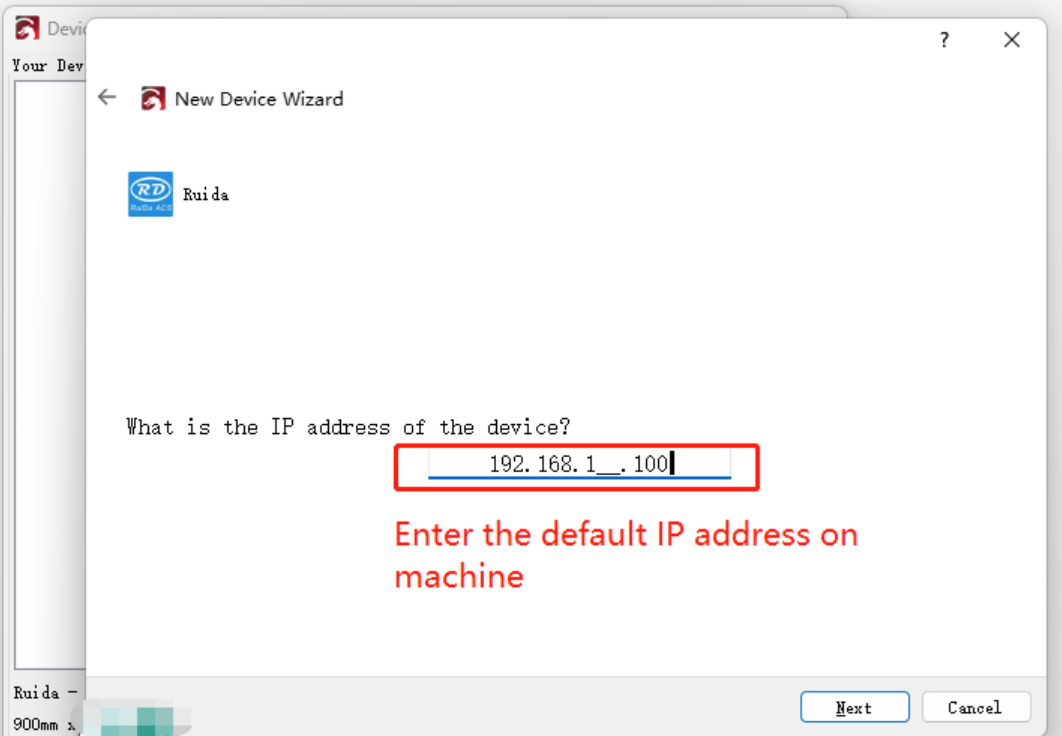
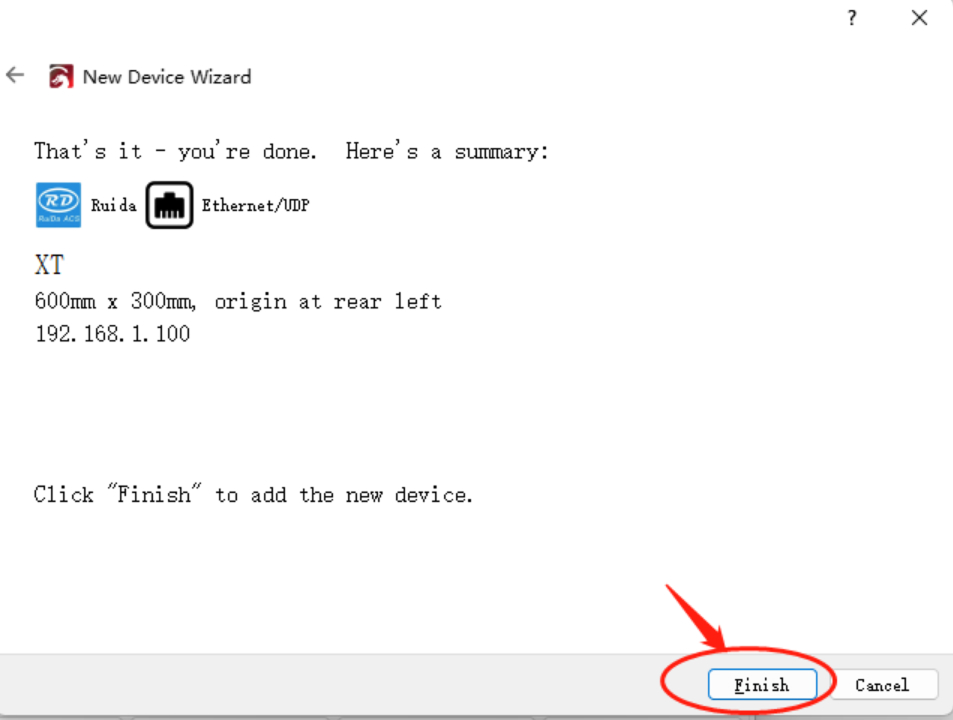
12. For Onelaser, the default IP address is 192.168.1.100
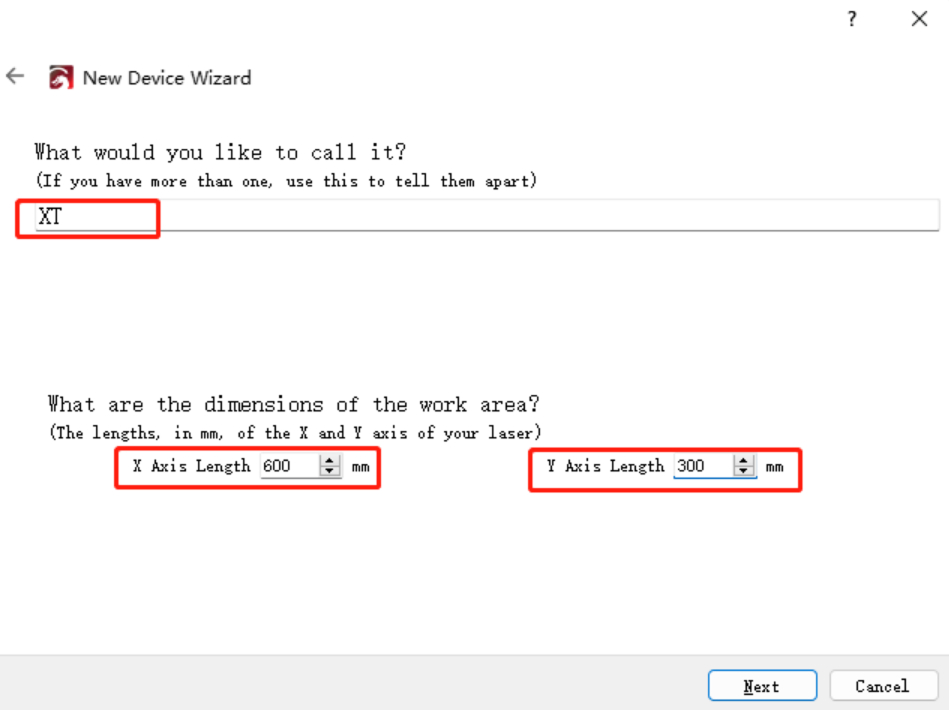
13. Name your laser and enter the work area, for X Series, the area is 600×400mm.
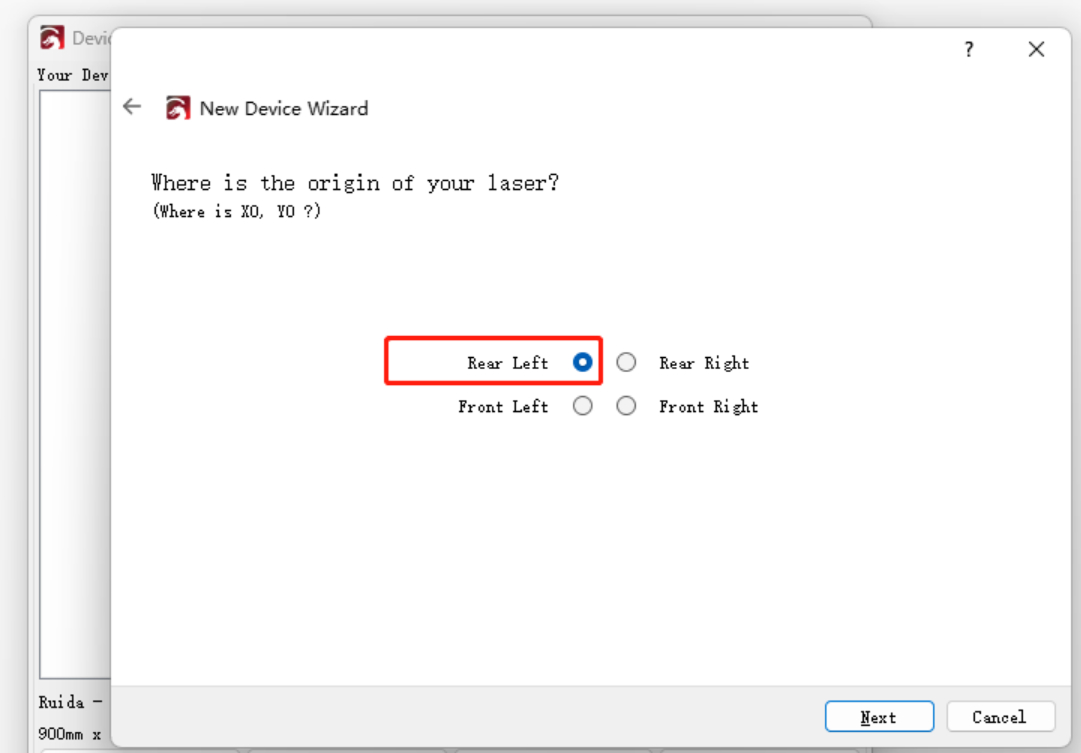
14. Select Rear Left as origin.
15. Then the connection is finished.
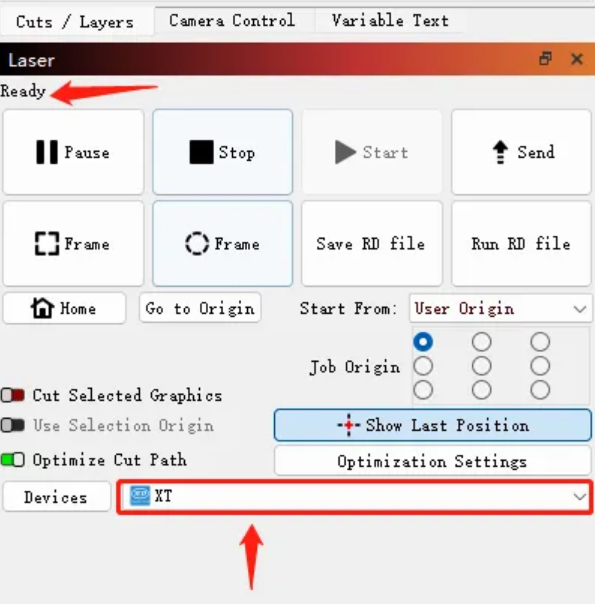
16. Back to the home page, select XT and if it’s show Ready, it means the machine is connected.
You can run a job.