¶ How to Apply and Fine-Tune Your Scanning Offset Settings - X Series
¶ Problem Description
Engraving result in blurry effects or "ghosting" (double images).
¶ Cause
- The Scanning Offset parameters tested at the factory were not written to the machine from LightBurn after the machine was received.
- Vibrations during shipping and logistics may have caused a slight deviation.
¶ Solution
Every machine is shipped from the factory with a dedicated Scanning Offset Settings parameter card (as shown in the image below).
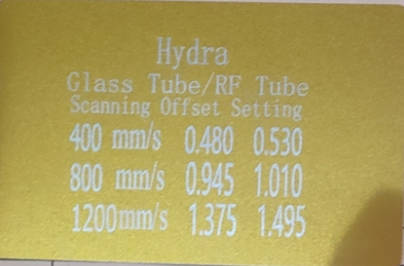
After connecting your computer to the machine, open Device Settings and click Basic Settings to find the Scanning Offset Adjust. Enter the values from your parameter card.
Important Reminders:
- The values on the card are in mm/s. Using other units, such as inch/s, will lead to incorrect Scanning Offset results. Ensure that your software is set to the correct unit: mm/s.
- Click Write and then click Read to confirm that the parameters have been successfully stored in the machine.
- Before closing the window, ensure that Scanning Offset Adjustment is enabled.
- For dual-source machines, you must enter the specific parameters for both Laser1 and Laser2 separately.
.png)
Due to vibrations during shipping and transport, the factory-set parameters may become slightly misaligned. We recommend validating the precision by performing a test engraving after entering the initial parameters:
- Draw a rectangle on your workspace. Set the Layer Mode to Fill.
- Double-click the layer to enter the settings window. Set the Speed to a corresponding value from your parameter card (e.g., 400 mm/s, 800 mm/s, or 1200 mm/s) and apply an appropriate Power setting. Set the Line Interval to 0.5 mm.
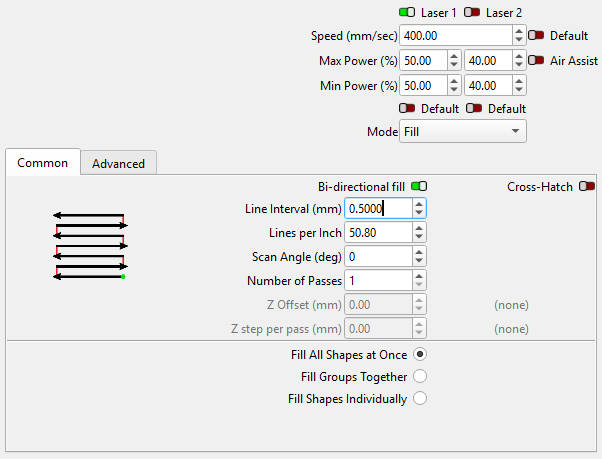
Observe the test result, as shown in the image below.
- If the ends of the even-numbered scan lines finish further to the right than the odd-numbered lines, you should slightly increase the Line Shift value.
- If the even-numbered lines finish further to the left, you should slightly decrease the Line Shift value.
Note:
The adjustment range is very small, typically from 0.001 to 0.01 (e.g., changing 0.150 to 0.155). You may need to repeatedly test and adjust until the ends of the even-numbered and odd-numbered scan lines are perfectly aligned.
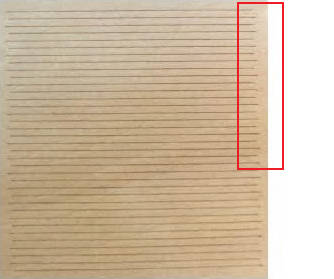
Once the adjustment is complete, you can Export and save the Scanning Offset Settings file. This allows you to directly Import the configured parameter file if you ever connect a new computer to this machine for processing.
Important Reminder:
If these steps do not resolve the issue, please submit a support ticket on ZOHO: https://zohodesk.1laser.com/portal/en/newticket. A technician will then be able to conduct a more in-depth diagnosis and resolve your problem.