¶ How to Use the Camera
How to Use the Camera is a complete operation guide designed to help you connect, configure, and use your laser camera with LightBurn software. This guide walks you through USB communication, calibration import, overlay alignment, and trace extraction to ensure accurate pattern positioning and processing.
¶ Attention
The camera can only communicate via USB cable.
¶ Operation Guide
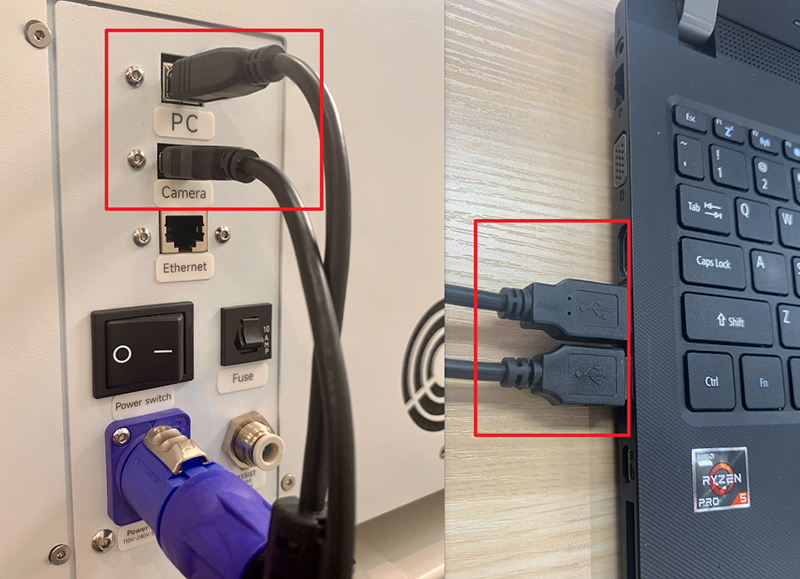
Step 1: After switching on the machine, connect your computer to the machine using the USB cable and the camera cable.
Step 2: Start the LightBurn software and confirm that the machine is communicating successfully with the software. If the “Ready” sign is displayed, communication has been successful.
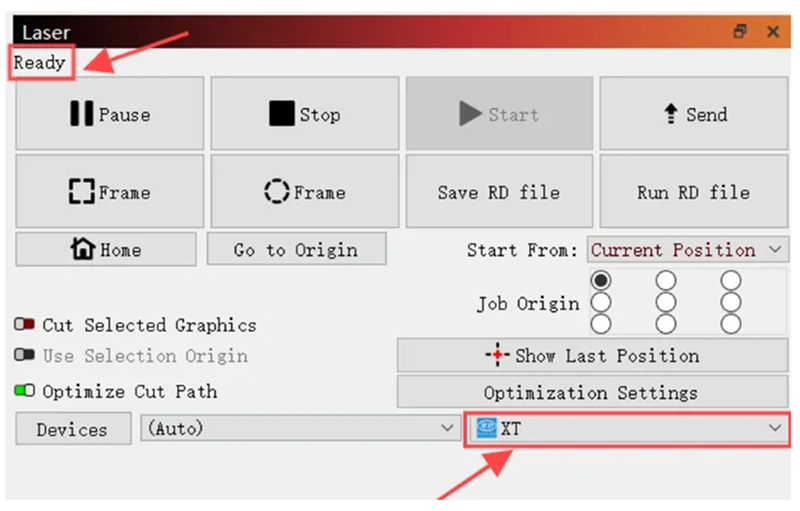
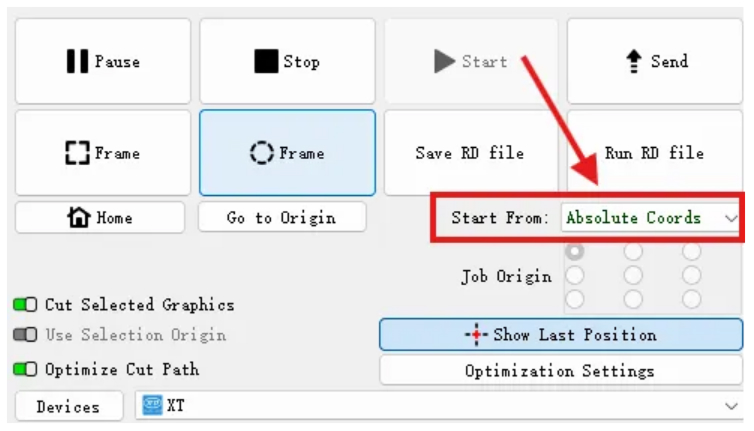
Absolute coordinates are recommended to ensure more accurate processing.
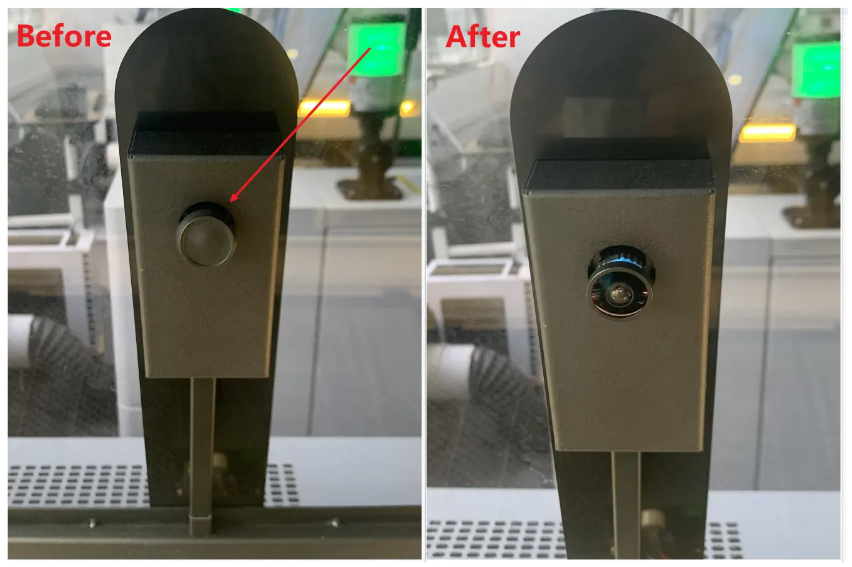
Step 3: Remove the cover from the camera.
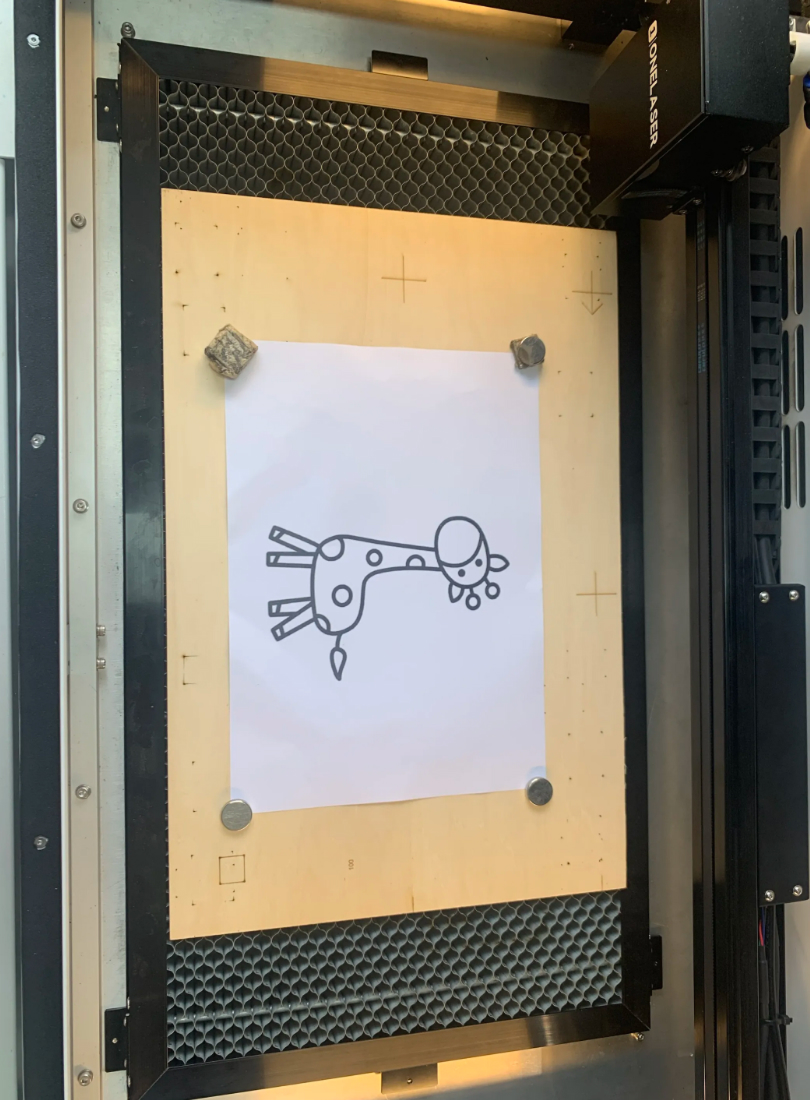
Step 4: Place the paper from which the pattern is to be extracted on the honeycomb bed and close the top cover of the machine after completing autofocus.
Note: It is recommended to place the paper on a hard board to prevent it from being pressed into the honeycomb holes due to its thinness while the laser head is completing autofocus, which could cause distortion.
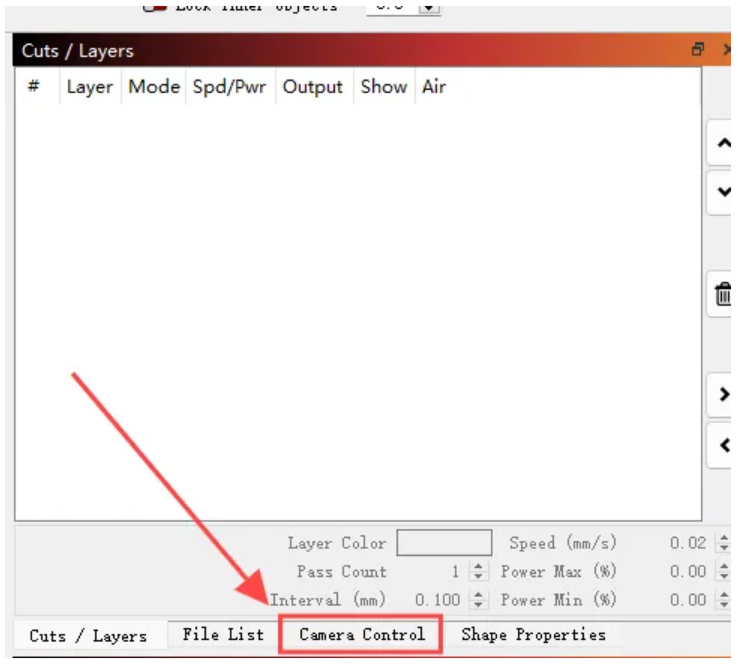
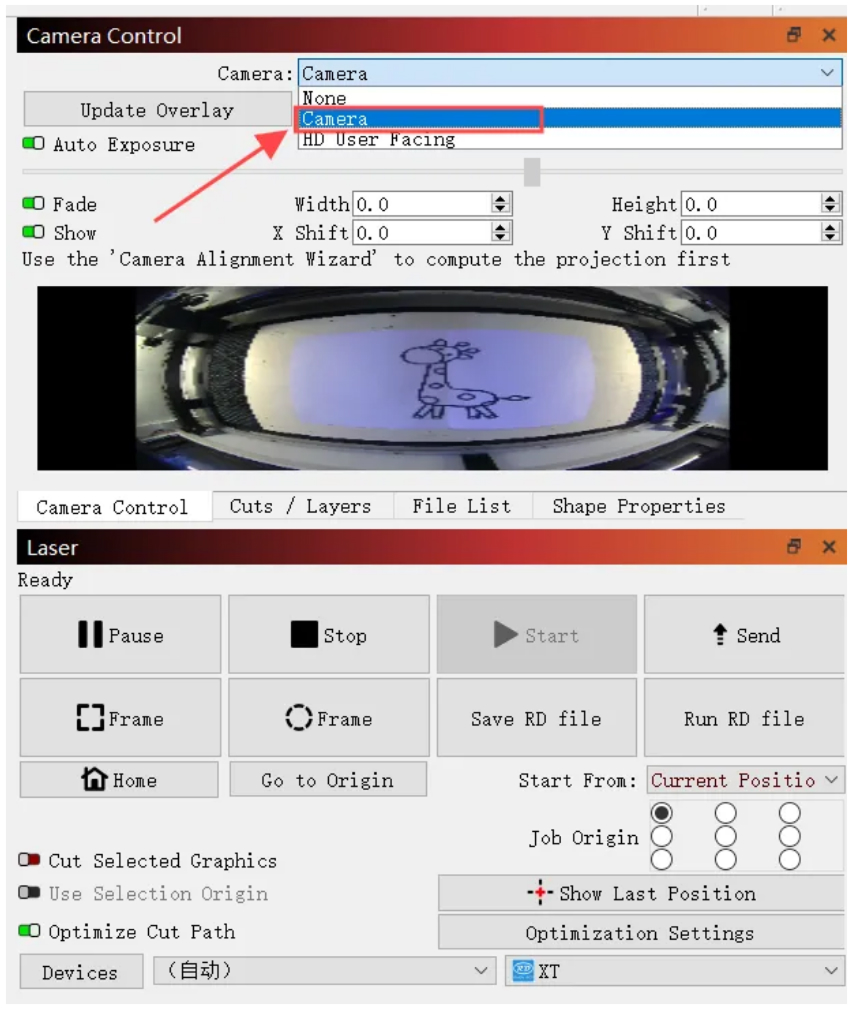
Step 5: Click on “Camera Control” to open the camera function.
Step 6: In camera selection, select the camera with the name corresponding to the LightBurn camera.
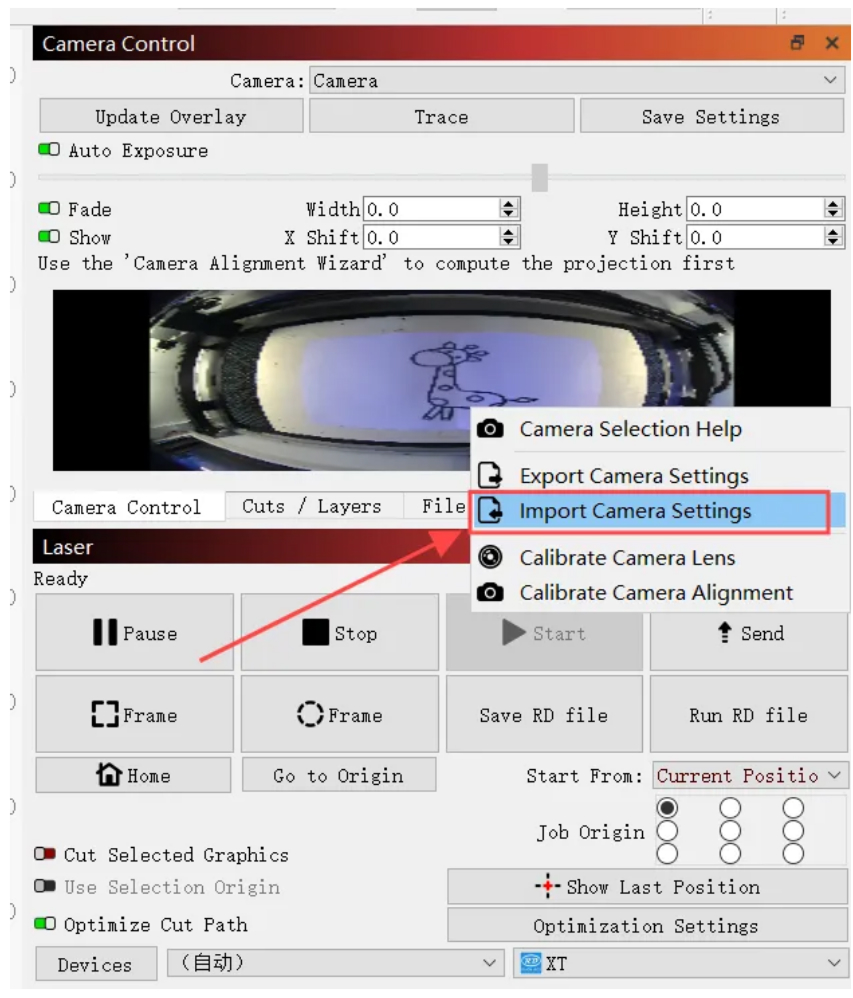
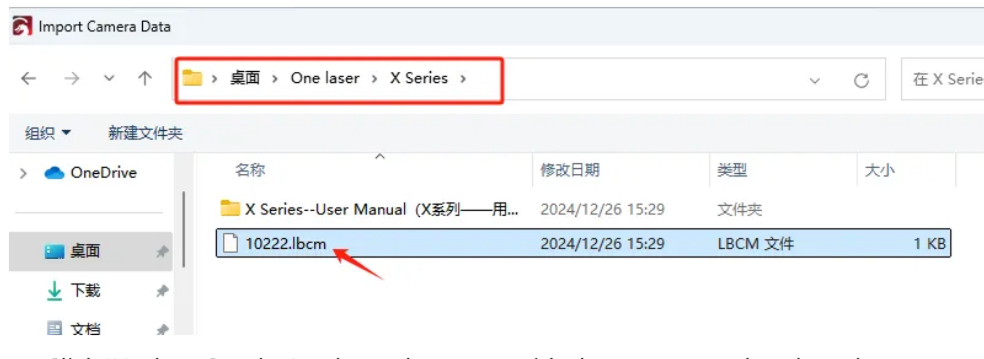
Step 7: Right-click and select “Import Camera Settings” to import the camera calibration file from the U disk.
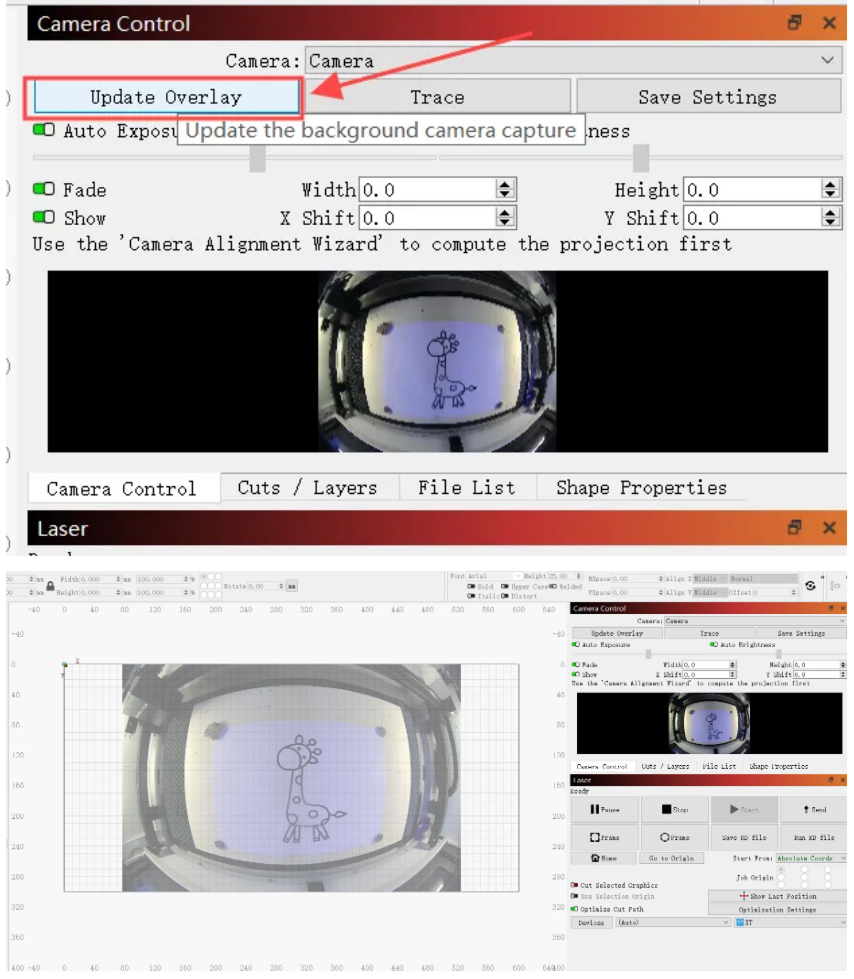
Step 8: Click “Update Overlay” to update the pattern on the canvas.
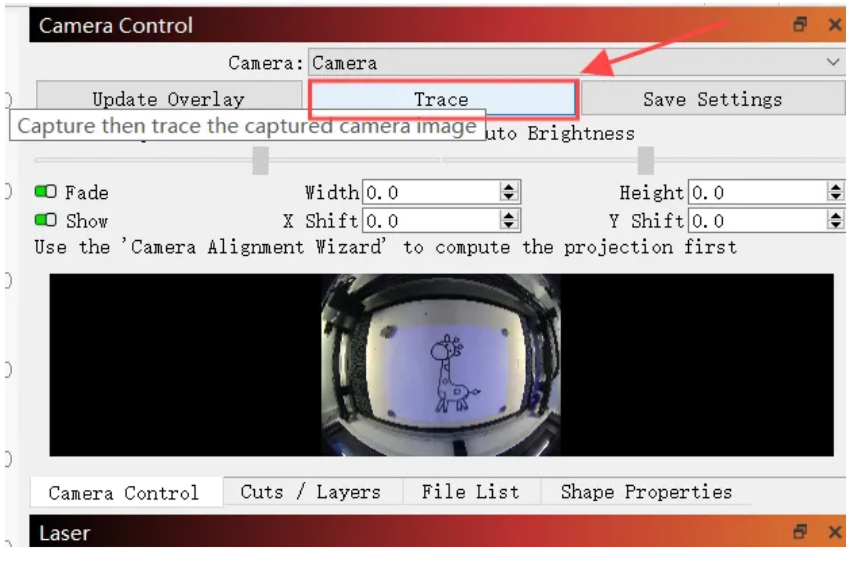
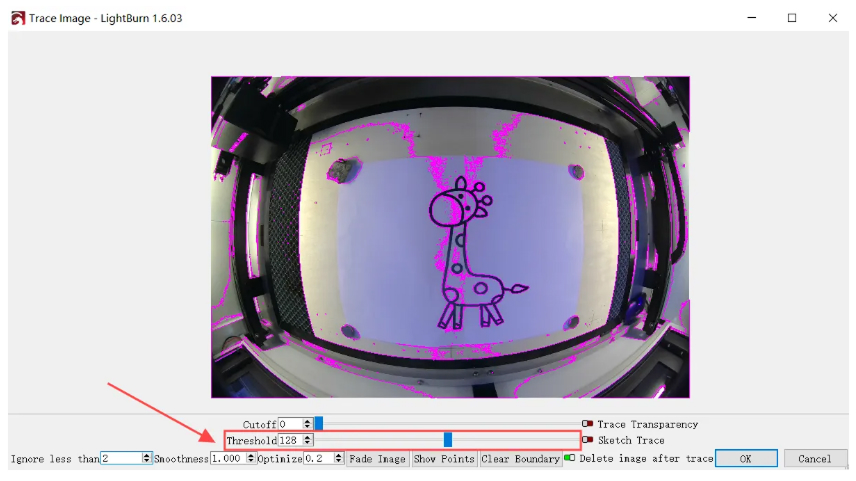
Step 9: Click “Trace” to select the range of the pattern to be extracted by adjusting the threshold. After adjustment, click “OK” to capture the pattern.
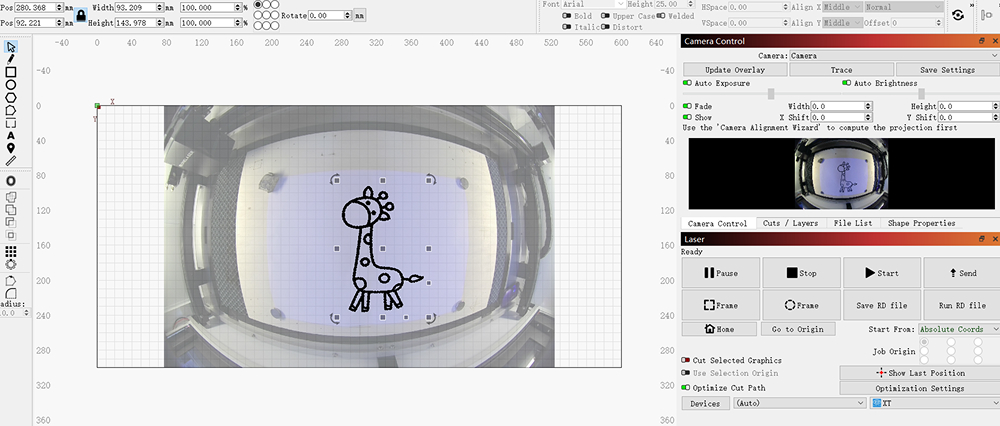
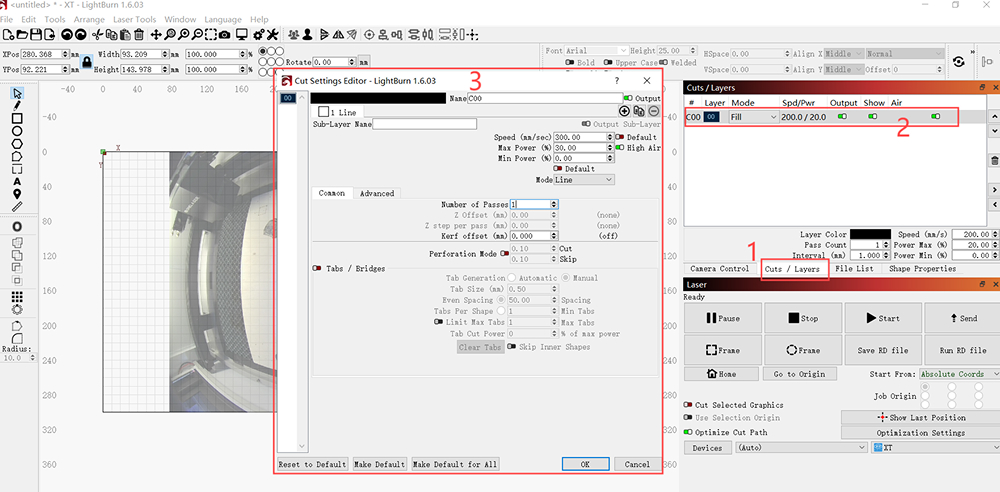
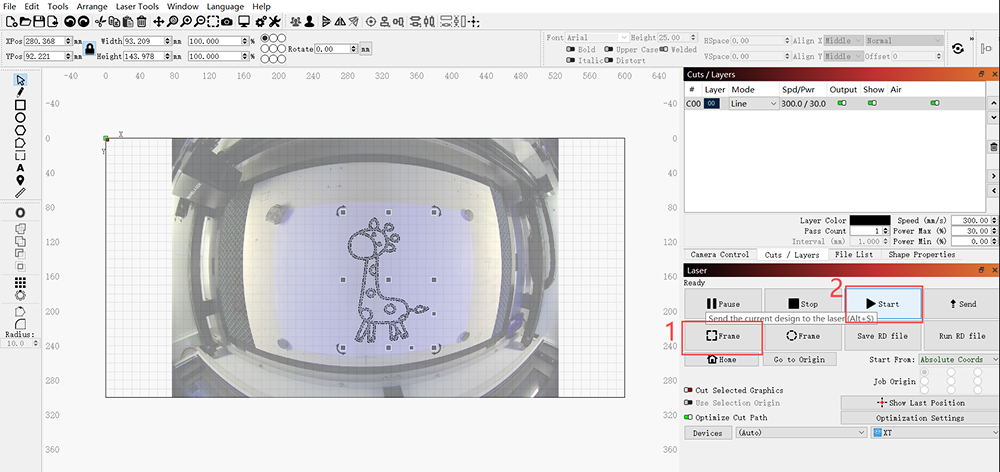
Step 10: After selecting the extracted pattern, set the processing parameters and click “Frame,” then start processing.