¶ Random Stray Lines Appearing During Processing - X Series
This page explains why random stray lines may appear during laser processing, even when they are not present in the original design file. It provides a detailed breakdown of common causes—ranging from data transmission errors to hardware failures—and step-by-step solutions to help restore stable and accurate machine operation.
¶ Problem Description
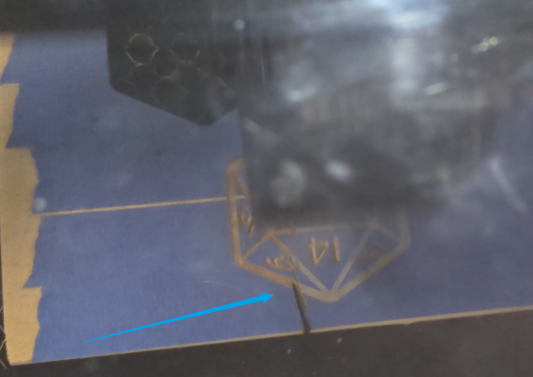
A file that previously ran normally now causes the laser head to move randomly along the X or Y axis, leaving random stray lines that do not exist in the original design. In some cases, the laser head may even continuously crash into the X-axis or Y-axis limit switches during operation.
¶ Cause
- Clicking Start directly in LightBurn can cause errors if the data stream is interrupted.
- If the computer is running on high memory, data packets sent to the machine may be lost.
- Damaged switches may send false triggers.
- Loose, burnt, or damaged plugs on the X/Y drivers, or loose connections at the motor ends.
- Internal damage to the X or Y axis motors.
¶ Solution
¶ Method 1. Send Files to the Machine
Problems caused by clicking Start directly in LightBurn are almost always due to an unstable live transmission.
Instead of Start, click Send in LightBurn to transfer the file completely to the machine’s internal memory. Then, initiate the job directly from the machine's control panel.
¶ Method 2. Clear Computer Memory
Computers can accumulate a large amount of cache after long periods of operation, which may interfere with data processing.
Restart your computer to release memory and clear the cache. After rebooting, try sending the file and running the job again.
¶ Method 3. Inspect Limit Switches
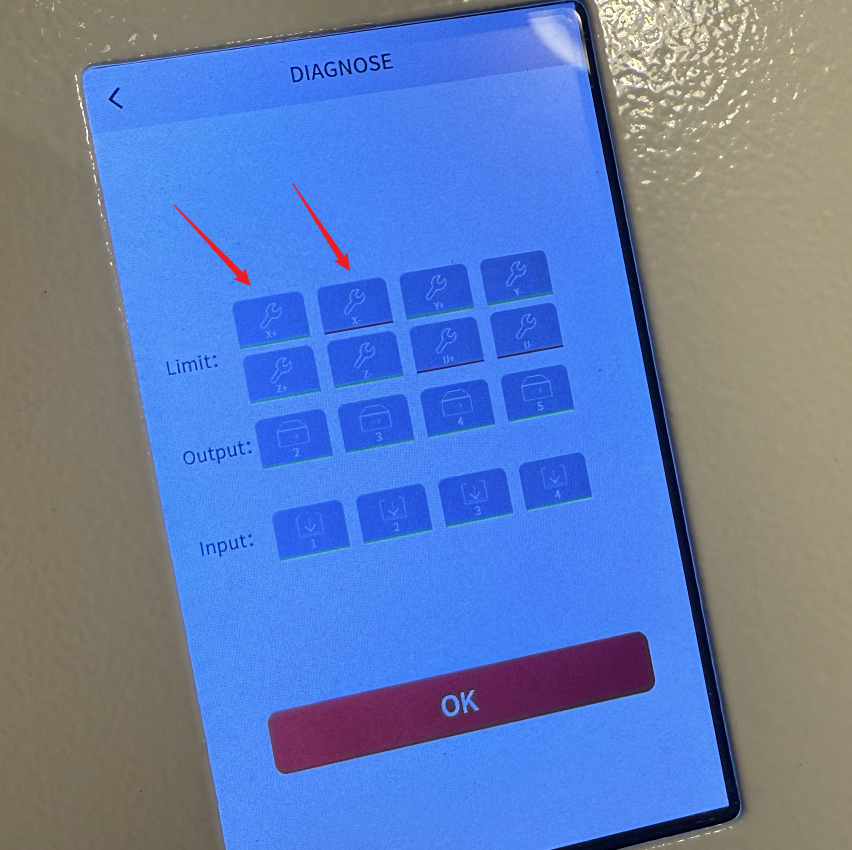
Open the Diagnose page on the controller panel. Manually press the limit switch with your finger.
Check if the corresponding indicator on the Diagnose page changes from green to red.
- If the color changes: The switch is functioning correctly.
- If the color remains unchanged: The limit switch is damaged and needs replacement.
¶ Method 4. Inspect the X-Axis or Y-Axis Driver
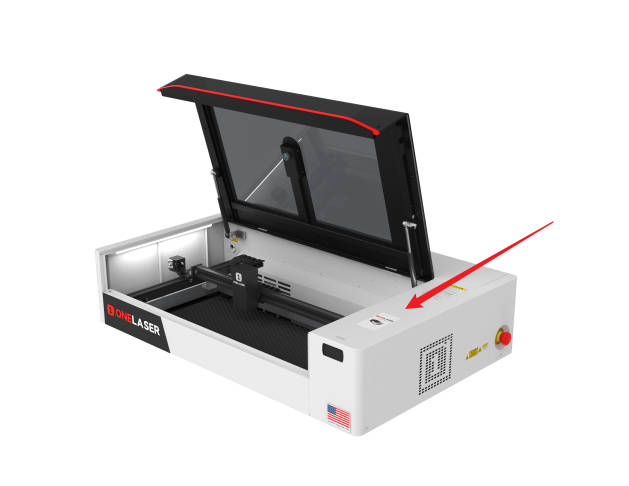
Disconnect the power. Unscrew the screws on the right side of the XRF and remove the right side cover.
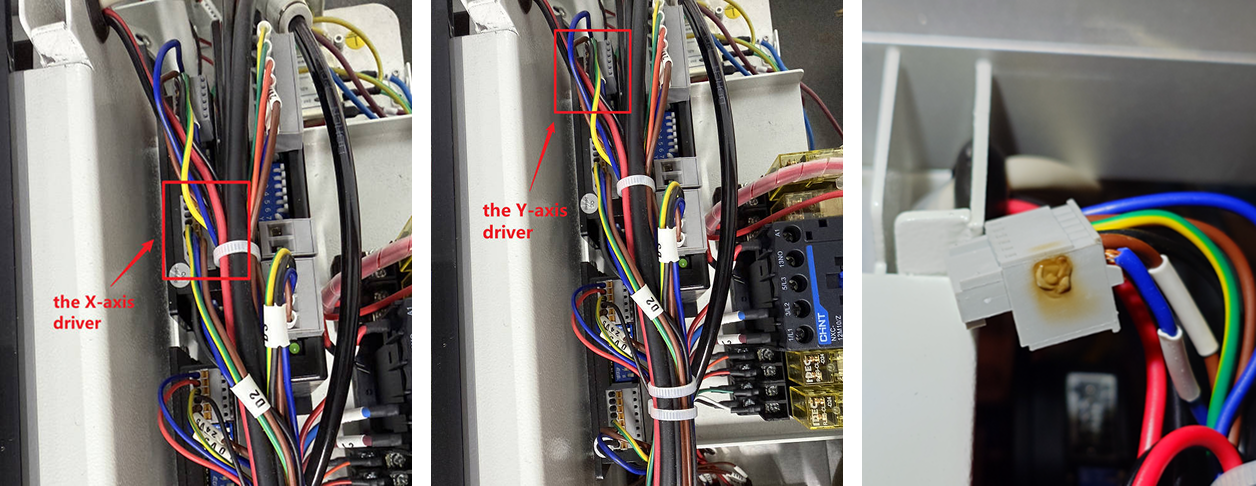
Locate the X-axis/Y-axis driver (near the back end of the machine) and check for any loose or burned connections at the driver plug:
- If the plug is loose: Push the plug in tightly, ensuring a secure connection. Then, try moving the X-axis or Y-axis.
- If the plug is burned: Take photos and contact customer service via ZOHO to request a replacement for the damaged driver plug (if the machine is still under warranty).
Prepare a multimeter and set it to continuity mode. Turn the machine OFF and unplug the wires from the driver.
Use the multimeter probes to check continuity on:
① Black and Yellow & Green wires
② Brown and Blue wires
The multimeter should beep or display "0L" to confirm continuity.
The diagram below illustrates checking the Y-axis driver as an example.

¶ Method 5. Inspect the X-Axis or Y-Axis Motor
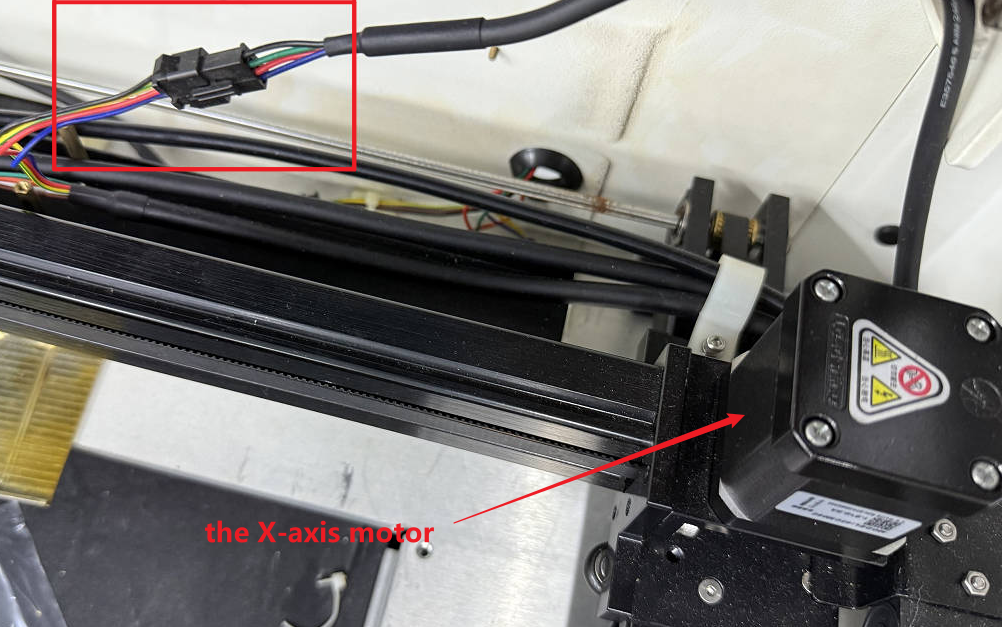
Locate the X-axis motor and verify the wire plug is securely connected.
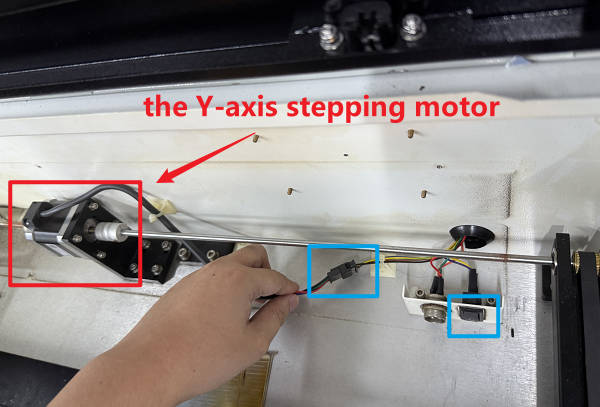
Open the cover at the back of the honeycomb board to locate the Y-axis motor. Check if the wire plug is connected and if the motor is functioning.
Important Reminder:
If these steps do not resolve the issue, please submit a support ticket on ZOHO: https://zohodesk.1laser.com/portal/en/newticket. A technician will then be able to conduct a more in-depth diagnosis and resolve your problem.