¶ RF Tube Fails to Fire (No Laser Output)
¶ Problem Description
When the machine is operating, the laser head moves and the fans spin, and the processing power and speed settings are normal. However, the RF tube does not fire (there is no laser output) because no mark is left on the material.
¶ Cause
- Optics: The beam path is misaligned. The machine has not been maintained on schedule, causing the optics (mirrors/lenses) to be unable to transmit or reflect light, leading to complete damage.
- Power: The power supply is damaged.
- Wiring: The connecting wires or plugs are loose or damaged.
- Control Board: The fan control board port is damaged.
- Tube Life: The RF tube has suffered natural aging (after a very long period of use) or is damaged.
¶ Solution
Important Reminder:
It is normal for the XRF model not to fire for the first few seconds immediately after turning it on. The internal components require preparation time, and the machine is considered ready only after you hear three beeps from the buzzer.
¶ Confirm Ambient Temperature
The operating environment temperature for the laser tube must be between 41°F and 104°F (5°C and 40°C). Operating outside of this temperature range may lead to abnormalities, such as the laser tube failing to fire (no laser output).
¶ Check for Output Directly at the RF Tube
Remove the back cover of the XRF machine. Place a piece of wood in front of the RF tube exit aperture. Click the Pulse button on the control panel to check if the laser is firing from the RF tube exit.
¶ Check for lenses and Beam Path Misalignment
Inspect the mirrors, beam combiner, and focus lens along the beam path.
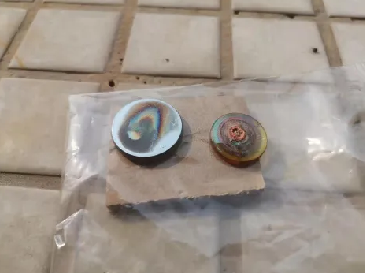
Beam Path Misalignment and Adjustment Tutorial Link: (The tutorial steps for this section are not yet provided.)
¶ Check the Power Supply
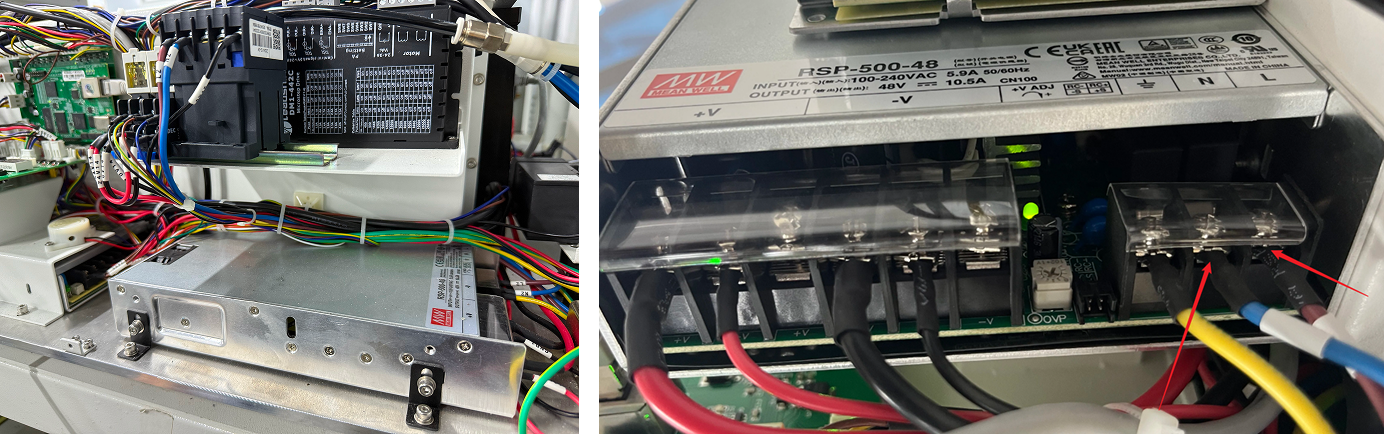
Prepare a multimeter. Locate the power supply and check if the green indicator light is steadily lit:
- If the green light is steadily lit: Use the probes to measure whether the voltage between +V and -V is 48V. If the voltage is abnormal, it indicates a power supply failure.
- If the green light is NOT lit: Use the probes to measure whether the voltage between L2 and N2 is 220V. If the voltage is normal, it indicates a power supply failure. If the voltage is abnormal, it indicates a wiring issue.
¶ Inspect Wiring and Connections
Remove the right side and back covers of the XRF machine and prepare a multimeter.
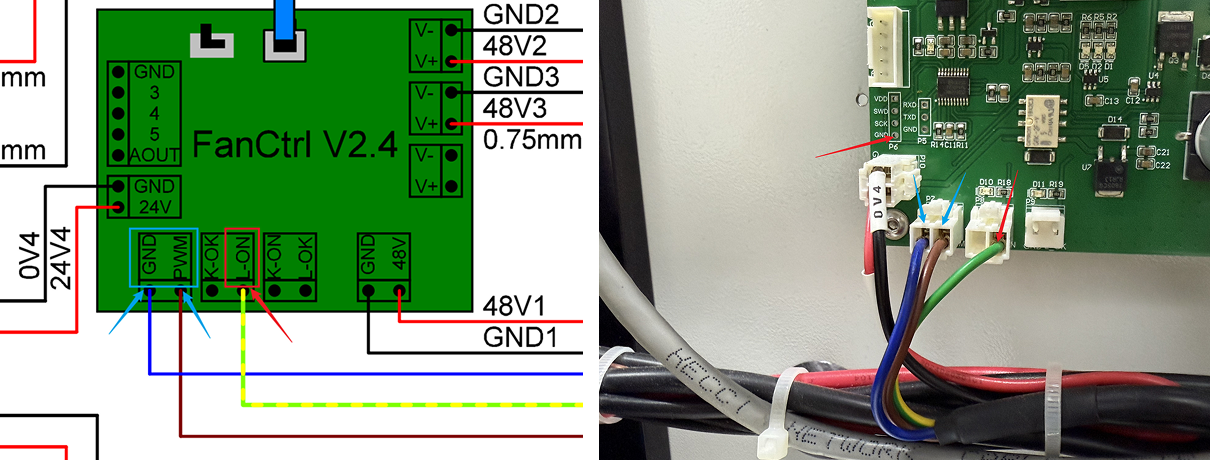
On the right side of the XRF, locate the mainboard and find the CN11 PWM port. Set the multimeter to continuity mode. Use the probes to measure whether the PWM and GND ports of CN11 (the brown wire and the blue wire) have continuity.

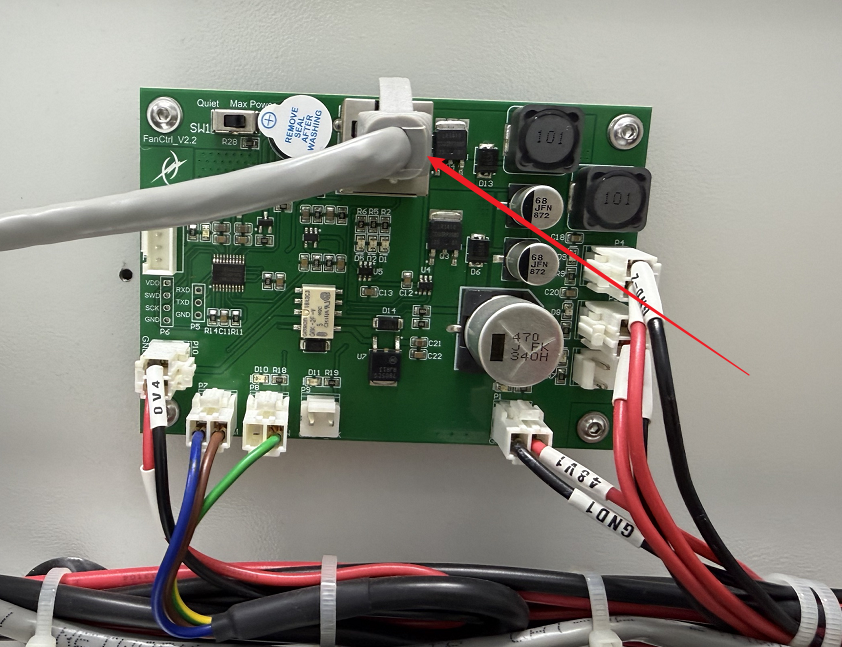
Locate the FanCtrl board at the back of the XRF. Use the multimeter in continuity mode to measure whether the PWM and GND ports (the brown wire and the blue wire) have continuity and measure whether the yellow&green wire port and the GND port are reading 5V.
With the machine powered OFF, check if the wire on the upper part of the FanCtrl board are securely plugged in. Inspect the aforementioned wires to ensure they are firmly seated in their ports and that no wires are damaged.
Important Reminder:
If these steps do not resolve the issue, please click this link to submit a support ticket: https://zohodesk.1laser.com/portal/en/newticket. A technician will then be able to conduct a more in-depth diagnosis and resolve your problem.