¶ USB Cable Cannot Connect - X Series
When using LightBurn to transfer files, you may encounter a pop-up message saying “File transfer failed.” This guide explains the most common cause—USB communication failure—and provides step-by-step instructions to check your USB driver and restore proper connectivity.
¶ Problem Description
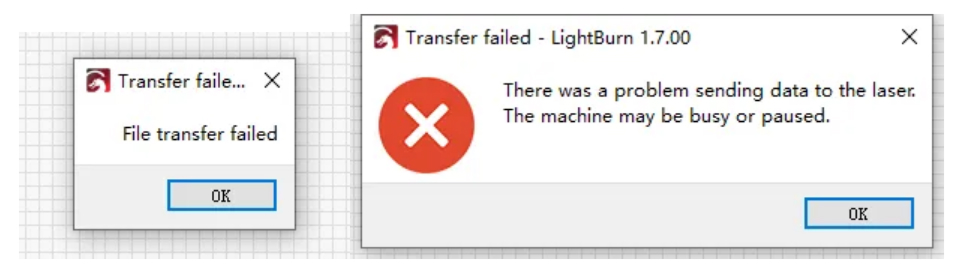
When using LightBurn to transfer files, the software displays a pop-up window with the warning "File transfer failed".
¶ Solution
¶ Method 1. Check if the USB driver is successfully installed and running properly
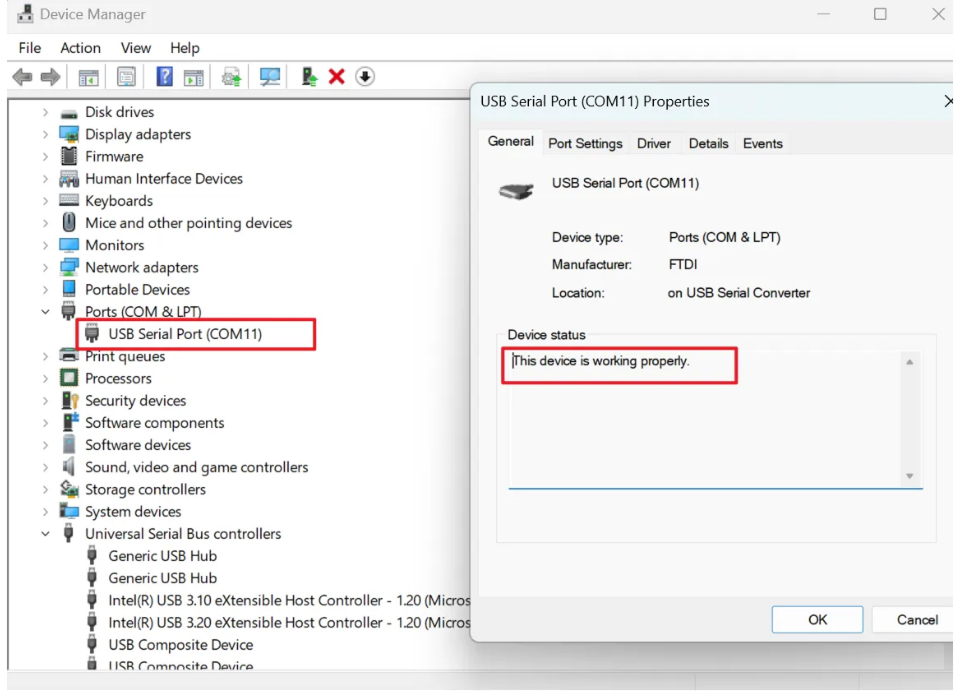
Go to the computer device manager, click the port, and right-click Properties to check whether the driver is successfully installed and running normally.
¶ Method 2. Check if the USB cable is damaged
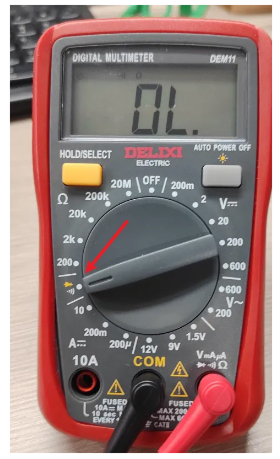
Use a multimeter, switch the gear to the on/off position, touch the red test lead to the A terminal, and the black test lead to the B terminal, and look at the display of the multimeter to determine whether the USB cable is connected or disconnected.
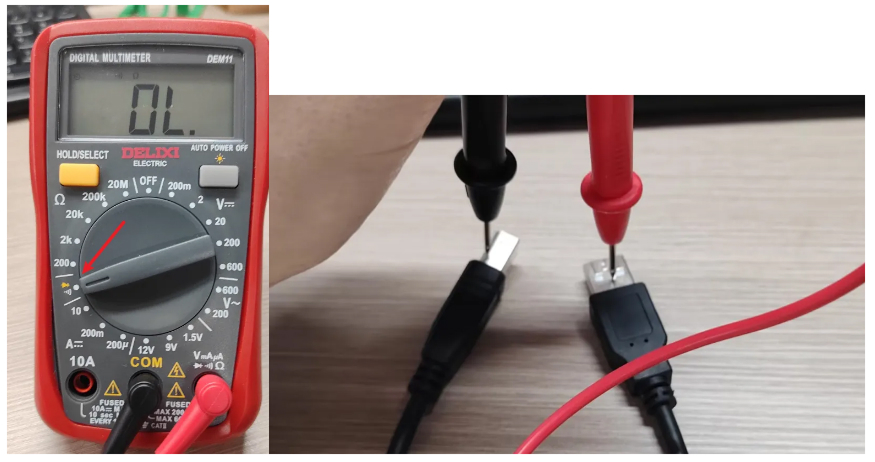
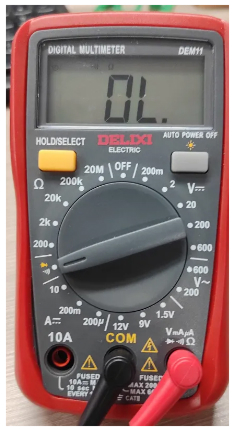
Not connected
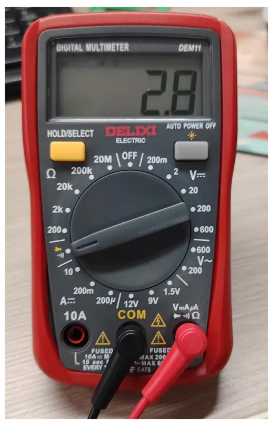
Connected (the value on the multimeter will change and there will be a beep)
¶ Method 3. Check whether the USB port of the motherboard is abnormal
Use an M2 hexagonal wrench to remove the right door of the device.
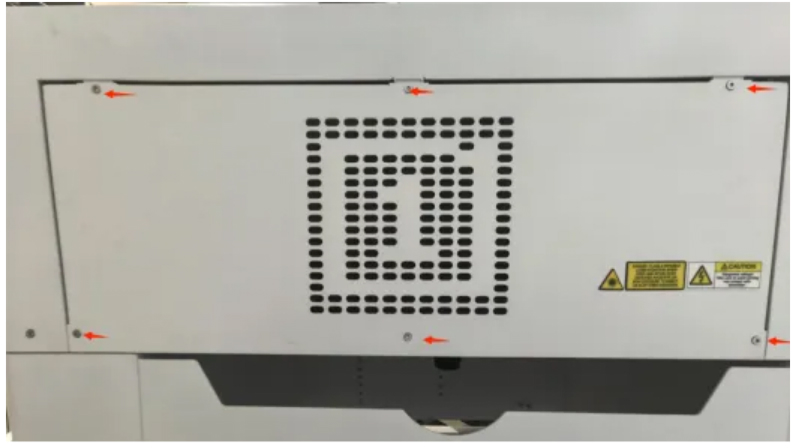
Find the motherboard and unplug the USB cable that was originally inserted.
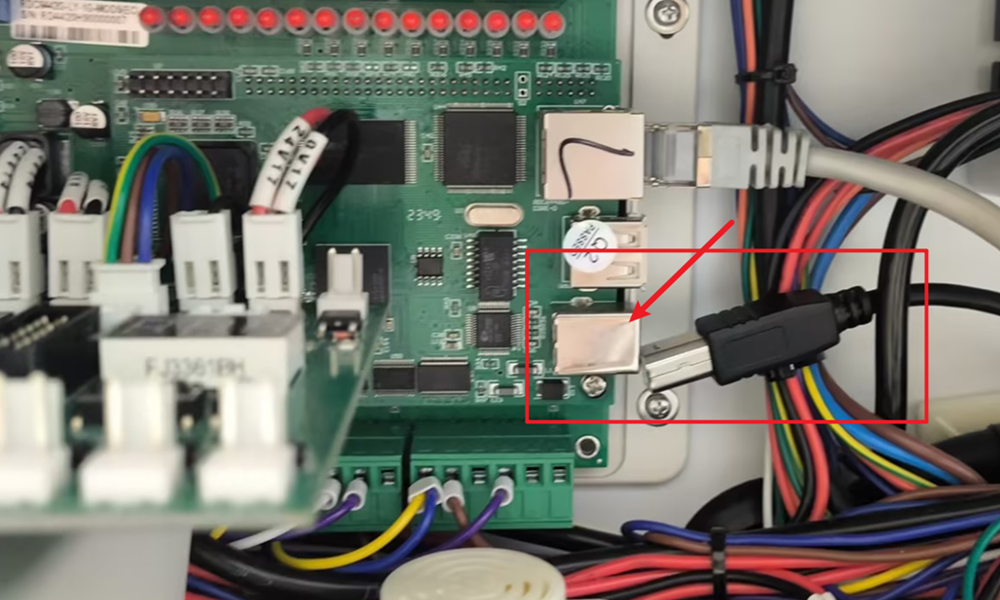
Directly plug in the USB cable provided with the device
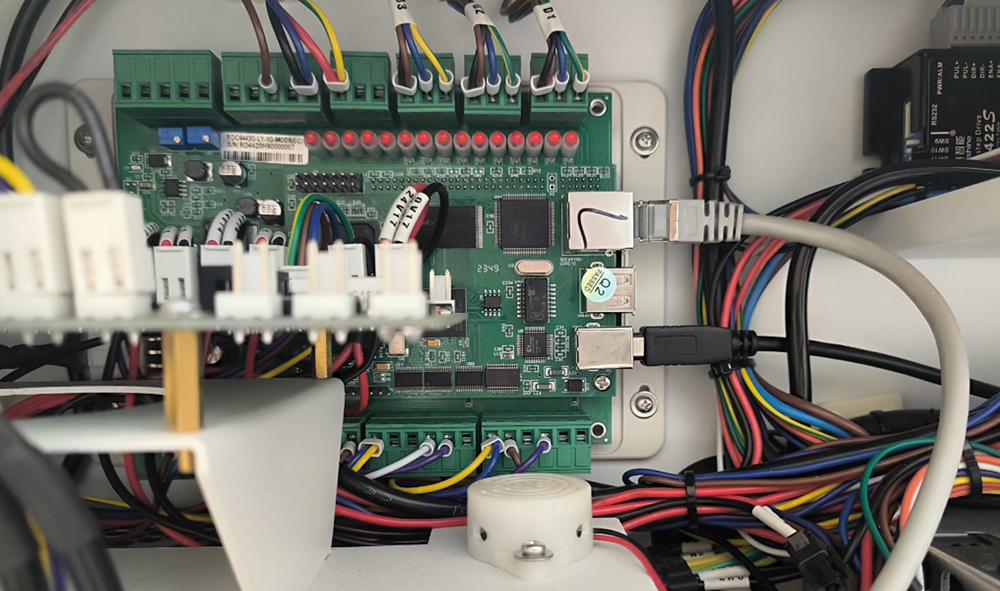
If the device can be connected and used normally
The USB extension cable from the internal board of the device to the external USB interface is damaged.
Please contact the manufacturer for replacement.
If the connection cannot be used normally
Please check whether the USB extension cable from the internal board of the device to the external USB interface is normal.
→ Use a multimeter, switch the gear to the on/off position, touch the red test lead to the A end, and the black test lead to the B end, and look at the result of the multimeter to determine whether the USB expansion interface is on or off.
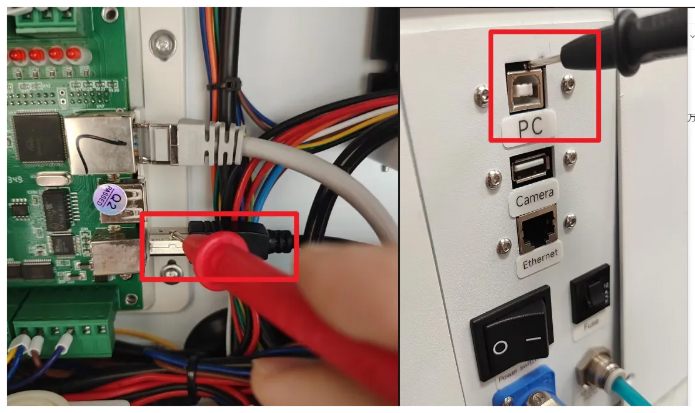
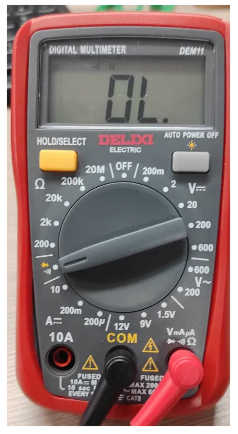
Not connected
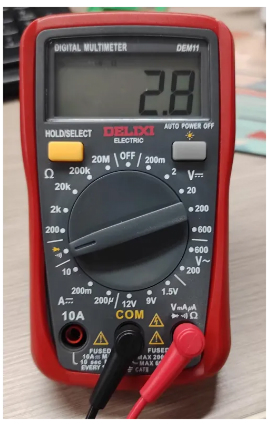
Connected (the value on the multimeter will change and there will be a beep)
If the test is normal
The mainboard is damaged and you need to contact the manufacturer to replace the mainboard.
Important Reminder:
If these steps do not resolve the issue, please submit a support ticket on ZOHO: https://zohodesk.1laser.com/portal/en/newticket. A technician will then be able to conduct a more in-depth diagnosis and resolve your problem.