¶ Alarm: The RF Laser has experienced a malfunction... - Hydra Series
This guide explains how to troubleshoot the RF laser malfunction alarm that may appear on the control panel when starting a job. The article outlines common causes such as environmental conditions, outdated firmware, wiring issues, or hardware failure, and provides step-by-step diagnostic solutions to restore normal machine operation.
¶ Problem Description
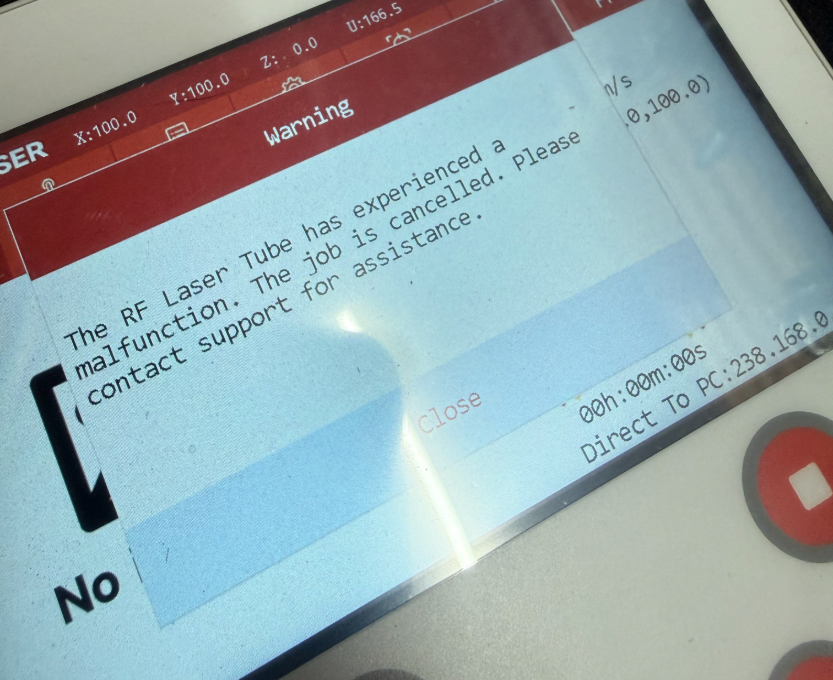
- When starting a job, the control panel displays: "The RF Laser has experienced a malfunction. The job is cancelled. Please contact support for assistance."
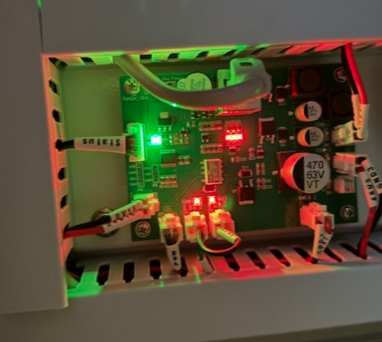
- From the moment "Confirm and move" is pressed until several minutes after the reset is complete, the D5, D2, and D1 indicator lights on the FanCtrl board remain illuminated and do not turn off.
¶ Cause
- Ambient Temperature: The room temperature is outside the operating range of the RF tube.
- Firmware Bug: An outdated firmware version is causing a system error.
- Loose Connections: Wiring between related components has come loose.
- Hardware Failure: The DC power supply, RF tube, or related components are damaged.
¶ Solution
¶ Method 1. Check Ambient Temperature
Operating Range: Ambient temperature must be between 41–104°F (5–40°C).
Surface Temp: the maximum temperature of the laser surface should remain below 140°F (60°C).
If the environment is too hot or too cold, adjust the room temperature and allow the machine to acclimate before restarting.
¶ Method 2. Verify Firmware Version
An outdated system may trigger false alarms due to known software bugs.
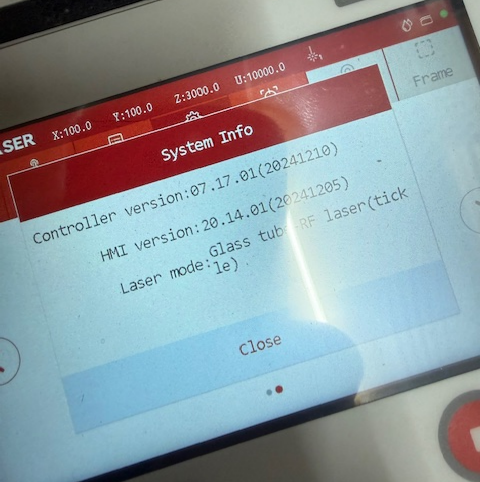
Go to Settings > System Info on the control panel to view your current firmware version.
Check the official website for the latest firmware updates. If your version is outdated, follow the Firmware Update Guide to install the latest fix.
¶ Method 3. Inspect Power Supply, RF Tube, and Wiring
Check the indicator light on the DC power supply.
- Green: Power supply is normal.
- Red: Power supply may be damaged or in a fault state.
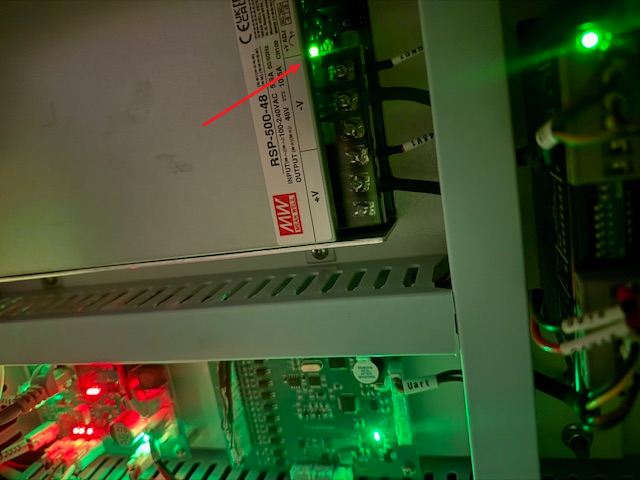
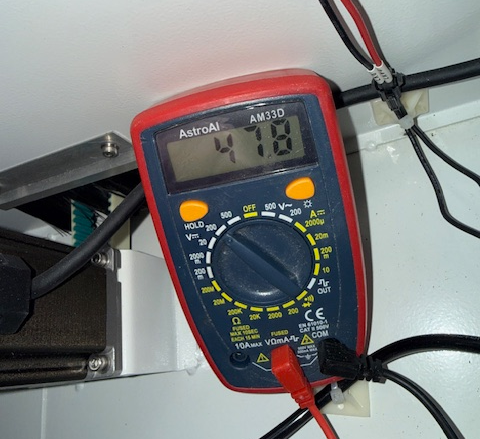
Use a multimeter to measure the voltage at the +V and -V terminals of the power supply, as well as at the RF tube connection points.
The reading should be 48V (slight fluctuations are acceptable). If the reading is significantly lower or absent at any point, there is a fault in the power supply or the wiring. Please share your voltage test results with ONELASER After-Sales Support so we can provide a more in-depth diagnosis.
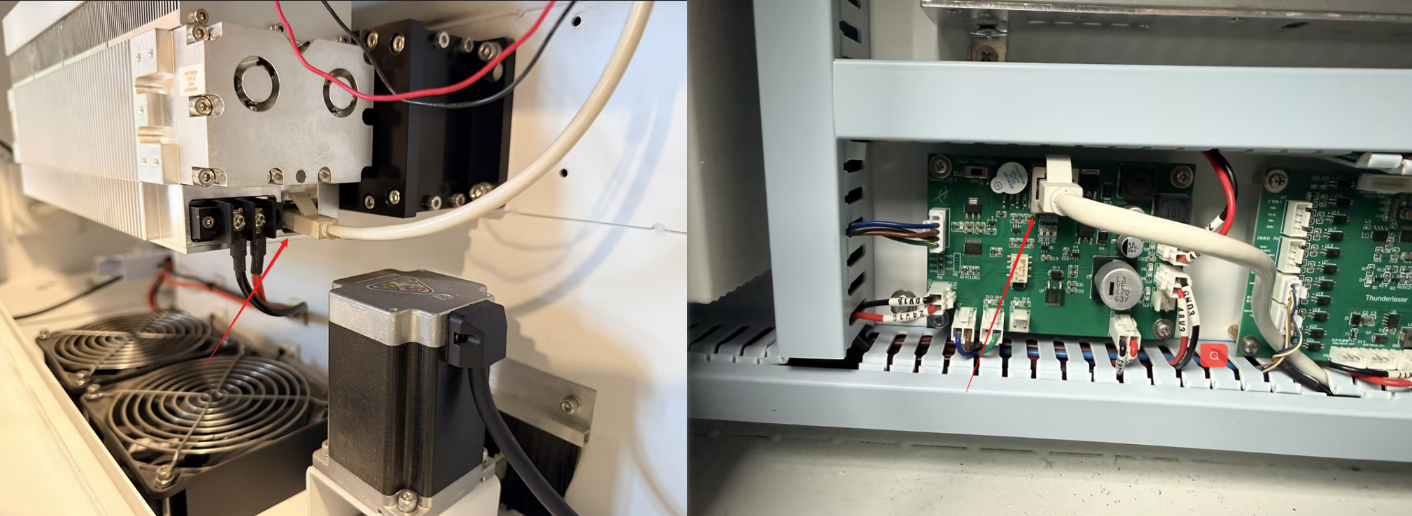
Inspect the grey network cable connecting the RF tube to the FanCtrl board.
Unplug and firmly re-seat both ends of the cable. If possible, replace it with a known working network cable to rule out a damaged communication line.
Important Reminder:
If these steps do not resolve the issue, please submit a support ticket on ZOHO: https://zohodesk.1laser.com/portal/en/newticket. A technician will then be able to conduct a more in-depth diagnosis and resolve your problem.