¶ Incorrect Autofocus Focal Distance - X Series
Achieving a precise focal point is critical for clean vector cuts and sharp raster engravings. When an automatic focus cycle completes but leaves the nozzle tip too close to or too far from the material, the resulting defocusing leads to poor engraving contrast, incomplete material penetration, or excessively thick burn marks. This guide walks you through verifying your sensor hardware and resetting software focus parameters to restore optimal laser performance.
¶ Problem Description
After running an autofocus cycle, the distance between the laser nozzle tip and the material surface is either too large or too small. This defocusing causes poor engraving quality, weak cutting penetration, or excessively wide kerf marks.
¶ Cause
- Corrupted/Modified Parameters: Software focal length parameters or homing offset values have been altered.
- Sensor Hardware Fault: The autofocus physical probe or optical sensor mechanism is malfunctioning or reporting intermittent signals.
¶ Solution
¶ Step 1. Verify Autofocus Sensor Hardware Status
Please refer to the Autofocus Troubleshooting Guide and complete all recommended hardware diagnostic checks.
If the sensor hardware passes inspection but the focal gap remains incorrect, proceed to Step 2.
¶ Step 2. Inspect and Reset Focal Parameters in Software
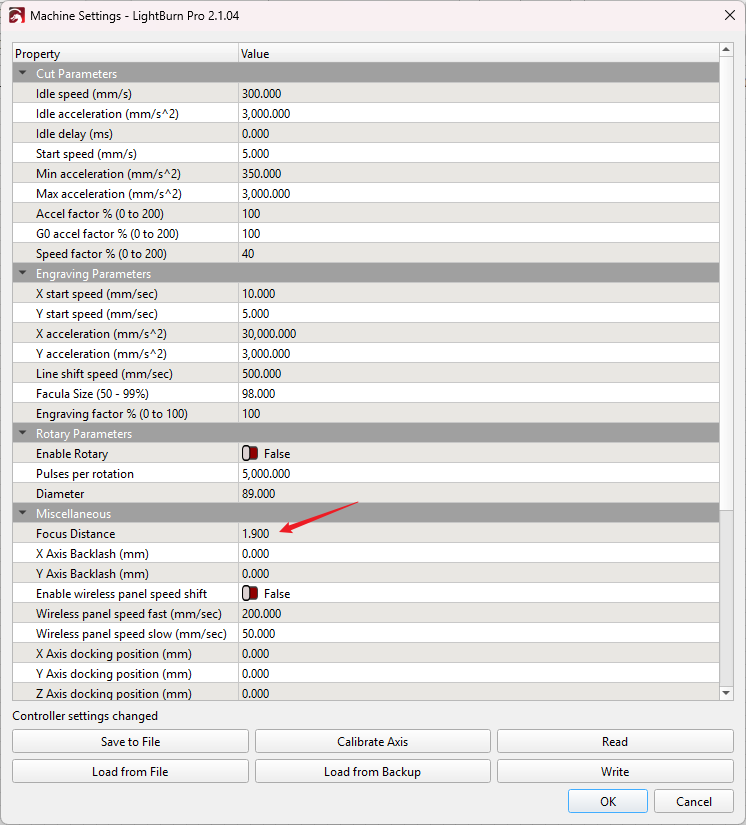
Two primary settings govern the autofocus stop distance: Focus Distance and the Z-axis Home Offset. In LightBurn, navigate to Edit > Machine Settings. Locate and check the following two parameters against factory default values:
- Focus Distance: Factory backup baseline is typically 1.900 mm.
- Z-Axis Home Offset: Factory baseline is typically set to 4.000 mm.
 |
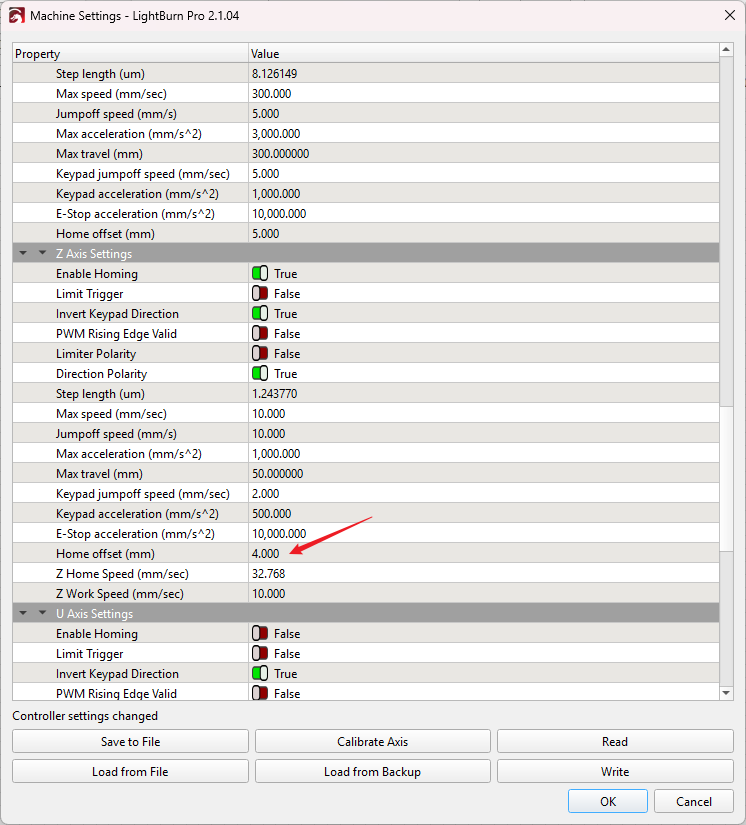 |
Manually input the default values into the respective fields and click Write to upload the config to the controller. Or you can contact ONELASER After-Sales Support to request the machine's original factory backup file. Import the backup file into LightBurn and write it to the machine.
Finally, restart the equipment, perform an autofocus cycle, and measure the nozzle-to-material clearance to confirm normal focal distance is restored.
Important Reminder:
If these steps do not resolve the issue, please submit a support ticket on ZOHO: https://zohodesk.1laser.com/portal/en/newticket. A technician will then be able to conduct a more in-depth diagnosis and resolve your problem.